

When looking for Mikrotik OIDs to do SNMP monitoring, you can issue the following CLI command:
1 | print oid |
An example would be:
1 2 3 | [admin@MikroTik] /system health> print oid
active-fan: .1.3.6.1.4.1.14988.1.1.3.9.0
voltage: .1.3.6.1.4.1.14988.1.1.3.8.0 |
I switched to a new wordpress code highlight plugin, so I had to replace the old highlight string with a new. I issued 3 SQL commands that crawled my posts and updated them.
1 2 3 | update wp_posts set post_content = replace(post_content, ‘<code lang="text">’, ‘<p lang="text" line="1">’); update wp_posts set post_content = replace(post_content, ‘<code>’, ‘<p lang="text" line="1">’); update wp_posts set post_content = replace(post_content, ‘</code>’, ‘</p>’); |
1 | replace(field_name, ‘find string’, ‘replace string’); |
Here’s the MySQL doc.
This was an apartment server we had running off of a compact flash drive. After a reboot, it didn’t come back. When we got it back in the office and on a monitor, this is the error it presented.
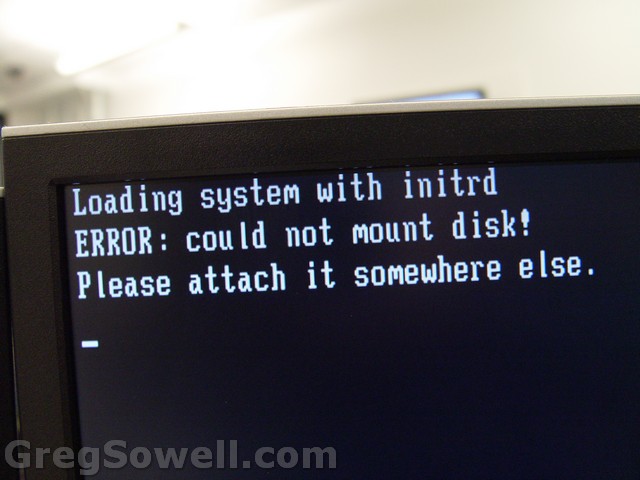
Please attach it somewhere else
Where exactly would you have me attach it? hehehehe One of my favorite error messages 😉
These guys come with a default config that includes IP/DHCP/NAT/Filter rules. To get rid of all of this in one quick pass, watch the video below.
It’s been something of a running joke; “When is Mikrotik going to make a switch?” Well, it appears as if they just did.
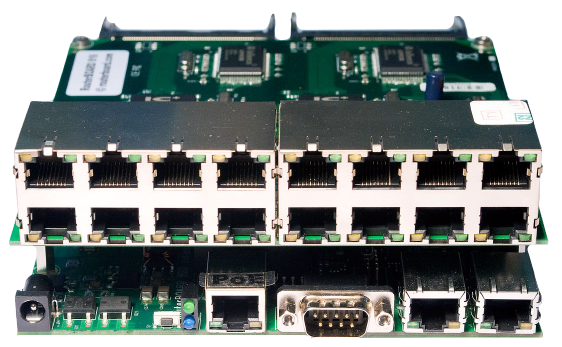
Heffe, would you say I have a plethora of ports?
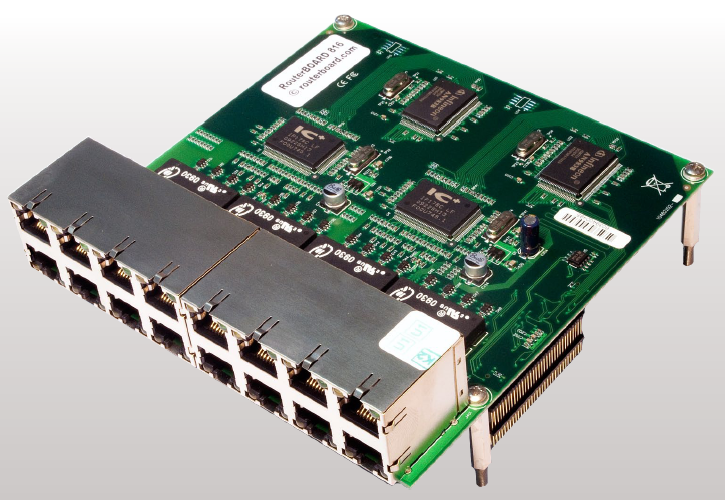
Yes El Guapo...I would say you have a plethora.
Those shots look pretty good…I’m going to assume Normis took those 😛
Any way, this will increase the RB800/600s port density to 19 ports, which is a moderate size switch. Another interesting point is that this is designed with two sets of switch ASICs so they can be set to switch in groups of 8. If you want all 16 to be on the same L2 segment, you will have to create a bridge interface or hard cable the switches together.
Looks like the intro price on these guys is going to be around mid $60s. The RB800 is around $340 and the RB600 is around $160, so this isn’t the cheapest switch out there. You can get a 24 port 2950 for around $80. If you really need the density to physically be on your MTK, this looks like a good option.

Freebies
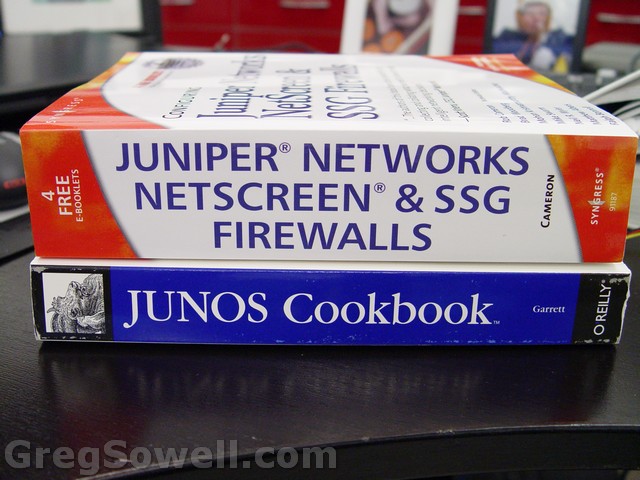
Got me a couple of books 🙂
They happened to be in the area, so they dropped by to say hello. I really enjoyed their presentation style and the Account Manager, Darian, is a pretty cool cat. I’ve always wanted to learn the Netscreens(Juniper firewall appliance), so it looks like it might be time to do it. From what I’m told, JunOS(the Juniper OS), has the firewall engine built in now. The JOS and the Netscreens are two separate animals, though. If I can get one, perhaps I’ll do a “30 days with a Netscreen.”
Security aside, the routing engine will be interesting to learn also. 🙂 They have some cool features, and I’m not sure which cover the NDA I signed, so I’ll just keep them to myself…heh. I do like the idea of a single code train that runs across all their equipment(almost all, some of their appliances run specific OSs). They do 4 major releases a year with maintenance builds in between. It also looks like you pretty much get everything with the OS, you don’t have to license every piece you want…which I think is pretty cool. I like the idea of being able to take a smaller, older piece of gear and being able to lab everything on it. Good luck building an MPLS lab with Cisco 1600s…hehehe.
*Thanks for the spelling correction Jimmy*

This class covers:
The slides are here: Mikrotik-VPN-Class (55382 downloads)
The video is around 1 hour and 15 minutes long.
Here is my sophisticated lab:
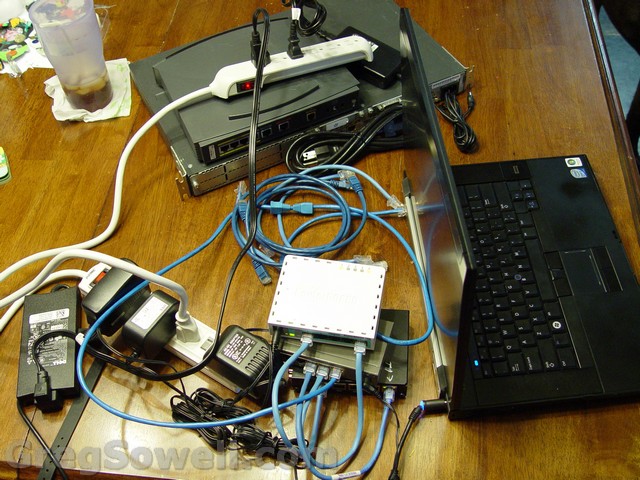
RB150, RB750, Dlink 5 port switch, Cisco 836 and a Cisco PIX 515E with V8.0.4 code.
Creating the slides for you guys...stylin and profilin 😉
A quick note on the video, I recorded it at 2 in the morning…sometimes it’s hard for me to find time. If you run into a little quiet space in the video, just chalk it up to being so late…hehehe.
And here is the video:
Using the packet flow diagram from the wiki, you can see that the src-nat operation will be performed before the packet gets encapsulated. This is why you have to do the src-nat accept for traffic that should traverse the tunnel.
One VPN topic I didn’t cover is PKI or certificate based VPN. This allows you to use a certificate instead of using a shared key for phase 1 negotiation. This one will be quite time consuming video wise, so I’m creating a separate video just for him.
I’ve got an article on IPSec or other tunneling protocols when BOTH sides have DHCP here.
If a single side has DHCP, then try this:
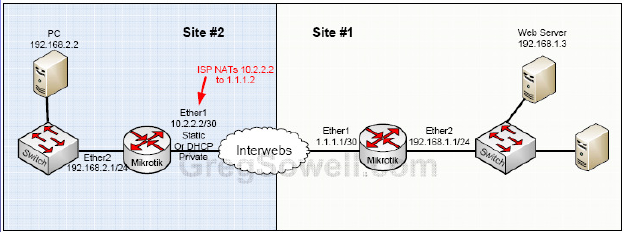
Site #2 is DHCP and Site #1 is static.
Site #1 will have peer address of 0.0.0.0 with “Generate Policy” checked. No policy is necessary (this is the same as is shown in the video and slides).
Site #2 will be configured the same as in the video, only you need to add this script:
1 2 3 4 5 6 7 8 9 | :local WANip [/ip address get [find interface="ether5"] address] :log info "Interface IP is $WANip" :local WANip [:pick "$WANip" 0 ([:len $WANip] - 3)] :log info "IP sans the slash notation is $WANip" /ip ipsec policy set 0 sa-src-address=$WANip |
Same script in command line form:
1 2 3 4 5 6 7 8 9 10 11 12 | /system script
add name=DHCP-VPN-UPDATE policy=\
ftp,reboot,read,write,policy,test,winbox,password,sniff,sensitive source=":local WANip\
\_[/ip address get [find interface=\"ether5\"] address]\r\
\n\r\
\n:log info \"Interface IP is \$WANip\"\r\
\n\r\
\n:local WANip [:pick \"\$WANip\" 0 ([:len \$WANip] - 3)]\r\
\n\r\
\n:log info \"IP sans the slash notation is \$WANip\"\r\
\n\r\
\n/ip ipsec policy set 0 sa-src-address=\$WANip" |
You will need to update the interface and the policy number to suit your needs. Schedule the script to run every 5 minutes or so.
This video covers L2TP for Windows client connections:
This video covers OpenVPN for remote offices connecting to a core:
Find the video HERE
As always, if you have any questions or comments, please leave them below. All I’m looking for is a little feedback. Also, if you enjoyed the video, consider visiting my sponsors and/or hit that donate button…I did invest a good chunk of hours building slides and recording/editing the video 😉