

This is using Trixbox as a web scheduled conference bridge for your Cisco Callmanager. As most of you CCM guys know, CCM comes with a light meet-me conference bridge; you can’t password protect in any way and there are few features. If you want to run the Callmanager conference server, you are looking at somewhere between $8K-10K. I got all of the functionality I wanted for $0! We wanted to have the ability to schedule through the web, when users call in they enter a conference #, then the users have to enter a Pin number…simple, right?
****EDIT – Since the Trixbox was so unreliable I’ve configured the same system using Elastix. See the configuration options at bottom for this configuration!****
This is done with an install of Trixbox CE 2.6.2.3 (Stable) found here. Trixbox, as you all know, is a bootable ISO that installs centos and a complete working install of asterisk and FreePBX GUI. I love it!
This install contains something called web-meetme, which is a web interface into scheduling conferences. It’s features include:
- Time Scheduling
- Reoccurring Conferences
- Configurable Conference Pin Numbers
- Conference Recording
- Monitor Users in Conference
- Multiple Users
- Simultaneous Conferences
- Join Announcements
I didn’t even burn a server to install this on, I just loaded it up on one of our VMWare servers, so we really are spending no money on the project.
Web-meetme screen shots:
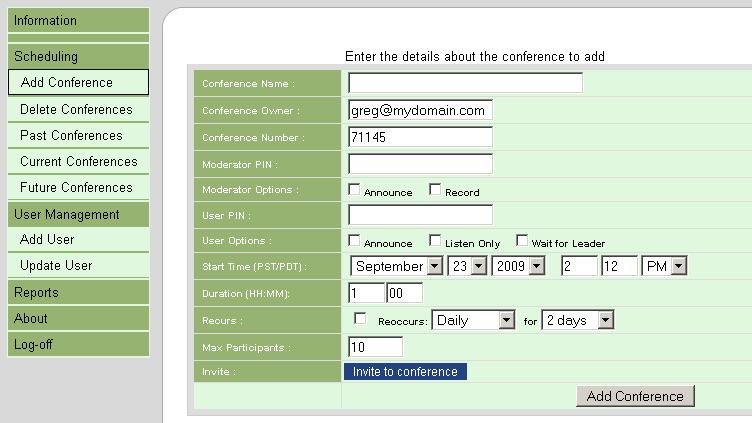
Add Conference
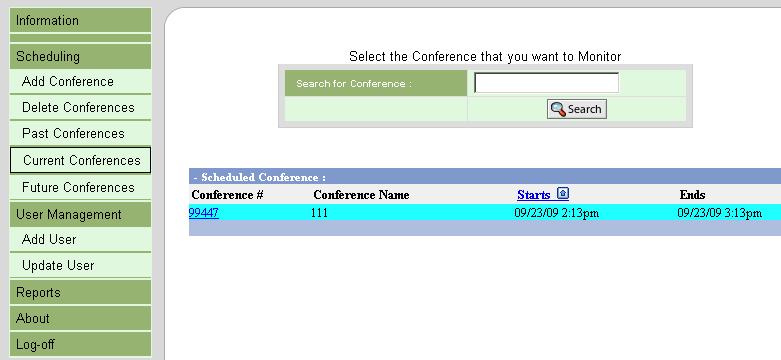
View Current Confs
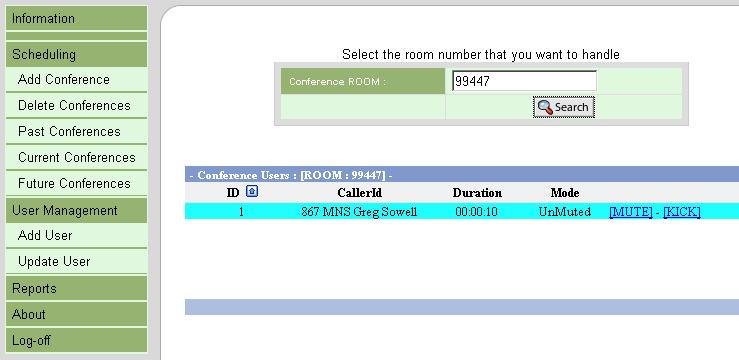
View Users in Conf
Here are the config steps I took once trixbox was installed and IPd.
Install the Misc Appliaction module:
- Enter FreePBX admin. Clicked PBX->PBX Settings
- Selected the Tools tab and clicked Module Admin (which is actually available in both the Tools and Setup tabs.
- Clicked the “Check for Updates Online” text at the top of the “Module Administration” window
- Scrolled to the “Internal Options & Configuration” section and clicked on the “Misc Applications” item…
– this expanded an instance menu below the “Misc Application” selection
– there are two options (No Action / Download and Install) - Clicked the radio button next to “Download and Install”
- Scrolled to the bottom of the window and clicked the “Process” button.
- Acknownedged that I wanted to install
- Performed the Reload
Setup Misc Destination:
- Next add a misc. destination under the tools menu in FreePBX
- Click on tools, then find misc. destinations and click on it. In the Custom Destination field enter custom-meetme3,s,1
- In the description you can enter what you like, I entered MeetMe
- I left notes blank.
- Click submit changes
Setup Misc Application:
- Find and click on misc applications
- Click on add misc application
- In the description I entered MeetMe
- in Feature code you can enter what you like, as long as it is not used by anything else, I entered 150
- Feature status should be enabled
- Under the destination section select Custom Applications: And select the misc destination name you created above, in my case MeetMe
- Click Submit Changes
Be sure to apply changes.
To fix a web-meetme security issue (allow you to view conferences and attendants), edit /etc/asterisk/phpagi.conf. You need to add the following:
- [asmanager]
- # server to connect to
- server=localhost
- # default manager port
- port=5038
- #username for login
- username=admin
- #password for login
- secret=amp111
- #user=admin
- #secret=amp111
I didn’t want my Trixbox to be able to dial out, so I didn’t add any outgoing route patterns, but you do need to configure incoming route patterns. If you leave any DID information blank, it will capture ANY incoming call and force it into the conference bridge, which is what I wanted.
Configure Incoming Route
- In the PBX settings, choose inbound routes
- Add a route
- I gave mine a description of MeetMe
- I then clicked the Custom Destination radio button and choose MeetMe
- Save then apply
I also wanted to lock down my admin pages so that only my subnet can hit the admin pages, but my entire organization can hit the web-meet me.
Edit /etc/trixbox/httpdconf/trixbox.conf
Add the following code:
- #Password protect /var/www/html/web-meetme
- Order deny,allow
- deny from all
- allow from 1.1.1.0/255.255.255.0
- allow from 2.2.2.2/255.255.255.255
You will also want to update the allow list for your existing maint and admin dirs.
The above was stolen from this link and kludged together from random others.
To get the SIP trunk from callmanager I followed the directions listed here. I’m just posting the link, since this is all in one page.
Once done, route one of your DIDs from callmanager to the sip trunk.
To get started with web-meetme, you can hit the direct link at http://serverIP/web-meetme and login with the following default accounts:
Admin,
Username:
wmm@localhost
Password:
wmmpw
Standard user:
Username:
tim@localhost
Password:
1234
There are a couple of bugs in the PHP user code. When you try and add new users sometimes they are created with null passwords. Also, the password update code is bricked. Here’s the fix:
There is a typo in one of the .php files for Web Meetme.
Edit /var/www/html/web-meetme/user_add_sqldb.php
Search for ‘userPassr’ and change ‘userPassr’ to ‘userPass’ (removing the ‘r’ on the end).
Also there is another error in Line 94 comment out $userPass = “password=’$userPass’”; and insert instead $userPass = “$userPass”;
The fix is listed here.
I also did some tweaking to the php code. There is a limitation on the number of recurring days you can set daily and weekly meetings for. I wanted to be able to schedule these things out for years! By default you can only set daily for 14 days and you can only set weekly for 26 weeks…I modified it a bit
Edit /var/www/html/web-meetme/meetme_control.php as described below:
Change this:
- for (var i = 0; i <= (recurPrd-2); i++) {
- if (recurPrd == 14){
- objForm.recurPrd.options[i] = new Option((i+2)+' days', (i+2));
- } else {
- if (recurPrd == 26){
- objForm.recurPrd.options[i] = new Option((i+2)+' weeks', (i+2));
- } else {
- objForm.recurPrd.options[i] = new Option(((i+1)*2)+' weeks', (i+2));
- }
- }
To this:
- for (var i = 0; i <= (recurPrd-2); i++) {
- if (recurPrd == 14){
- objForm.recurPrd.options[i] = new Option((i+2)+' days', (i+2));
- } else {
- if (recurPrd == 26){
- objForm.recurPrd.options[i] = new Option((i+2)+' weeks', (i+2));
- } else {
- if (recurPrd == 156){
- objForm.recurPrd.options[i] = new Option((i+2)+' weeks', (i+2));
- } else {
- if (recurPrd == 1095){
- objForm.recurPrd.options[i] = new Option((i+2)+' days', (i+2));
- } else {
- objForm.recurPrd.options[i] = new Option(((i+1)*2)+' weeks', (i+2));
- }
- }
- }
- }
Modify /var/www/html/web-meetme/lib/defines.php as follows:
Change this:
- $recurPeriod = array("14", "26", "13");
To this:
- $recurPeriod = array("1095", "156", "13");
defines.php also has some of the default values for the notification emails.
In closing, I would recommend you guys install webmin for easier system administration. In webmin, I would set the server to sync with an NTP time server, that way your conference scheduling is accurate!
If you want to do some trouble shooting, from the asterisk CLI (asterisk -r) issue the following:
- core set verbose 10
- core set debug 10
You should now be able to see most of what’s happening in call control.
ELASTIX CONFIGURATION
Elastix is an opensource PBX much like trixbox, but appears to be actively developed unlike the CE version of trixbox, which is dead. Anyway, the configuration is close, but you need to make a couple of modifications. BTW, elastix has a much prettier interface!
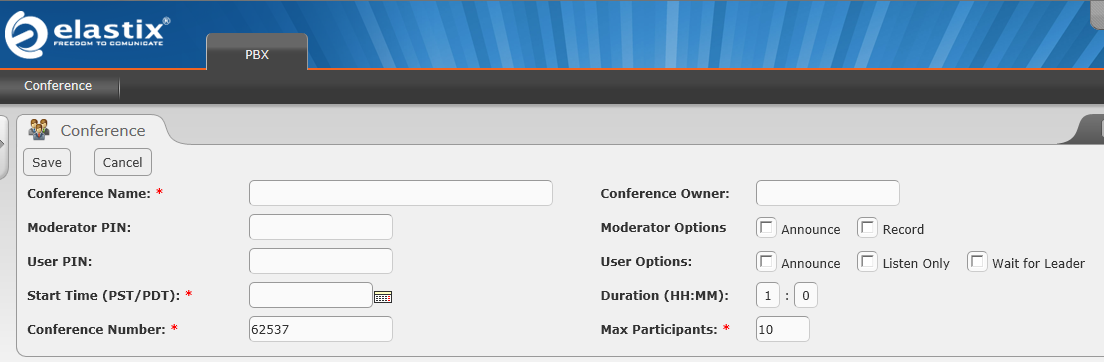
ooohhhhhh, aaaaaaaaaahhhhhhh
First we have to unembed freePBX. Here’s how:
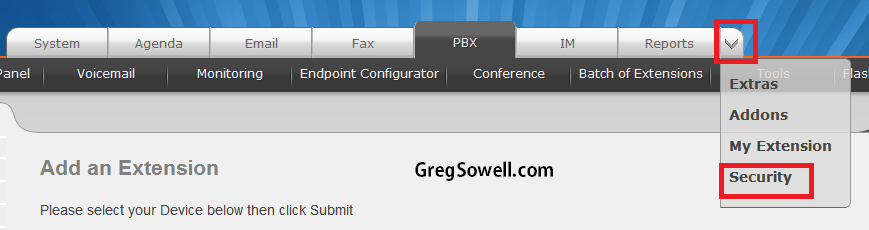
Hit the drop down and choose security.
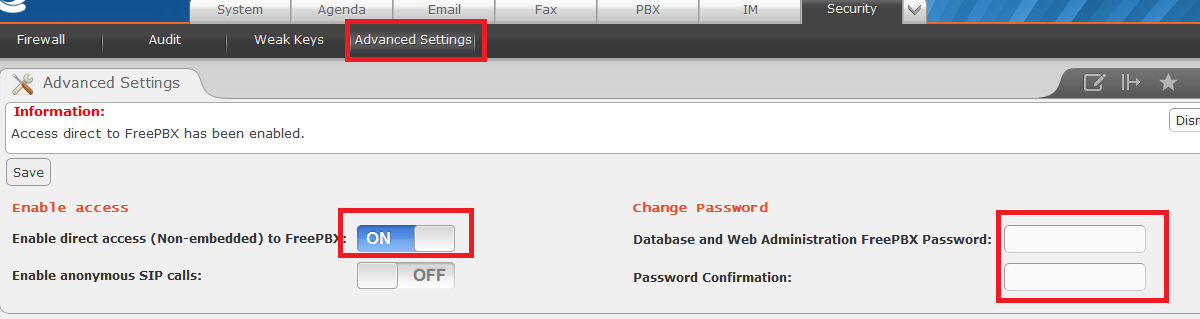
Turn on direct access to freePBX.
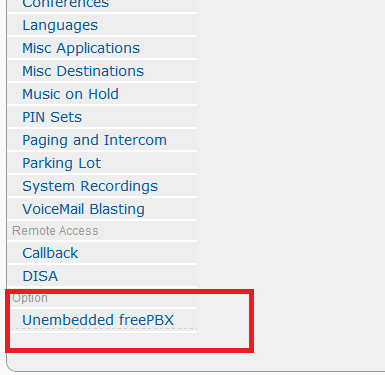
In the PBX section at the bottom click unembedded freePBX.
Once freePBX breaks out you can follow the instructions above save for having to modify any PHP code. Everything seems to be working in their code 🙂
One last thing you will need to do is edit the extension config file like so:
Edit /etc/asterisk/extensions.conf and add the following:
1 2 3 4 5 | [custom-meetme3] exten => s,1,Answer exten => s,n,Wait(3) exten => s,n,CBMysql() exten => s,n,Hangup |
Restart your asterisk services and you should be rocking and rolling!
Setting up user permissions in elastix
Elastix has fine grained control for conferencing. You can basically lock it down so users only see the conference section when they log in.
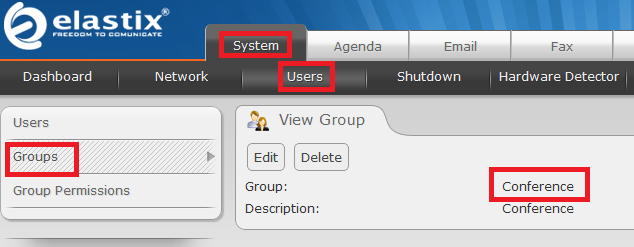
System – users – groups. Add a new group called conference.
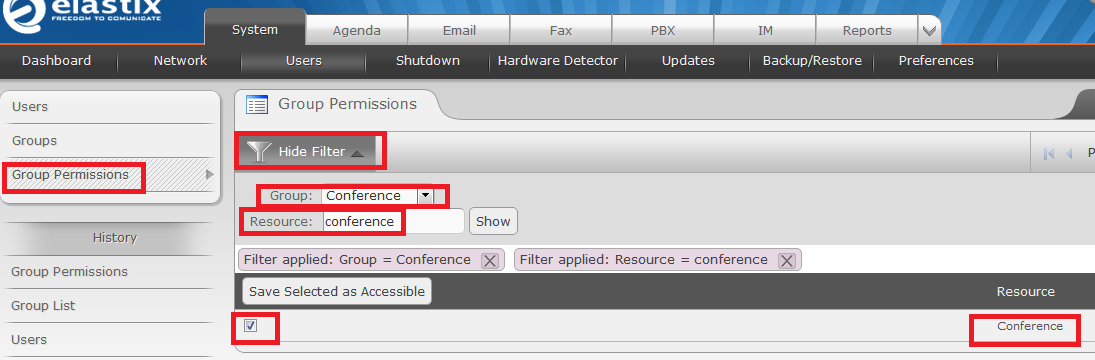
Group permissions. Hit the filter section, choose conference and filter for conference. Check the conference permission and save.
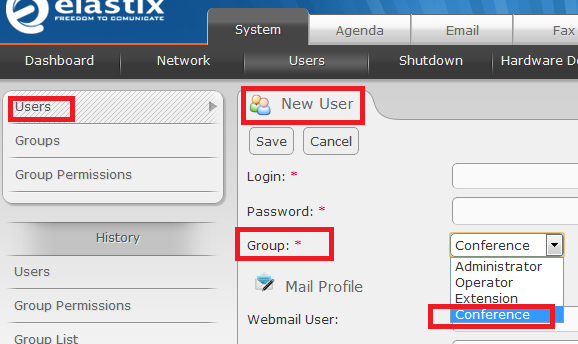
Create a new user and under group choose conference. Now the only thing they can see is conferencing!
Once you get this all setup and you add a conference, you dial in. You are prompted to type the conference #, and if you specified a Pin, it will ask you for it. Then you are joined to the bridge. If you use the announce check box, it prompts you to record your name and you are announced when you enter and leave the room.
I hope you find this useful, because I think it’s frickin cool. It is going to save us somewhere around $500 a month! Let me know what you guys think in the comments. Also as I make adjustments, I’ll add them to this page.
Met some of the Latvian’s so far, Normands is a pretty cool cat. He commented on my blog a while back on the 450G BGP testing.
Hardware updates:
- The RB750s will be coming out with a wireless version.
- The RB750s will also be coming out with a gigabit version.
- The RB1000 will be coming out with a new version that has more ports.
- A note on the 411R is that not only do they not have a serial port, but they don’t have a power plug either…these guys are PoE only!
Usermanager new features in V4 of the OS:
- You can change the logo…brand it as your own.
- Edit the menus so that you can show as many or as few of the options as you want. This will help to lower confusion for non technical users.
- COA feature allows you to boot users from within usermanager
- Profiles – Create multiple bandwidth profiles
- Flexible database backup/restore
- Logs – single click clear and store as a separate file
In development for usermanager:
- Paypal/authorize.net integration
- Payment API so you can integrate your own payment backend
- User can login and check his balance or how much money he has left in the system
- Better user reporting.
So you have multiple sites that all have internet connections. You want to securely connect the internal subnets together…how would one accomplish this? You would use an IPSEC tunnel. Imagine it as a nice secure pipe that connects one site to the other. This tutorial will show you just how this configuration is accomplished. Use the below diagram as a reference to the video.
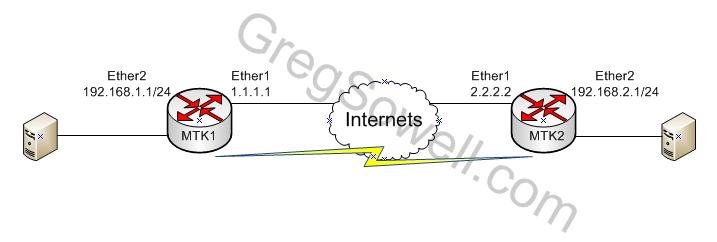
Lan to Lan Diagram...that rhymes 😉
Click the link below to see the VIDEO!
read more…
I snagged the callman test today. I wasn’t terribly worried, because I studied pretty thoroughly, but…I always get nervous. I find that if I chew gum during the test, it helps a LOT. I usually like to take the test first thing in the morning, that way I’m not thinking about it all day…hehe. I actually took the test at an air port…strangely enough. They have a flight school that is Pearson-view. I’m not actually going for the CCVP, I’ve just been doing a good deal of callmanwork, so why not go ahead and snag the test? I’m a glutton for punishment, what can I say…heh.
Lets say we have a company that has several locations. They are about to all move into a new building, the majority of these users will be in a cube farm. All of the users will be within 280′ of your IDF. Each user is getting two ports, and you want them both to be hot for phone or for data. They will also be using Cisco IP phones, so we want PoE. This all works out to be about 298 ports. How would you go about aggregating all of these users?
Most people, I believe, will think, “Just put in a bunch of switches.” Indeed, this method works. There are some down sides to this. For one, you would require seven 48 port PoE switches. Each switch will run you $1850 for a 48 port 3560 PoE(WS-C3560-48PS-S) with a total of $12950. To save money you can get fourteen 24 port PoE 3550s (WS-C3550-24PWR-SMI) which cost $380 each for a total of $5320. On top of this you are looking at a beefy set of UPSs to power all of this gear. We want to have PoE power on our phones for at least 20 minutes in case of failure. The 3560s could be powered by a single triplite(SU6000RT4U
) which will run you around $3000, though the 3550s will most likely run you 2 UPSs. Beyond all of this, you have 7 or 14 switches that you have to interconnect, maintain and secure. The administrative burden gets somewhat high and should also be factored into the cost. Now, I’ll tell you what I would do in this situation.
I would choose to go with a larger chassis based system. A Cisco 6509 fits the bill quite well. My build is below:
- WS-C6509 – chassis – $350
- WS-C6K-9SLOT-FAN2 – fan tray – $299
- 2 WS-CAC-2500W – power supplies – $410 each
- 2 CAB-7513AC – power cables – $20 each
- 7 WS-X6348-RJ45V – 48 port PoE line cards – $75 each
- WS-C6X09-RACK & CK-CRSHELF – rack mount kit – $80
As for supervisor choice, you have a couple of options. I wanted to be able to do extensive layer 2 security, so I went with a sup32. If you aren’t concerned about securing layer 2, which you should be, you could simply use a sup2 which is MUCH cheaper.
- WS-SUP32-GE-3B – sup32, my choice – $2500
- OR
- WS-X6K-S2U-MSFC2 – sup2, which I wouldn’t recommend because of it’s limited security – $530
So, for my system you are looking at a total of about $4650. You would also want the SU6000RT4U UPS which can maintain our chassis for the allotted 20 minutes. You’ve consolidated down to a single device, you’ve saved money and you now have a higher level of redundancy. If you wanted, you could slap a second supervisor in the chassis and you would bring the redundancy up even higher!
If you would like to know where I got my pricing, I used Teksavers and CablesAndKits which are both reputable distributors.
I have a following article that will show you how I plan to secure these devices, so keep checking back.
CactiEZ by default runs a backup script nightly. It dumps these files into a folder. All we have to do is configure our CactiEZ box to send those files elsewhere.
Backup location is /var/www/backup.
The backup script itself is /var/www/backup.sh. I modify the backup script as below:
1 2 3 4 5 6 7 8 9 10 11 12 13 14 15 16 17 18 19 20 21 22 23 24 25 26 27 28 29 30 31 32 | #/bin/bash
cd /var/www/
# Remove old backups
find /var/www/backups/* -mtime +5 -exec rm -fr {} \; > /dev/null 2>&1
# Remove old RRAs (usually means the datasource is deleted)
find /var/www/html/rra/* -mtime +2 -exec rm -fr {} \; > /dev/null 2>&1
# Create the filename for the backup
eval `date "+day=%d; month=%m; year=%Y"`
INSTFIL="cacti-backup-$year-$month-$day.tar.gz"
# Dump the MySQL Database
mysqldump -uroot --opt cacti> html/cacti-backup.sql
mysqldump -uroot --ignore-table=syslog.syslog --ignore-table=syslog.syslog_incoming --opt syslog> html/syslog-backup.sql
cp /var/www/backup.sh /var/www/html/backup.sh
cp /etc/sysconfig/iptables /var/www/html/iptables
cp /etc/sysconfig/network /var/www/html/network
cp /etc/sysconfig/network-scripts/ifcfg-eth0 /var/www/html/ifcfg-eth0
# Gzip the whole folder
tar -Pcpzf backups/$INSTFIL html/*
# Remove the SQL Dump
rm -f html/cacti-backup.sql
rm -f html/syslog-backup.sql
rm -f html/backup.sh
rm -f html/iptables
rm -f html/network
rm -f html/ifcfg-eth0 |
The above script adds:
– backup of the script itself
– modifies the syslog database backup so that it only gets our alerts and removals
– backs up the iptables rules
– backs up the eth0 interface configuration
Now for the video tutorial, click the link below!
I had a server crash, so I’ll be putting everything back in over the next week or so. I wouldn’t expect any new content for a while…hehe. I’m thinking everything is going to be out of order, but it should all get back in there…well, the interesting bits anyway 😉