

So I got a comment about a netflow collector a while back called scrutinizer by a company called plixer. This looks like a decent enough product, but that’s not what caught my eye. They had a link to some videos by “Mix Master Mitch”. This is some of the most painfully embarrassing IT stuff I’ve seen for a while. Be dazzled by Mitch’s dope raps.
This is the “netflow rap”. As you can see Mitch is developing his rap chops. Word.
Here you can see that Mitch has now established himself as a gangsta. All he needs to complete this video is a bottle of liquor and some big booty girls.
So, for our final installment, we have the 6509 export rap. This does actually have higher production value both in video quality and soundtrack. I’m still looking for the big booty girls, though. Also at 2:30, I swear that is a Glade air freshener stuck to the front of their rack…hehehe.
I found this great cheat sheet a while back. It has tips on trixbox specifically and asterisk in general.
NTOP is a netflow collector, or it can be used to promiscuously sniff on a port.
I do prefer flow viewer, but for those of you that prefer an easier, friendlier interface, here’s how you install NTOP.
Set your repository up for dag:
1 | rpm -Uhv http://apt.sw.be/redhat/el4/en/i386/rpmforge/RPMS/rpmforge-release-0.3.6-1.el4.rf.i386.rpm |
Then install ntop:
1 | yum install ntop |
You will need to setup an admin password:
1 | /usr/bin/ntop |
It will prompt you for the admin password, go ahead and assign it.
Then make an allowance in your firewall for port 3000:
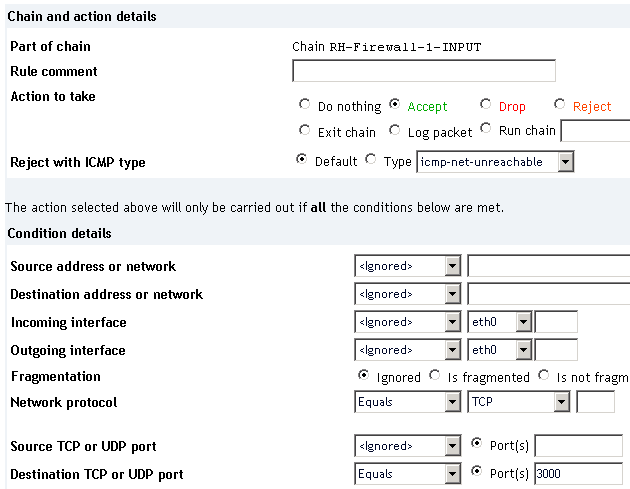
Using webmin add tcp 3000
Be sure to apply those firewall changes.
Edit /etc/init.d/ntop as follows:
Change
1 | daemon $prog -d -L @/etc/ntop.conf |
to
1 | daemon $prog @/etc/ntop.conf -d -L |
Issue the below to start ntop:
1 | service ntop start |
Browse to http://cactiIP:3000. Then configure your startup settings using username admin and whatever password you set above.
I’m dumping netflow, so I went to plugins -> netflow and enabled it.
I then configured a netflow interface.
I then switched the listening NIC to that netflow interface.
Following this I set my router to dump the netflow to my server:
1 2 3 4 5 6 7 8 | router-(config)#interface FastEthernet 0/1 router-(config-if)#ip route-cache flow router-(config-if)#exit router-(config)#ip flow-export destination 192.168.0.2 2055 router-(config)#ip flow-export source FastEthernet 0/1 router-(config)#ip flow-export version 5 router-(config)#ip flow-cache timeout active 5 router-(config)#ip flow-cache timeout inactive 300 |
Be sure to add the cache flow command to all interfaces that data moves in and out on. The netflow info is only generated incoming into the interface.
Done.
The following is covered:

It took me 3 months to knock this out…I’ve been busy, what do you want from me? hehe ;P
This video covers:
Here are the class slides: Mikrotik Routing Slides (31213 downloads) .
Here’s the audio version of the presentation: MTK-Routing-MP3 (16485 downloads) I’ve got it at 64kbps, so the audio isn’t hifi, but it cuts the file down to about 65MB!
Here’s my mobile lab…6 RBs in a grocery sack…hehehe.
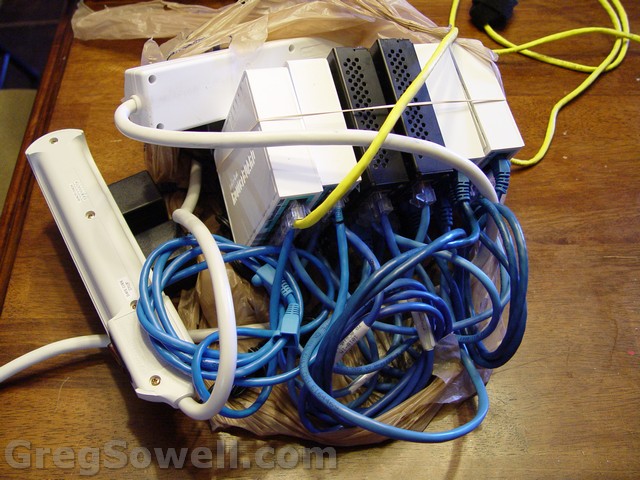
I picked this up in the produce section, right next to the oranges.
This video is a little over 2 hours long and I love to ramble so good luck…heh We also have a new kitten that attacks me a couple of times in the video, so disregard that if you can…I was already too far along in the video to stop and start over.
*#!*#!*#!*#!*#!*#!*#!*#!*#!*#!*#!*#!*#!*#!*#!*#!*#!*#!*#!*#!*#!*#!*#!*#!
Here is a link to my Multi-homed BGP presentation!
*#!*#!*#!*#!*#!*#!*#!*#!*#!*#!*#!*#!*#!*#!*#!*#!*#!*#!*#!*#!*#!*#!*#!*#!
I know this isn’t really the usual technical article that I post, but this site is pretty, well, amazing. I’ve watched some amazing dancers, heard an Indian artist tell his story and even listened to an autistic woman speak about how her mind works like google images. All of it is free and most of it is less than 30 minutes.
TED.Com
Thanks to Normands for buzzing a link to a talk which ultimately got me browsing this site.

Modern enterprise networks often span provider networks, be it IPSec tunnels through the internet or a leased MPLS connection. If one is experiencing problems, how can you definitively diagnose these issues? There are few tools cheaper and more effective than using Cisco’s IP SLA ( IP Service Level Agreement), formerly SAA and RTTMON.
In a nutshell IP SLA is a service that runs between two Cisco routers. This service generates statistics on:
For my purposes, I use Jitter most frequently. A common scenario would be to test line quality between IPSec connected locations.
So what will we need?
For the Cacti install, I always use CactiEZ.
For my Cisco routers I usually use whatever I can find, generally the cheaper the better. I’ve got some 1700s from Ebay for $8 each. I just recently grabbed some 836s from Cables and kits for $4.80 each!
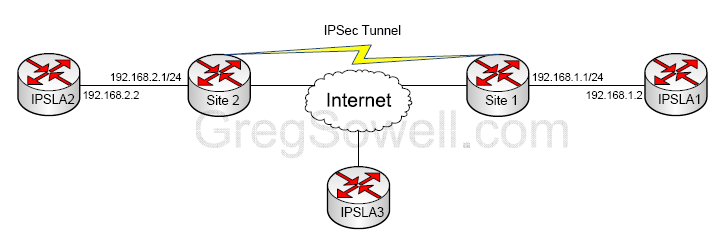
Here’s our diagram.
See the way the light glistens off the shimmering surface of the router...
So this setup shows two sites that connect with an IPSec connection. Our users have been seeing what they think is packet loss causing tunnel problems. The ISPs at both locations claim they are having no issues. You are currently graphing the internet bandwidth on both WAN interfaces via your cacti box and you see that you aren’t maxing out your bandwidth. Sooo, it looks like you are having packet loss within one of your ISPs, but how can you prove it?
What we do is put an IPSLA probe in both locations and one at a neutral location. We configure SLA server to run on each router, which accepts SLA probe connections. We then configure all sites to probe each other, and add it to cacti.
Soooo, if we get packet loss from a single site to all other locations, then we know which ISP to call. On top of that, we will have graphical proof that we can send to the ISP to help prove our point 🙂
IPSLA1
Setup the jitter probe and have it hit SLA2 every 5 minutes. The frequency is set in seconds.
1 2 3 4 | ip sla monitor 1 type jitter dest-ipaddr 192.168.2.2 dest-port 10000 frequency 300 ip sla monitor schedule 1 life forever start-time now |
IPSLA2
Setup IPSLA2 to respond to the queries.
1 | ip sla responder |
Add your graph in cacti and awaaaaaay you go.
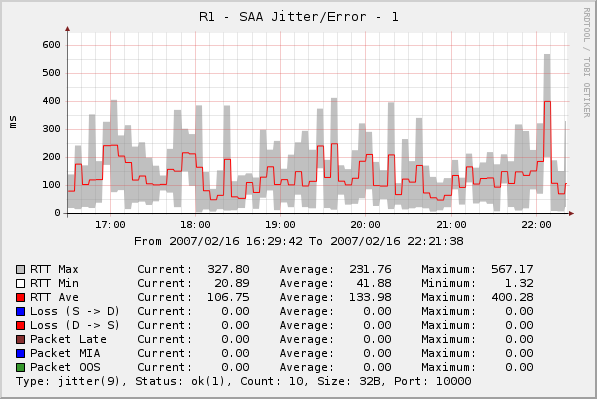
wwwweeeeeeeeeeeee