
Zero Touch Provisioning(ZTP) is the dream for network engineers, is it not? The idea is you take a fresh out of the box switch(or one that has had its configuration scrubbed), plug it in, then it is auto provisioned. There are ZTP procedures for every major switch vendor from Arista, Cisco, Juniper, and on. Each of these seems to be fairly similar in flow. I’m going to show you the simple steps I followed to do this with Arista kit.
Video Demo
Basic Flow
This is the basic order of operation.
1. Plug in a new switch and power it on.
2. The switch sends a bootp query that asks for an IP.
3. The DHCP/Bootp server will return an IP address and also send an option 67 message with the path to a base configuration file for the switch.
4. The switch will then pull the base config from some source: TFTP, SFTP, FTP, HTTP, HTTPs.
5. The switch loads the config and reboots.
6. In the base config I placed a simple script that will call the Ansible Automation Platform(AAP)’s API with a curl command. Curl is just a command line web browser. In the request I send over the IP address of the switch.
7. AAP will then connect to the switch and lookup its serial number.
8. AAP will use that serial number to determine what config options should be set for this device, connect to the switch, make all of the proper adjustments, and save the settings.
The whole process completes in less than 7 minutes…which is pretty crazy.
DHCP/Bootp Configuration
My lab router that runs all of my infrastructure is a Mikrotik router. This device will act both as my DHCP/Bootp server(to hand out an IP and point towards the initial config file) and act as a TFTP server(to hand out the initial config files).
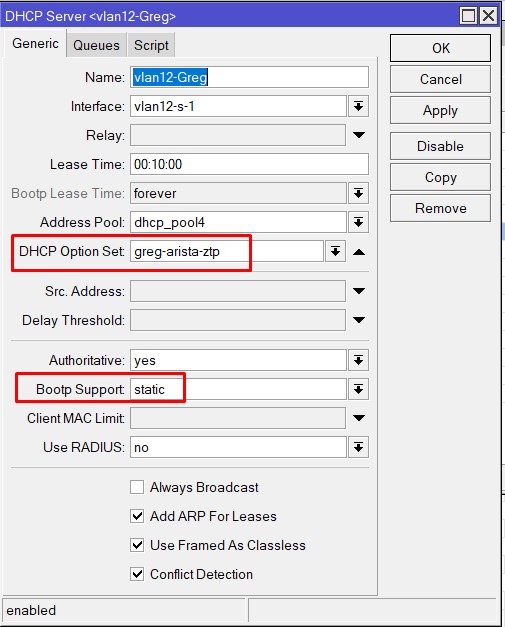
So I really just enalbe Bootp and then add DHCP option 67 as follows:
Configure DHCP server:
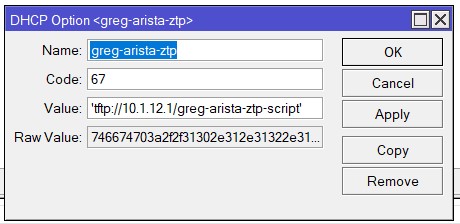
Setup option 67(you can see that I’ve configured it to use TFTP). Keep in mind that you need to put single quotes around this string or it will fail:
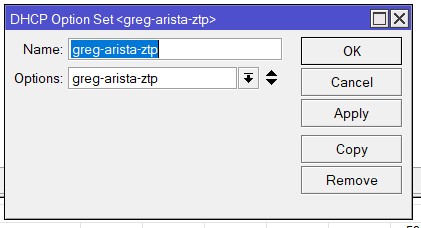
Last I put in the option group associated with this specific option:
TFTP Initial Configuration Script
Here’s a copy of my initial config script:
1 2 3 4 5 6 7 8 9 10 11 12 13 14 15 16 17 18 19 20 21 22 23 24 25 26 27 28 29 30 31 32 33 | ?!
hostname provision-me
ip name-server vrf default 8.8.8.8
!
! ntp server <NTP-SERVER-IP>
!
username admin privilege 15 role network-admin secret lab
!
interface Management1
ip address 10.1.12.99/24
!
ip access-list open
10 permit ip any any
!
ip route 0.0.0.0/0 10.1.12.1
!
ip routing
!
management api http-commands
no shutdown
!
! banner login
! Welcome to $(hostname)!
! This switch has been provisioned using the ZTPServer from Arista Networks
! Docs: http://ztpserver.readthedocs.org/
! Source Code: https://github.com/arista-eosplus/ztpserver
! EOF
!
event-handler callaap
trigger on-startup-config
! For default VRF, make sure to update the ztpserver url
action bash export SYSIP=`FastCli -p 15 -c 'show run int management 1 | grep -Eo "[0-9]{1,3}\.[0-9]{1,3}\.[0-9]{1,3}\.[0-9]{1,3}"'`; curl -f -k -H 'Content-Type: application/json' -XPOST -d '{"extra_vars": "{\"host_ip\": \"'$SYSIP'\"}"}' --user MyUser:MyPassword https://10.1.12.34/api/v2/job_templates/146/launch/
end |
Taking a look at the script above, it sets the device on the management subnet of that local network. This script will need to be configured differently(IP address wise) depending on what site you have it configred on. This could easily be done via automation and a jinja2 template.
The real important bit here is the event-handler right at the end named “callaap”.
This script is triggered to run at config startup. So once the switch pulls this config it will reboot the switch. Once the switch comes back online it will then execute this script.
Breaking the script down it first figures out the management IP and saves that to a variable. It then calls the AAP API and fires off a job template(it additionally passes over the management IP to AAP in this call). It does this API call with a simple curl command!
AAP Configuration/Playbooks
I’m not going to detail every single playbook, as they are mostly duplicates of each other. I am, however, going to break down three of them. Allllll of the files can be found here in my public github repo.
arista-ztp.yml playbook:
1 2 3 4 5 6 7 8 9 10 11 12 13 14 15 16 17 18 19 20 21 22 23 24 25 26 27 28 29 30 31 32 33 34 35 36 37 38 39 40 41 42 43 44 45 46 47 48 49 50 51 52 53 54 55 56 57 58 59 60 61 | ---
- name: zero touch provisioning for an Arista host
hosts: provision_host
gather_facts: false
vars:
host_ip: 1.1.1.1
tasks:
- name: set new ansible host via passed variables
ansible.builtin.set_fact:
ansible_host: "{{ host_ip }}"
- name: gather facts on host
arista.eos.eos_facts:
gather_subset: hardware
register: provision_facts
- name: loop through hosts in inventory looking for matching serial number
when: hostvars[item]['serial'] == provision_facts.ansible_facts.ansible_net_serialnum
ansible.builtin.set_fact:
new_host: "{{ item }}"
loop: "{{ groups['all'] }}"
- name: set stats so the hostname will be passed between workflows
ansible.builtin.set_stats:
data:
stat_host: "{{ new_host }}"
- name: provision the found switch
hosts: "{{ hostvars['provision_host']['new_host'] }}"
gather_facts: false
vars:
secret_password: lab
# figure out the default gateway based on switch IP
default_gateway: "{{ int_ip | regex_search('\\b(?:[0-9]{1,3}\\.){3}\\b') }}1"
tasks:
- name: set new ansible host via passed variables
ansible.builtin.set_fact:
int_ip: "{{ hostvars[inventory_hostname]['ansible_host'] }}"
ansible_host: "{{ host_ip }}"
- name: place the template config file on the host
arista.eos.eos_config:
lines: "{{ lookup('template', 'arista_config.j2') }}"
replace: block
ignore_errors: true
- name: connect into new switch and save
hosts: "{{ hostvars['provision_host']['new_host'] }}"
gather_facts: false
vars:
tasks:
- name: reset ip for host
ansible.builtin.set_fact:
ansible_host: "{{ int_ip }}"
- name: save to startup config
arista.eos.eos_command:
commands: copy running-config startup-config |
In my inventory I have a host setup with a bogus ip named “provision_host”. This gives me a target for my “hosts” section in my playbook. The very first task just resets this host’s IP to the IP address that was passed via the API when the basic config script makes its call. I then connect to the switch, gather facts from it, loop through my inventory looking for a matching serial number, once I do, I set a variable to the proper name for the new switch. I’m going to use this to not only set the hostname on the switch, but also it will be used in the “hosts” section of following plays.
The second play in the above playbook sets the hosts field to the name of the host we just discovered in the inventory. It then parses the IP address and builds the default gateway from it(takes the first three octets and adds a 1 to the end). I next use the switch template to blast on some new settings based on the info pulled from the inventory.
Last play connects in and saves the config. It has to reconnect in because I’ve updated the switch’s IP, so I need to reconnect and finish the save.
After this I run all of my infrastructure as code playbooks to finish filling out the configs. I do this by creating a simple workflow:
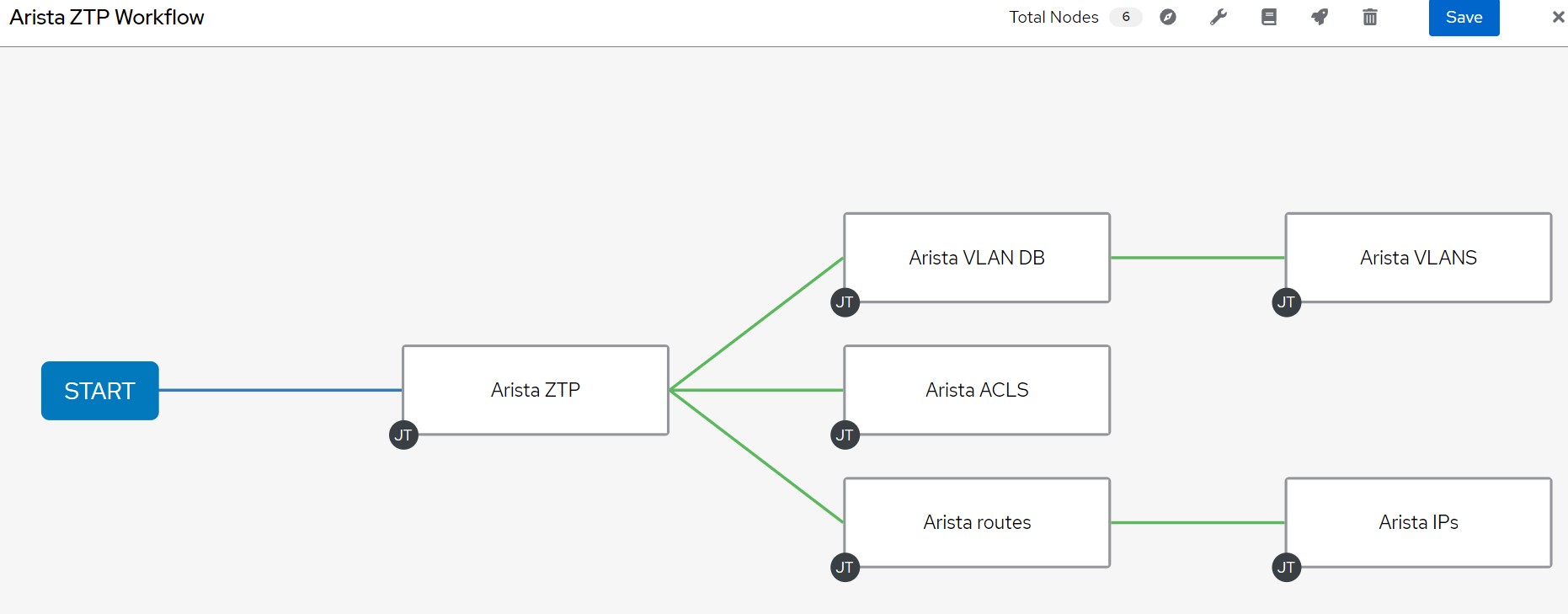
The cool thing about a workflow is that I can run things easily in parallel if I like, which means configuration happens faster.
I’m going to break down a couple of the playbooks as there are different ways to accomplish similar tasks.
arista-vlandb.yml
1 2 3 4 5 6 7 8 9 10 11 12 13 14 15 16 17 18 19 | - name: configure vlan db on aristas
hosts: "{{ stat_host }}"
gather_facts: false
vars:
tasks:
- name: parse the vlandb config
arista.eos.eos_vlans:
running_config: "{{ lookup('file', 'configs/' + inventory_hostname + '-vlansdb') }}"
state: parsed
register: parsed_config
- name: set vlans based on file settings
arista.eos.eos_vlans:
config: "{{ parsed_config.parsed }}"
state: overridden
- name: save to startup config
arista.eos.eos_command:
commands: copy running-config startup-config |
In this one, and most of the remaining playbooks I use the awesome “parsed” feature built into the modules. What it does is take a standard CLI config, parses it into a YAML data model. I store that data model into a variable in memory, then turn around and push that back into the module. It’s a simple way to take standard CLI and push it into your kit. Below is an example of using a data model for your configuration.
arista-vlans.yml
1 2 3 4 5 6 7 8 9 10 11 12 13 14 15 16 17 18 19 20 21 22 23 24 25 26 27 28 29 30 31 32 33 34 35 | - name: configure vlan db on aristas
hosts: "{{ stat_host }}"
gather_facts: false
vars:
tasks:
- name: pull in config file
ansible.builtin.include_vars:
file: "configs/{{ inventory_hostname }}-vlans.yml"
- name: Configure trunk ports
when: item.mode == "trunk"
arista.eos.eos_l2_interfaces:
config:
- name: "{{ item.int }}"
mode: trunk
trunk:
native_vlan: "{{ item.native | default(omit) }}"
trunk_allowed_vlans: "{{ item.trunk_allowed | default(omit) }}"
state: replaced
loop: "{{ vlans }}"
- name: Configure access ports
when: item.mode == "access"
arista.eos.eos_l2_interfaces:
config:
- name: "{{ item.int }}"
mode: access
access:
vlan: "{{ item.access_vlan }}"
state: replaced
loop: "{{ vlans }}"
- name: save to startup config
arista.eos.eos_command:
commands: copy running-config startup-config |
In this playbook I pull in a data model from a file named HOSTNAME-vlans. This gives me the variables that I place into the playbook. I distinguish between a trunk port and a non trunked port so I know how to appropriately place said variables. Last step I save the config.
My AAP Inventory
In the variables section of the inventory I have a few common settings configured:

My inventory consists of three hosts. These could easily be sourced from a CMDB like ServiceNow.
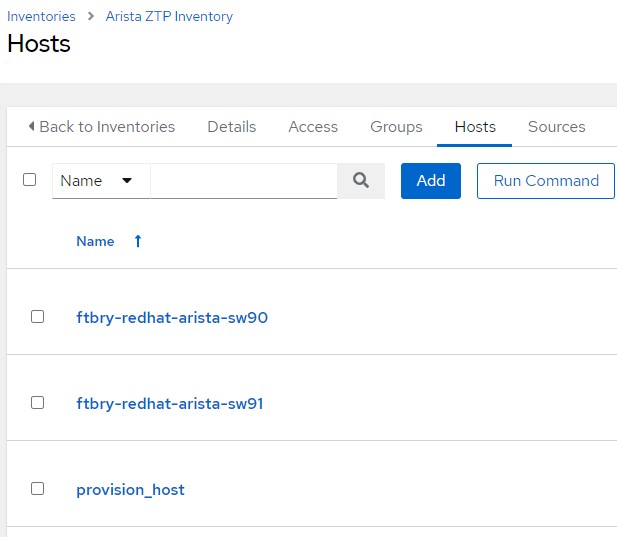
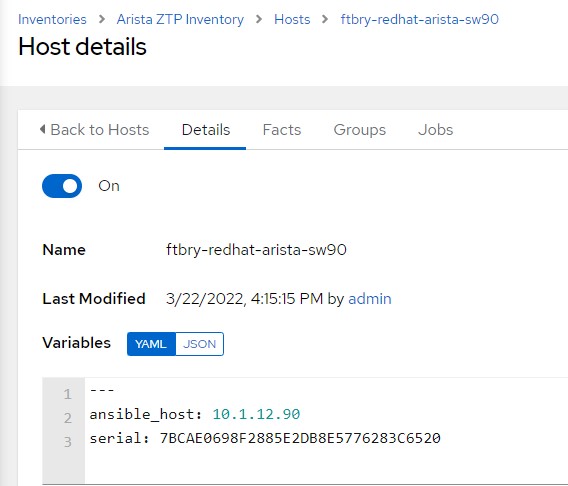
Last here you can see how I have an the IP address configured as well as the designated serial number for each switch.
Conclusion
This is a really awesome way to deploy a LOT of kit quickly. With this process even fairly non-technical folks should be able to deploy a lot of kit on their own.
I also really enjoy the infrastructure as code approach taken here. The idea that all of your configuration can be done via config files in your code repository is something of a game changer. If I want to add a VLAN, I don’t login to the switch, rather I update the config in the repo, and have my automation push the changes. This way I can have a full audit trail with revision history on all changes(allowing other engineers to approve the changes).
If you have any questions or comments, I’d love to hear them. Good luck, and happy automating!


This week we have Greg and Nick Arellano. Zoom FTW bruh.
**Sponsors**
Sonar.Software
Towercoverage.com
**/Sponsors**
This week we talk about:
7.2RC5 *) bgp – added BGP advertisements display (requires output.keep-sent-attributes to be set);
Arista purchasing untangle
What is Greg automating – AWS inventory and Arista ZTP
ICANN refusal of services suspension Russia
Suspension of services for Russia LINX
Russian creates its own certificate authority
Cogent pulled out of russia – pulled IP space too
Lumen pulled out of russia
Govt sanction notes
Documentation written vs video
Here’s the video:(if you don’t see it, hit refresh)

This is a quick demonstration on pulling AWS hosts into the Ansible Automation Platfrom(AAP) controller. The beautiful part of the process is just before I execute a piece of automation, controller will reach out to AWS and refresh the inventory so that I always have the freshest/tastiest hosts. I also demonstrate granular host filtering and automatic group creating/assigning of hosts to groups. While I do show filtering and group assignment based on tags I also explain what other options are available.
Video Demonstration
AAP Configuration
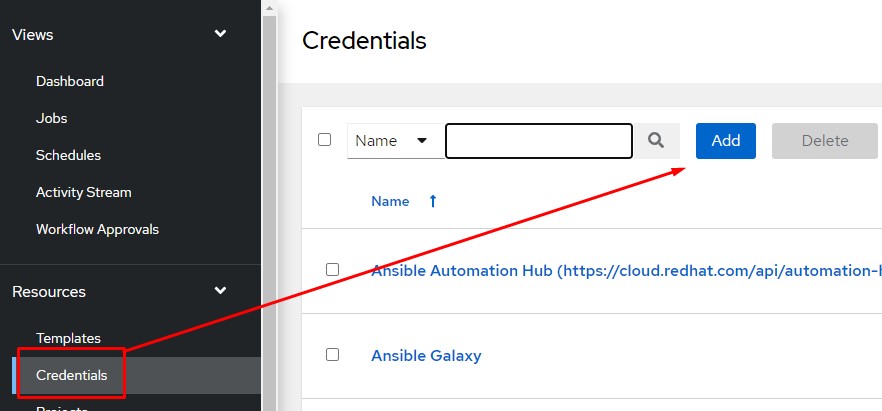
First create a credential for your EC2 instance:

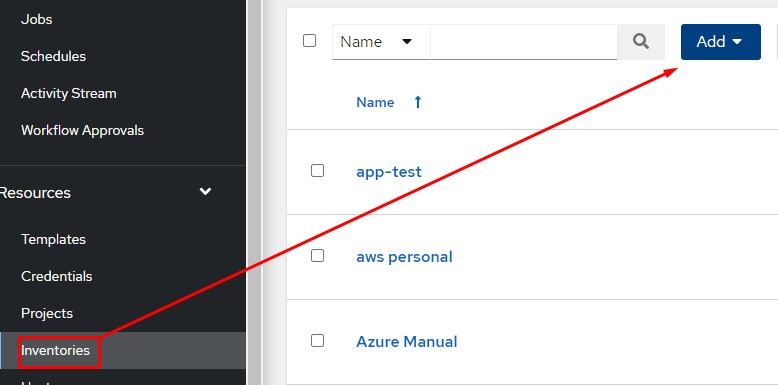
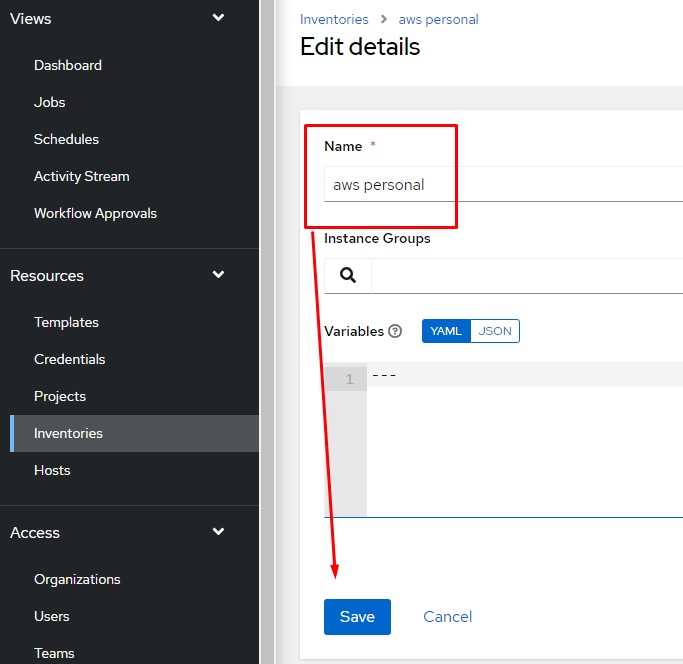
Next create a standard inventory:
After that I need to add an inventory source:
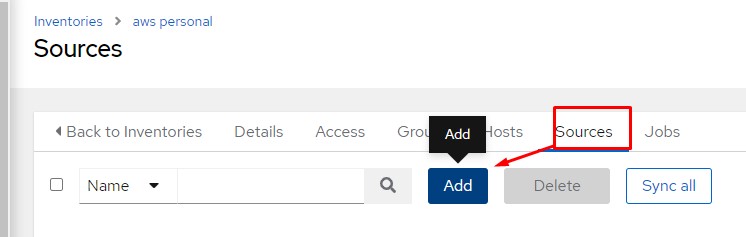
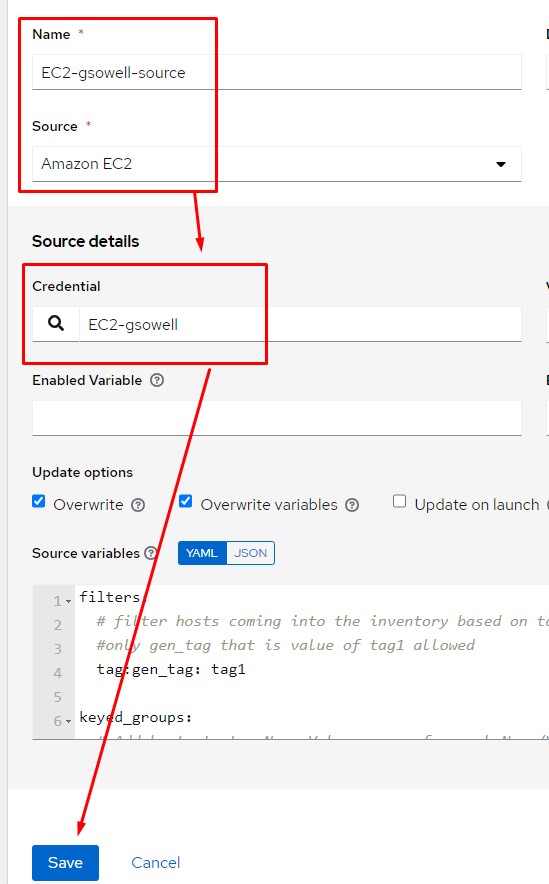
Notice that I choose source of Amazon EC2, then selected the credential I created in the first step. Technically at this point I’m done and can syncronize all hosts that the account has access to.
Additional options on inventory source:
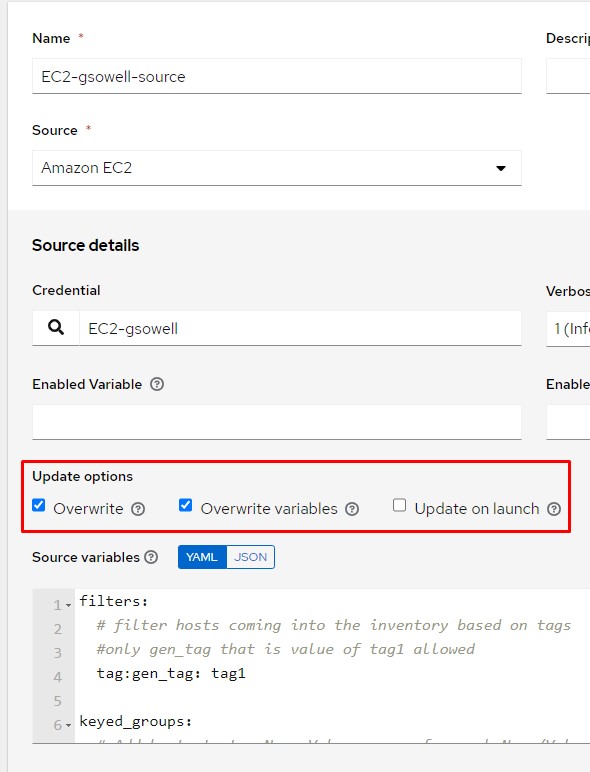
There are three options here, and I’d recommend checking all three of them.
Overwrite will make sure that the AAP inventory always matches the AWS inventory. When this option is set; if AAP has 10 hosts, and AWS only has 9 hosts, AAP will delete the one host that doesn’t match in its own inventory.
Overwirte variables will make sure that all variables and subsequently groups in the local inventory are kept in parity with what lives in AWS.
Update on launch will fire off this synchronization before any piece of automation runs that utilizes this inventory. That way the inventory will always be updated with the most recent revision of hosts.
Automatically Creating Groups Inventory Source
Groups can be automatically created on synchronization via the source variables section using keyed_groups:
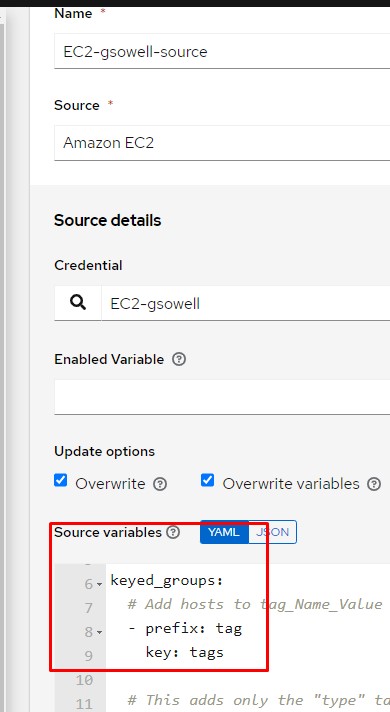
Documentation can be found here, but may be a little confusing.
When a host is imported, a whole slew of variables are brought along with it; here’s an example of one of my imported hosts:
1 2 3 4 5 6 7 8 9 10 11 12 13 14 15 16 17 18 19 20 21 22 23 24 25 26 27 28 29 30 31 32 33 34 35 36 37 38 39 40 41 42 43 44 45 46 47 48 49 50 51 52 53 54 55 56 57 58 59 60 61 62 63 64 65 66 67 68 69 70 71 72 73 74 75 76 77 78 79 80 81 82 83 84 85 86 87 88 89 90 91 92 | ami_launch_index: 0
architecture: x86_64
block_device_mappings:
- device_name: /dev/sda1
ebs:
attach_time: '2022-03-11T14:40:37+00:00'
delete_on_termination: true
status: attached
volume_id: vol-0cc2c8c8193b42222
capacity_reservation_specification:
capacity_reservation_preference: open
client_token: ''
cpu_options:
core_count: 1
threads_per_core: 1
ebs_optimized: false
ena_support: true
enclave_options:
enabled: false
hibernation_options:
configured: false
hypervisor: xen
image_id: ami-0b0af3577fe5e3222
instance_id: i-08ed2eb8bc27a6222
instance_type: t2.micro
key_name: aws-ec2-personal
launch_time: '2022-03-11T14:40:36+00:00'
metadata_options:
http_endpoint: enabled
http_put_response_hop_limit: 1
http_tokens: optional
state: applied
monitoring:
state: disabled
network_interfaces:
- attachment:
attach_time: '2022-03-11T14:40:36+00:00'
attachment_id: eni-attach-0a0554d977fdbd222
delete_on_termination: true
device_index: 0
network_card_index: 0
status: attached
description: ''
groups:
- group_id: sg-09e32db0f4185b222
group_name: launch-wizard-1
interface_type: interface
ipv6_addresses: []
mac_address: '12:86:2e:9c:a1:4f'
network_interface_id: eni-099f39193d3e62222
owner_id: '726302647222'
private_dns_name: ip-172-31-86-229.ec2.internal
private_ip_address: 172.31.86.229
private_ip_addresses:
- primary: true
private_dns_name: ip-172-31-86-229.ec2.internal
private_ip_address: 172.31.86.229
source_dest_check: true
status: in-use
subnet_id: subnet-04cbae8821c09d222
vpc_id: vpc-0c18720055c098222
owner_id: '726302647222'
placement:
availability_zone: us-east-1c
group_name: ''
region: us-east-1
tenancy: default
private_dns_name: ip-172-31-86-229.ec2.internal
private_ip_address: 172.31.86.229
product_codes: []
public_dns_name: ''
requester_id: ''
reservation_id: r-0adfed50d497bd222
root_device_name: /dev/sda1
root_device_type: ebs
security_groups:
- group_id: sg-09e32db0f4185b222
group_name: launch-wizard-1
source_dest_check: true
state:
code: 80
name: stopped
state_reason:
code: Client.UserInitiatedShutdown
message: 'Client.UserInitiatedShutdown: User initiated shutdown'
state_transition_reason: 'User initiated (2022-03-11 15:43:37 GMT)'
subnet_id: subnet-04cbae8821c09d222
tags:
gen_tag: tag1
type: web
virtualization_type: hvm
vpc_id: vpc-0c18720055c098222 |
As you can see, it’s a LOT of information. Any of the variables you see here are fair game for creating groups! All you really have to do is specify the variable you want to use in the key_groups section. For the screenshot above I used tags. So any tags that my EC2 instances have, automatically get imported as groups:
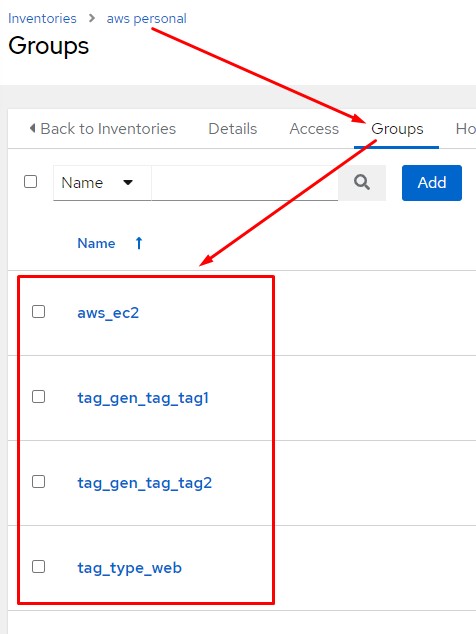
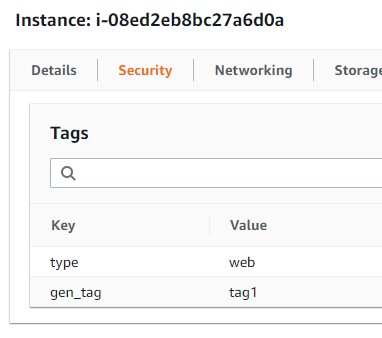
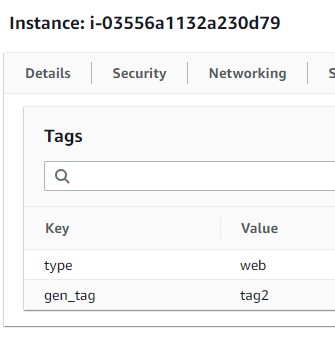
As you can see the top image is my ansible inventory and the groups that were auto created, and the bottom two are the tags shown on my individual instances in the AWS console.
As you can image a LOT of goups will be auto created. Say for example all I really wanted to auto create are the “type” tags…so things like: web, db, lb, whatever. I would create a key_groups filter like so:
1 2 3 4 | keyed_groups:
# This adds only the "type" tag as separate groups
- prefix: tag_type
key: tags.type |
This would add only the tags of “type”. Notice how it’s in standard variable dot notation. As in variable.variable.variable. Looking at one of my inventory hosts variables section I can see where the tags.type comes from:

Filtering Hosts In Inventory Source
To filter hosts that are coming from my AWS account I’ll make updates to the same source variables section as before:
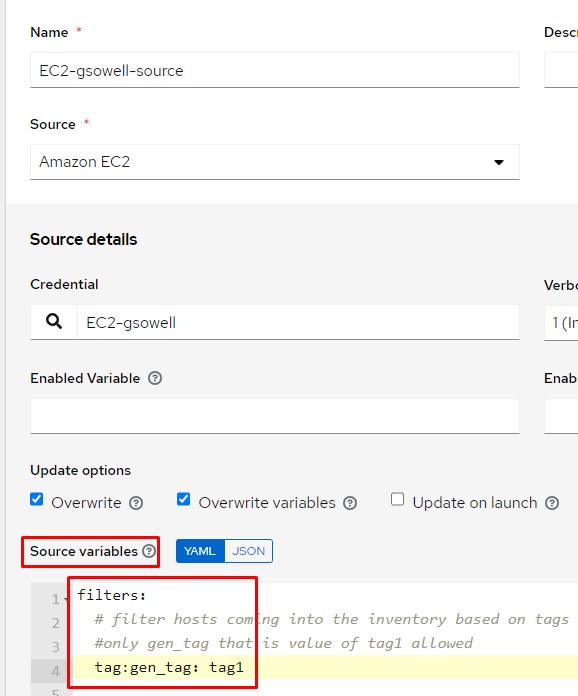
Here I add a filters section, then under it specify the criteria I want to filter based on under it. The full list of filter options can be found here.
You’ll notice in the screenshot above that I chose to filter on instance tags and in particular I’m searing the gen_tag for any hosts that have a tag of “tag1”. Keep in mind that the filter option still allows keyed_groups to be used to automatically create groups and associate hosts to them.
Conclusion
As you can see, it’s actually pretty easy to not only automatically create groups while importing AWS assets, you can also pretty easily filter the import of hosts based on all kinds of criteria! If you have any questions or comments, please fire them my way.
Good luck and happy importing!
This week we have Greg, Nick A., and Miller. Good news: this one was smooth with a LOT of great info/banter. Bad news: the recording is all kinds of bricked and only gets about 20 minutes of the conversation. Burned for the last time, we are transitioning off of Skype.
**Sponsors**
Sonar.Software
Towercoverage.com
**/Sponsors**
This week we talk about:
Mikrotik Wireless wave 2 supported on only 4 devices currently
Mikrotik ARM based routers that have stability issues should try ROSv7.2 – supposedly contains fixes
Mikrotik is on the fence about adding BGP Max Prefix limit
Here’s the video:(if you don’t see it, hit refresh)
This week we have Greg, Andrew Thrift, and Nick Arellano! Thrift was on a loaner machine, so his audio has a little noise here and there, but I believe I’ve edited most of it out.
**Sponsors**
Sonar.Software
Towercoverage.com
**/Sponsors**
This week we talk about:
CCR2216-1G-12XS-2XQ – $2795
2216 product video
2216 switch chipset spec sheet – 98DX8525
802.1Qbg
Dynamic balancing of mice and elephant flows
802.1BR bridge extender
ccr2004-1g-2xs-PCIe – $200 – also supports SFP+
2004 product video
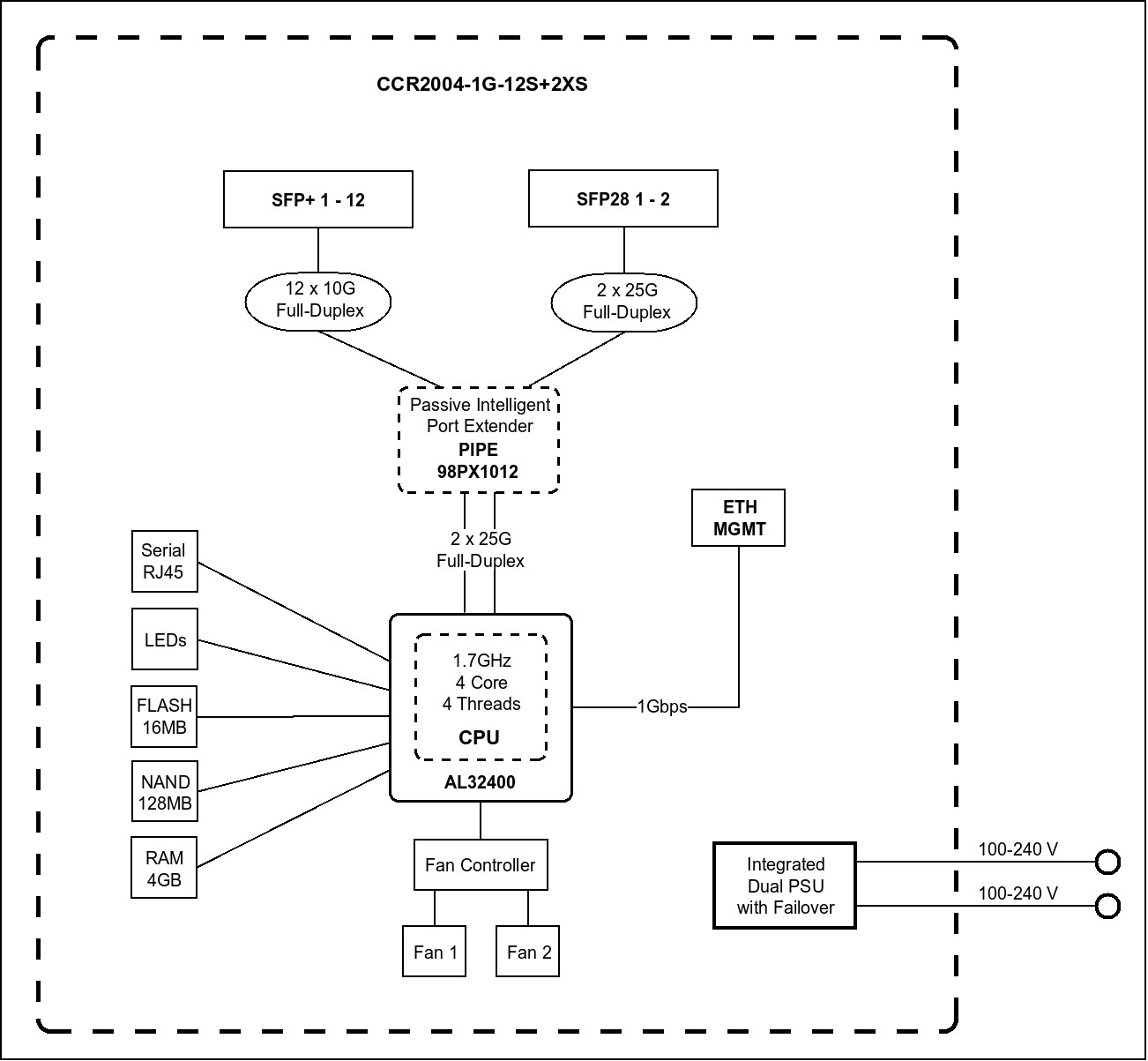
2004 original block diagram, not this router, but same chipset
Cube 60Pro ac
CubeSA 60Pro ac
Cube vs nRAY?
CRS310-1G-5S-4S+IN
Here’s the video:(if you don’t see it, hit refresh)