

I lumped these together because they were released within two days of each other 🙂 These are really just bug fixes, no real feature additions.
What’s new in 5.4 (2011-May-27 13:18):
*) webfig – do not try to open many windows
if first open was blocked by browser;
*) RB4xx ether1 port flapping fixed;
What’s new in 5.3 (2011-May-25 15:19):
*) snmp – fix table get next with partial row keys;
*) snmp – respond from correct source address when multiple exist;
*) snmp – fix possible interface disappearing when walking ipNetToMediaTable;
*) snmp – fix possible memory leak;
*) ipsec – flush SAs and inform peer when rebooting or shutting down;
*) openvpn – fixed crash;
*) implemented terminal in WebFig;
*) implemented Skin mode in WebFig;
*) added support for more Broadcom Tigon3 based ethernet cards;
*) winbox – fixed byte to KiB, MiB and GiB conversion
(digit after decimal point could be a bit off);
*) console – align numbers right in tabular print output;
*) fixed RB450G, RB750G switch chip slow ethernet problem;
*) fix vlan disable not taking effect;
*) userman – fix Authorize.Net payment bypass;
*) userman – added profile option to overwrite shared users option
in user settings when profile is activated;
*) userman – fix db backup if it’s size exceeds 2G;
*) wireless – merged ht-extension-channels in to channel-width;
A general rule of thumb in a service provider network is to block RFC-1918(private addressing) address space. You want to block this incoming from your upstream providers also, but generally filtering it in your network is a good idea. You will also want to block any traffic coming from your provider sourced from your address space…why would you be sending yourself traffic from outside of your network with your own network addressing?
First create the address-list that contains the RFC-1918 address space as well as the multicast range.
1 2 3 4 5 6 | /ip firewall address-list add address=192.168.0.0/16 comment="" disabled=no list=rfc-1918 add address=172.16.0.0/12 comment="" disabled=no list=rfc-1918 add address=10.0.0.0/8 comment="" disabled=no list=rfc-1918 add address=0.0.0.0/8 comment="" disabled=no list=rfc-1918 add address=224.0.0.0/3 comment="" disabled=no list=rfc-1918 |
Next create address-lists that contain the private addressing you might be using inside your network that is valid.
1 2 | /ip firewall address-list add address=10.0.0.0/24 comment="" disabled=no list=local-subnets |
We then create two firewall rules. One that allows our defined local-subnets and the next that blocks the rest of rfc-1918 and multicast.
1 2 3 4 5 6 7 | /ip firewall filter
add action=accept chain=forward comment=\
"accept traffic from our local subnets" disabled=no src-address-list=\
local-subnets
add action=drop chain=forward comment=\
"block anything sourced from RFC-1918 and multicast." disabled=no \
src-address-list=rfc-1918 |
If you are curious about who is sending what where, duplicate the drop rule, but change the action to log. This will provide you with entrance/exit interface, MAC address and source/destination IP of the packets. You can then lookup their MAC address and trace them down.
*NOTE* Exercise caution when logging. If this is a high packet count spoofed attack, you may kill your router’s CPU.
I wanted to change some of the system’s default prompts in Unity 4.0. After a little digging, I found them here:
1 | d:\CommServer\Localize\Prompts\ENU\G711\ |
I used sound recorder from windows XP to record a new message. Be sure to save it in the right format: ccitt u-law, 8kHz, 8bit mono
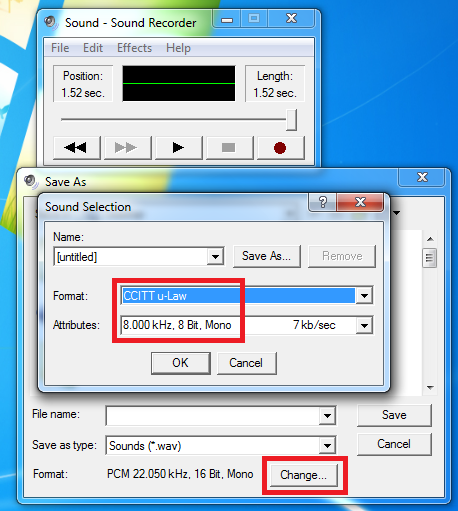
Save As => Change button => CCITT u-Law
For those of you that are a “one man show” like myself, you will often find that you need to be on the tower and align an antenna at the same time. This generally requires you to log into the antenna while still on the tower…which can be difficult if your antenna is PoE(power over ethernet). What I did was whip up a little contraption to solve this conundrum.
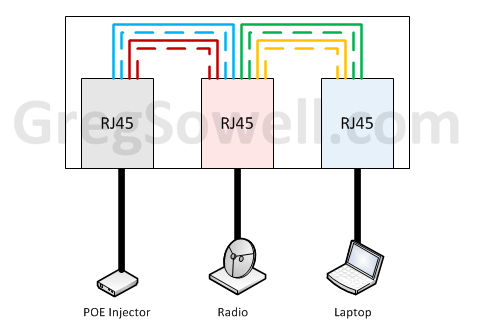
As you can see there is a simple clam shell RJ-45 enclosure that holds 3 RJ-45 keystones. I like to use a different color for each to help remember what is what.
The far left 45 is where you plug in your POE coming up the tower. Only the power wires are used from here. Run the blues and brows over to the center 45.
The far right 45 is where you plug in your laptop. You are using the 4 ethernet wires from this port. Connect the greens and oranges from this jack to the center 45.
The center 45 goes to the radio. You are sending the power from the POE and the ethernet from your laptop.
If you source the parts from deepsurplus.com, you can get everything to your doorstep for less than $10…which is a price I like! If you don’t have time to build your own, I’ll gladly sell you one for $100 and offer free shipping!
Now you can hang off of a tower with your netbook and align your radios all by your lonesome 🙂
Troubleshooting a POS(Packet Over Sonet) interface is quite different than your standard ethernet interface. The first thing you will obviously do is a:
1 | show interface POS1/0/0 |
If you are down/down then you obviously aren’t seeing light across the link and you need to troubleshoot accordingly.
If you see the link as up/down, then you are having other issues. Either encapsulation or sonet issues. There is a starting article from Cisco that helps you trouble shoot up/down on POS interfaces. If you have had your link up and running for a while, then it is most likely not an encapsulation issue and more likely a sonet issue. This being the case you will need to do a little debugging.
1 2 | terminal monitor !enables debug messages to your console debug serial interface |
You will most likely see:
1 2 3 | 000611: *Apr 26 21:49:04.146 CDT: POS1/0/0: HDLC myseq 12, mineseen 0, yourseen 0, line down 000612: *Apr 26 21:49:14.146 CDT: POS1/0/0: HDLC myseq 13, mineseen 0, yourseen 0, line down 000613: *Apr 26 21:49:24.146 CDT: POS1/0/0: HDLC myseq 14, mineseen 0, yourseen 0, line down |
By default a sonet interface sends a keepalive every 10 seconds. Whenever you send a message, your myseq number will increase. The mineseen is the sequence number of the last acknowledged keepalive you sent to the neighbor. The yourseen value is the sequence number of the last received keepalive from a neighbor. As you can see above I’m sending and I’m not getting anything back. So what now?
Now we enable a local loopback on our pos interface.
1 2 | interface POS1/0/0 loopback internal |
This loops back to you. You should now see your debug output look something like the following:
1 2 3 4 5 | 000595: *Apr 26 21:45:24.138 CDT: POS1/0/0: HDLC myseq 53, mineseen 0*, yourseen 53, line down (looped) 000596: *Apr 26 21:45:34.138 CDT: POS1/0/0: HDLC myseq 54, mineseen 53*, yourseen 54, line down (looped) 000597: *Apr 26 21:45:44.138 CDT: POS1/0/0: HDLC myseq 55, mineseen 54*, yourseen 55, line down (looped) 000598: *Apr 26 21:45:54.138 CDT: POS1/0/0: HDLC myseq 56, mineseen 55*, yourseen 56, line down (looped) 000599: *Apr 26 21:46:04.138 CDT: POS1/0/0: HDLC myseq 57, mineseen 56*, yourseen 57, line down (looped) |
Notice that the mineseen and the yourseen are starting to correctly increment. This proves that your interface is working properly. At this point, you can tell the provider than their equipment went boom boom.
If you want to loop it outward to the provider network you would issue:
1 2 | interface POS1/0/0 loopback line |
As always with debug commands, be cautious since these commands can consume large amounts of memory. Also be sure to disable debug when you are done. If you can’t remember which debugs you enabled, simply use the remove all command:
1 | un all |
I was thinking while I was on a run yesterday…nothing to do but think hehe. I was thinking about how much bandwidth streaming video consumes. In my apartment complexes, streaming video easily eats 60% of the bandwidth during peak hours.
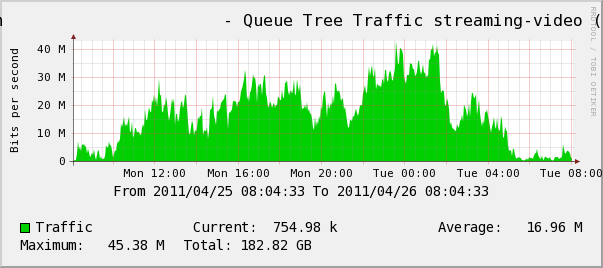
I’ve developed some QoS polocies(which I sell and install for a small fee) that maximize all of their traffics and thus we can squeeze a LOT more out of each Mb.
What this really got me thinking on was how much video has taken over the web. I know I have little patience anymore (I blame my beautiful wife and wonderful kids 😉 ), so being spoon fed video is excellent. I know I’ve gotten so jaded that I get annoyed if there aren’t enough visuals in the articles I read.

Most people are watching youtube, hulu and netflix. Which is great, but I’m pretty much done with that. I get too bored. I’ve gotten to the point where I don’t want canned entertainment. I want something new, different and interactive. One of our random apartment users was talking to me about connectivity issues when he mentioned Justin.tv.
What is Justin.tv? It is a site that allows you to stream live video. It is similar to Ustream, though it is more community focused. You have the main video stream on the left and on the right you have a chat window scrolling that allows you to interact with other users as well as with the broadcaster himself.
There are lots of different casting styles. Some will play a movie while commenting. Some play video games while casting (which is my favorite). Still others “lifecast”, which is basically them doing everyday things while casting… equivalent to a live journal.
In addition to genres of casting there are casting styles. Some people have complicated setups where they green screen themselves into the lower corner of their casts, while some hang a bed sheet behind them.
Now to plug my favorite caster…MANvsGame. This is a 30 something guy named Jayson who plays games while casting. His sense of humor is strikingly similar to mine which means he is completely ridiculous. One must also exercise caution as he uses a plethora of profanity. One of my favorite aspects of his cast is that he is constantly interacting with the chat. He riffs and expounds upon what you put in the chat. So you have live and entertaining content with someone who actually interacts with you. It makes it feel like he is sitting on the couch next to you because he will actually interact. It’s a little odd at first, but quickly becomes engaging.
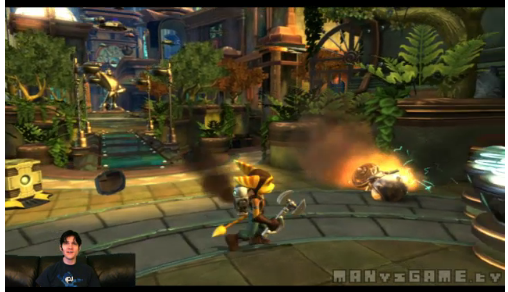
I’m addicted to the interactivity and it seems difficult to go back. So how many of you guys want to see me sitting on the couch configuring routers?
WDS(Wireless Distribution System) is a means to transparently bridge wireless APs. What exactly does transparent bridging mean? A transparent bridge is basically turning your wireless links into an ethernet cable. It takes anything put into one side and spits it out on the other.
This is great for connecting two locations. This is often used for towers that utilize a router in the center that does PPPoE aggregation with separate radios to bring in clients. Another note is that WDS implementations doesn’t span vendors. Vendors use their own proprietary versions.
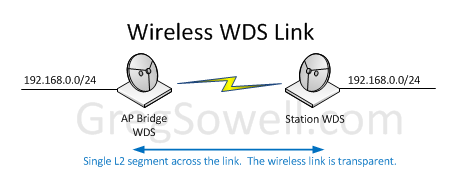
Generally you run one side as an AP with WDS and the other side as a station WDS client. You can generally connect two APs running WDS, but this is usually unnecessary.
Mikrotik
In Mikrotik we have to create a bridge interface. We then add our desired ethernet interfaces to the bridge. Once the radios connect a WDS interface is automatically created and added to our bridge. This will connect the ethernet interfaces across the wireless via layer 2.
AP Radio
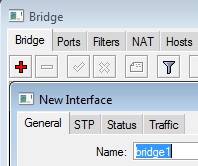
Create a bridge interface
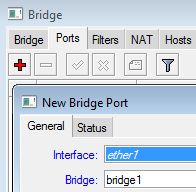
Add a bridge port. This will be the ethernet interface that is to be bridged.
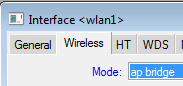
Set the mode to AP-bridge.
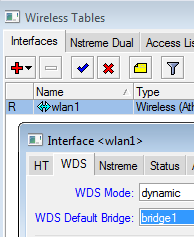
Set WDS mode to dynamic with bridge interface set to our newly created bridge.
Station Radio
Create a bridge interface
Add a bridge port. This will be the ethernet interface that is to be bridged.
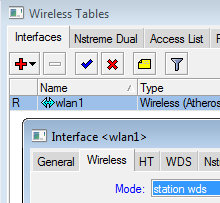
Set the wireless mode to station-wds.
Set WDS mode to dynamic with bridge interface set to our newly created bridge.
Ubiquiti
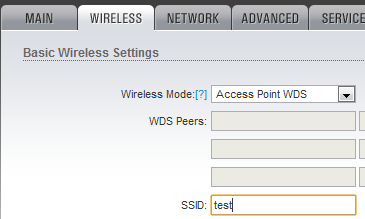
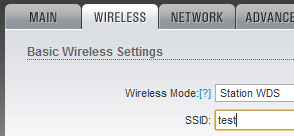
In ubiquiti we don’t have to go through the trouble of creating bridges and such, we just make sure to leave the network mode in its default bridge mode and then configuring the wireless interfaces as follows.
AP Radio
Station Radio
If you like this article you can leave me a comment…if you hate it blame Tim Payne cause it was his idea…hehehehe