


Former jewel thief Bryan Sobolewski committed over 20 robberies alongside his father and brother. In this episode of Why Am I, we dig deep into what pushed him to that life…and what brought him back. From his chaotic childhood to finding redemption through comedy and nonprofit work, Bryan shares a brutally honest and surprisingly funny look at guilt, change, and the choices that shape us. We also explore how easy it can be to say “that could never be me”… until life lines up just right.
 Don’t forget to like, comment, and subscribe for more conversations that chase the story behind the person.
Please show them some love on their socials here: https://www.instagram.com/bryansobolewski/?hl=en https://www.youtube.com/@bryansobolewski/videos https://www.tiktok.com/@bryansobolewski https://www.facebook.com/bryan.sobolewski
If you want to support the podcast you can do so via https://www.patreon.com/whyamipod (this gives you access to bonus content including their Fantasy Restaurant!)
 This one is MUCH more niche than my typical blog posts, but a customer asked, so here I am.
A customer has all of their hosts i Red Hat’s Satellite product, so this will be their source of truth(the place that holds a list of all hosts).
They are using Satellite as a dynamic inventory source(filling out an AAP inventory automatically).
They want some kind of defining information in the form of variables to automatically come from Satellite that they can use in their automations to do specific configuration on their hosts.
TLDR; get custom variables from Satellite that is available to playbooks in AAP.
I use parameters inside of Satellite host groups.
Video Overview
Configure Satellite
I’m using host groups here to maintain custom parameters. I’m guessing this can be done in other ways, but this was the one that seemed to fit my use case the best.
Go to configure, then Host Groups, and last click Create Host Group(unless you are already utilizing HGs, then just skip to the next step):
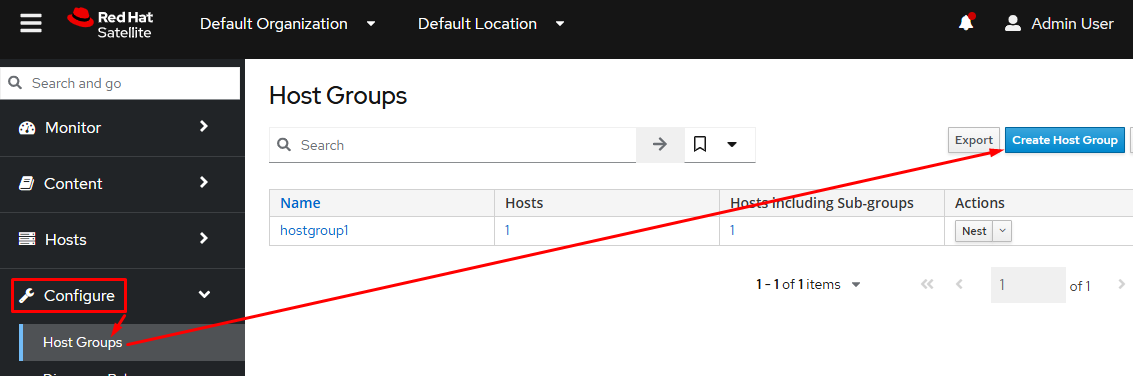
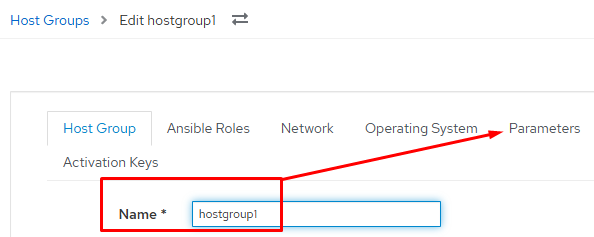
Next name the host group and then click the Parameters tab:
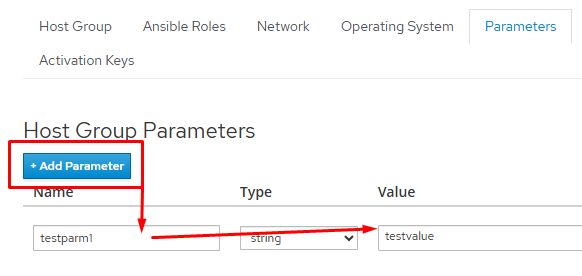
Click +Add Parameter, then give they key for your variable, and give it a value. With my customer in question it would be a list of packages to add to a host, but really any information can be stored. Keep in mind you can add multiple key/value pairs here to suit your needs:
You now need to add hosts to your host group. There are a few different ways to accomplish this:
– When adding a new host, just select the host group there
– Specify it in the activation key you utilize
– Put it in the provisioning template you use to create a host with
– Create a discovery rule(this will also grab existing hosts and properly add them to the group)
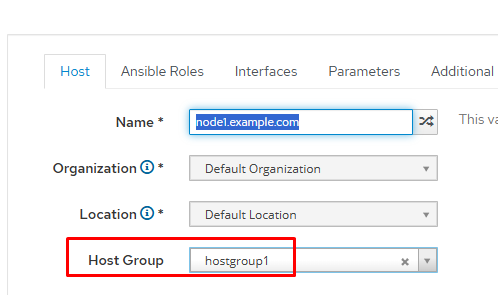
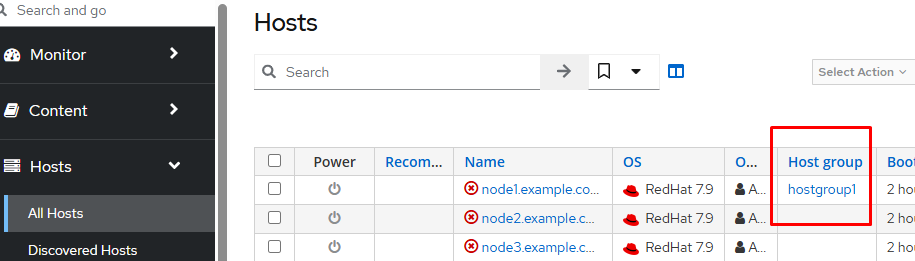
In this example I’m just going to manually edit one of the hosts and set the host group; this is the quickest way to do a quick demo:

AAP Configuration
I’m not going to cover configuring the dynamic inventory source as that’s actually a pretty simple process, rather I’m going to show how the variable is now pulled in from Satellite.
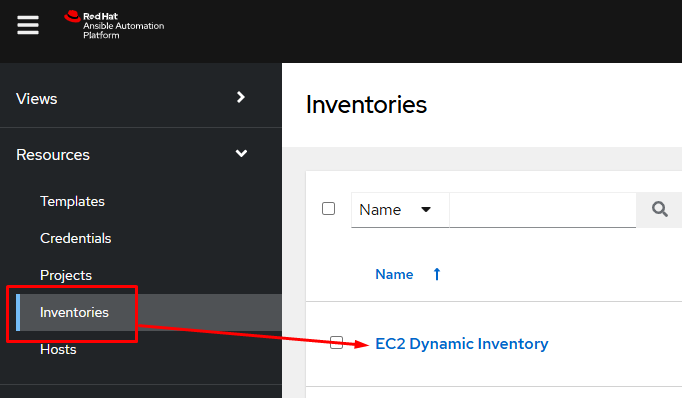
In AAP, I go to Inventories and choose the correct inventory:
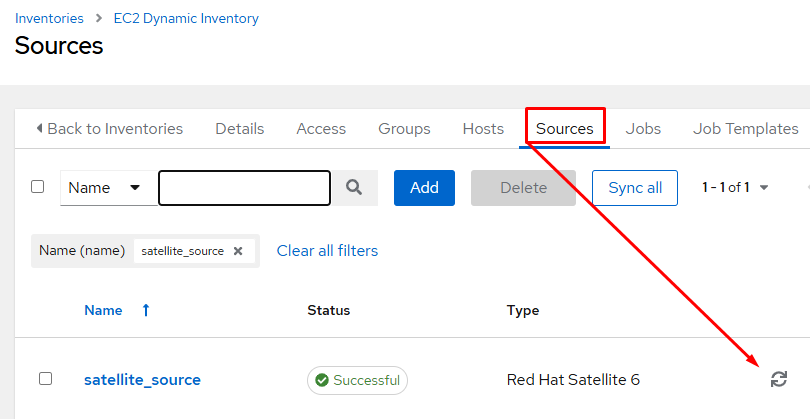
I then click on the Sources tab(where dynamic inventory sources live) and tell the Satellite inventory source to resync:
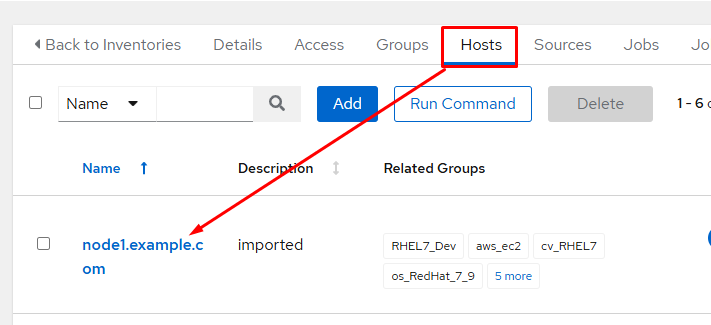
I’m then going to click on the Hosts tab and choose the host that was added to my Satellite host group:
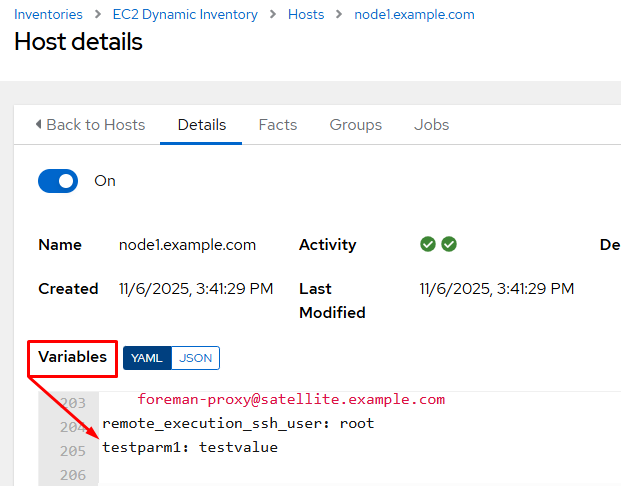
Taking a look at the variables for the host(these all came from Satellite), I can see the parameters I configured for the Satellite host group appended to the end:
To utilize this variable in a playbook I can use the “hostvars” variable, which will give you access to any variables defined for the host. I use an additional magic variable “inventory_hostname”, to specify in my tasks which host to grab the variables of; inventory_hostname is the name of the host currently being processed.
1 | hostvars[inventory_hostname].testparm1 |
I have a simple playbook that will display the contents of “testparm1” for all hosts that have it defined:
1 2 3 4 5 6 7 8 9 | ---
- name: Display the testparm1 variable for all hosts in a Satellite synced inventory
hosts: all
gather_facts: false
tasks:
- name: display testparm1 variable
when: hostvars[inventory_hostname].testparm1 is defined
ansible.builtin.debug:
var: hostvars[inventory_hostname].testparm1 |
The result of the playbook run:
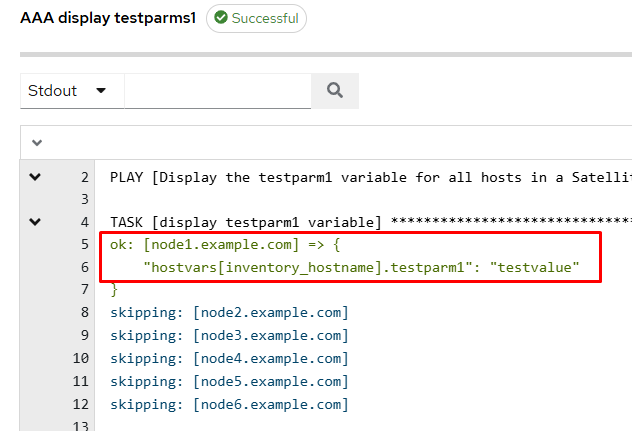
You can see that for the only host added to my Satellite host group(node1), it correctly returned the value for testparm1!
Conclusion
This is not an Earth shattering development, but it can be exceptionally useful for configuring and maintaining hosts in your infrastructure. If you have any questions or comments, please reach out; I love hearing from folks 🙂 Good luck and happy automating!
The tried and true method to connect to a Windows host using Ansible has been WinRM since the inception of Ansible. Now this upstart OpenSSH is here for Windows and folks want to use it for their automation.
I’ve heard that connecting to a Windows host over SSH should be just the same as using WinRM, but in my experience this isn’t the case. Using OpenSSH has caused some odd/unpredictable issues with various modules…rendering some all but unusable. For example I recently was using the win_hotfix module and it all but refused to work correctly in my testing. Your milage may vary, I just wanted to give a word of warning in advance.
OpenSSH Configuration
First, the Ansible OpenSSH for Windows documentation is pretty solid.
Using the instructions to turn on and enable worked well:
1 2 3 4 5 6 7 8 9 10 11 12 13 14 15 16 17 18 19 20 21 22 23 24 | Get-WindowsCapability -Name OpenSSH.Server* -Online |
Add-WindowsCapability -Online
Set-Service -Name sshd -StartupType Automatic -Status Running
$firewallParams = @{
Name = 'sshd-Server-In-TCP'
DisplayName = 'Inbound rule for OpenSSH Server (sshd) on TCP port 22'
Action = 'Allow'
Direction = 'Inbound'
Enabled = 'True' # This is not a boolean but an enum
Profile = 'Any'
Protocol = 'TCP'
LocalPort = 22
}
New-NetFirewallRule @firewallParams
$shellParams = @{
Path = 'HKLM:\SOFTWARE\OpenSSH'
Name = 'DefaultShell'
Value = 'C:\Windows\System32\WindowsPowerShell\v1.0\powershell.exe'
PropertyType = 'String'
Force = $true
}
New-ItemProperty @shellParams |
It’s not enough to just turn on OpenSSH, you also need to change what it’s default shell is. Here, as in the documentation, I’m setting it to be powershell. This way when Ansible connects and attempts to do work it will happen via PowerShell rather than cmd.exe:
1 2 3 4 5 6 7 8 9 | # Set default to powershell.exe
$shellParams = @{
Path = 'HKLM:\SOFTWARE\OpenSSH'
Name = 'DefaultShell'
Value = 'C:\Windows\System32\WindowsPowerShell\v1.0\powershell.exe'
PropertyType = 'String'
Force = $true
}
New-ItemProperty @shellParams |
I had to additionally adjust the firewall beyond what the Ansible documentation showed to allow remote hosts to access OpenSSH:
1 | Set-NetFirewallRule -Name "OpenSSH-Server-In-TCP" -Enabled True -Profile Domain,Private,Public |
Configure AAP
In AAP I have to tell it what communication method to talk to my Windows host with. I could assign these options directly on the host, but for this special group of Windows hosts I’ve created an inventory group named “windows-openssh” with the following values:
1 2 3 | ansible_remote_tmp: C:\Windows\Temp\ansible ansible_pipelining: true ansible_connection: ssh |
ansible_remote_tmp: Here you can see I setup a temp directory where files will be temporarily stored on the remote host so Ansible can execute them.
The remaining are optional.
ansible_pipelining: Tries to issue multiple commands without having to create multiple connections.
ansible_connection: This is defining ssh as the connection type, which is the default option, this isn’t needed. Since most folks utilize WinRM I spell it out here for documentation.
Privilege Escalation Windows
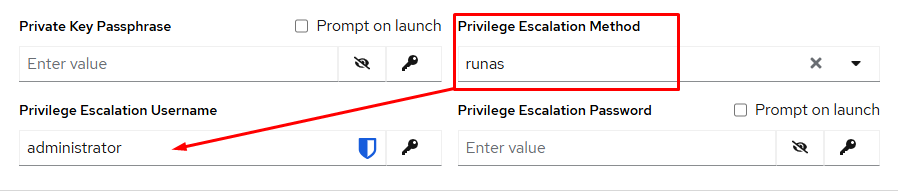
This isn’t specific to OpenSSH on Windows, but rather something that is a gotcha for folks. If you are doing privilege escalation “become: true” on Windows you will need to instruct Ansible how to properly do it. In your credential, be sure to set the “Privilege Escalation Method” to “runas”. You’ll likely need to set the Escalation Username information too.
Conclusion
Well, it’s not too crazy to get it all setup, but again, your milage may vary. I wholly expect support to just keep getting better. Well, good luck and happy OpenSSH’n to your Windows hosts 🙂

I head into the piney woods of East Texas for a family reunion… held in a cemetery. Since the mid-1800s, families have gathered at Antioch Cemetery on the third Sunday in October to argue about upkeep, share a potluck, and remember. My Uncle Bobby walks me through headstones, East Texas sawmill history, dry-county bootlegging, Civil War migrations from Alabama to Texas, faith, forgiveness, and what it feels like to sit beside your own name on a stone. It’s part history tour, part family lore, and a meditation on how traditions survive.
Don’t forget to like, comment, and subscribe for more conversations that chase the story behind the person.

Step into the Fantasy Restaurant with Ben E. Wood, where the menu is fueled by nostalgia and imagination. From banana milkshakes the size of his head to crispy chicken wing triangles, Ben’s meal is equal parts comfort food and childhood memory. Add in diner all-day breakfast, a “cheese number,” and a mountainous banana cream pie for dessert, and you’ve got a one-of-a-kind feast.
Don’t forget to like, comment, and subscribe for more conversations that chase the story behind the person.
Please show them some love on their socials here:
https://www.instagram.com/themadhatteroffact/
https://weakoldbaby.bandcamp.com/album/farewell-strange-hotel
https://weakoldbaby.bandcamp.com/
If you want to support the podcast you can do so via https://www.patreon.com/whyamipod (this gives you access to bonus content including their Fantasy Restaurant!)

Step into the world of pinball like you’ve never seen it. David van Es blends his lifelong love of movies, pinball, and film production into immersive machines that let you live inside your favorite stories. From Star Wars to Labyrinth to Dune, David shares how pinball can become more than a game—it’s a way to connect, imagine, and build community.
Don’t forget to like, comment, and subscribe for more conversations that chase the story behind the person.
Please show them some love on their socials here: https://shop.kollectfun.com/ https://youtube.com/@BoFPinball https://www.instagram.com/bofpinball/ https://twitter.com/BoFPinball
If you want to support the podcast you can do so via https://www.patreon.com/whyamipod (this gives you access to bonus content including their Fantasy Restaurant!)

Dawn Meyerriecks has spent her career at the intersection of technology, strategy, and service. From building systems that shaped modern defense to guiding innovation in intelligence, she’s proven how curiosity and courage can change the world. In this episode, we explore her journey, her lessons, and the impact of mentoring the next generation.
Don’t forget to like, comment, and subscribe for more conversations that chase the story behind the person.
Please show them some love on their socials here:
If you want to support the podcast you can do so via https://www.patreon.com/whyamipod (this gives you access to bonus content including their Fantasy Restaurant!)