I first have to say that the technique pioneered here was completely engineered by my brother-from-another-mother Nick Arellano. Connect with this brilliant dude on LinkedIn NOW!
Introduction
There is a traditional method that allowed ServiceNOW(SNOW) to connect to the Ansible Automation Platform’s(AAP) API, but while this worked, it was clunky.
In short it would go from Service Catalog(SC) item => SNOW workflow => REST message => Oauth token.
If you wanted to add a new SC, you would have to duplicate each one of those pieces save for the Oauth token…which becomes quite tedious. A lot of those pieces are often controlled by the “SNOW team”, which means it could take weeks or even months to have additions or changes done.
Imagine if there was a better way(simpler and faster) 🙂
This better way is to have SNOW call Ansible’s Event Driven Automation(EDA).
The process looks like Service Catalog item => business rule => REST message.
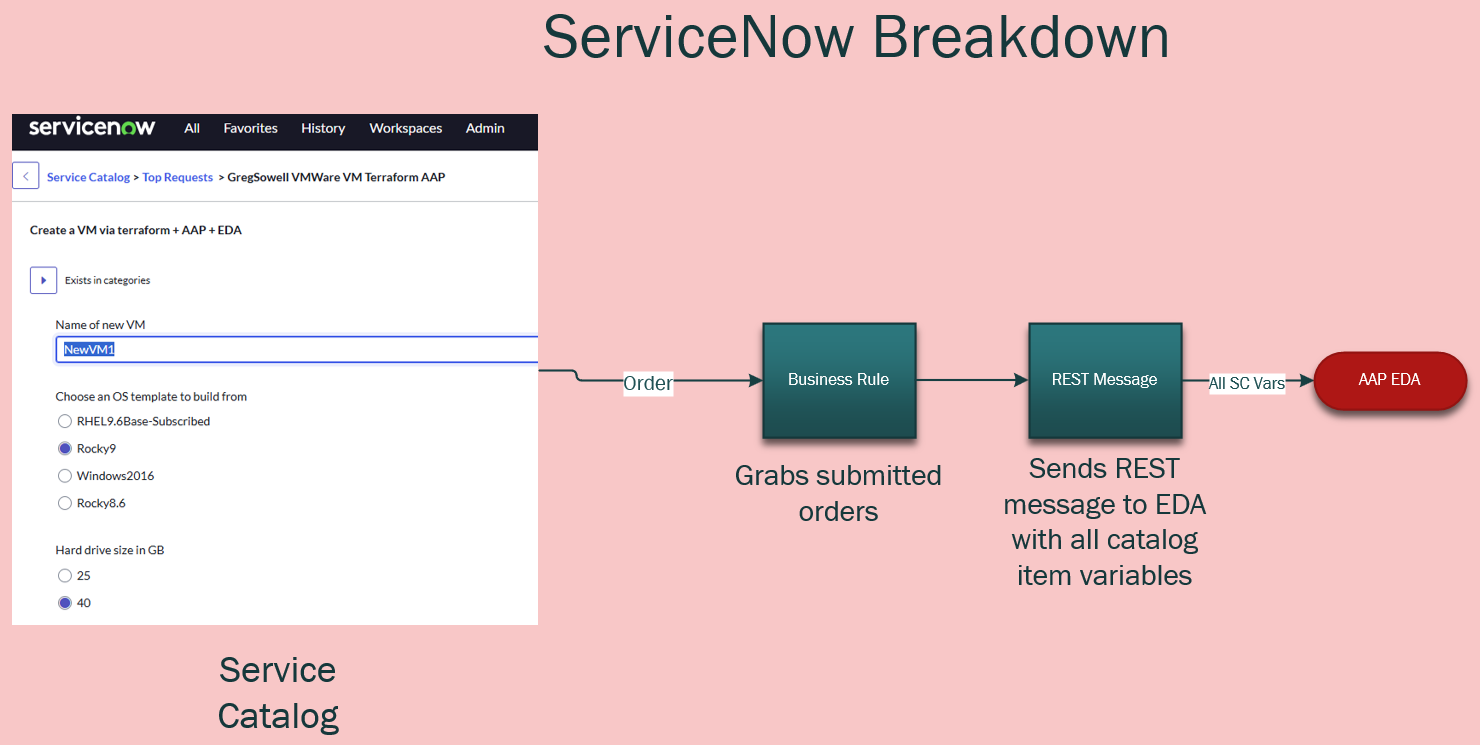
In this configuration the REST message and business rule is created once by the SNOW team, and you don’t have to touch it after that.
The business rule will grab all of the variables from the service catalog and pass them right over to EDA which will then kickoff an Ansible workflow or job template.
This means I can create/update my SNOW service catalog items whenever I want and I will immediately see the update!
Demo
EDA Configuration
I’m starting with the EDA configuration because I have to feed part of this into SNOW’s REST message.
All of my files are here in my git repository.
EDA Credential
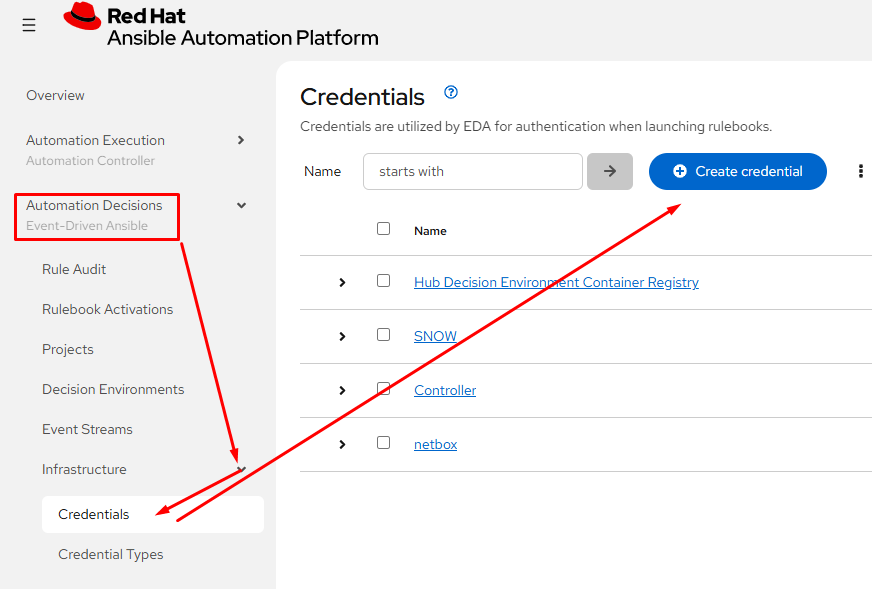
I’ll start by creating a token to be used for protection of the Event Stream(ES). Click on Automation Decisions, then Infrastructure, Credentials, and last Create credential:
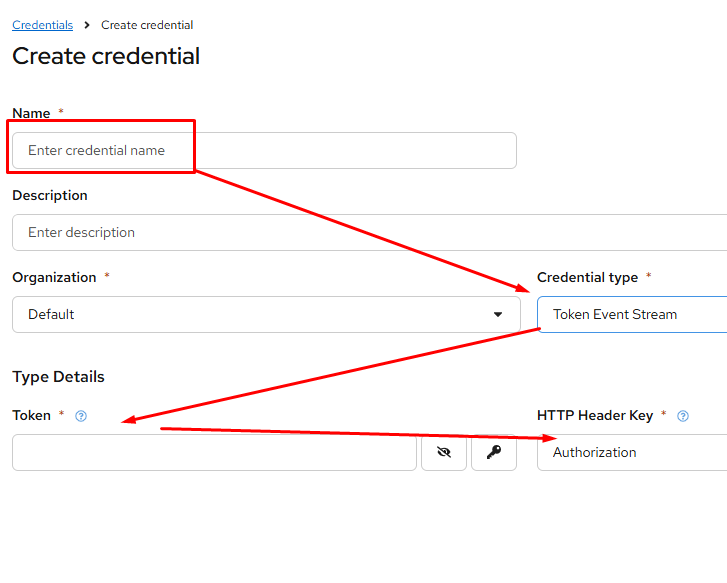
Configure:
Name – something unique
Credential type – Token Event Stream
Token – create a complex password here
Http Header Key – defaults to Authorization
Event Streams
Event streams are what EDA uses to collect messages. In this case we’ll stand up a webhook with a unique URL and authentication. This is what the SNOW REST message points towards.
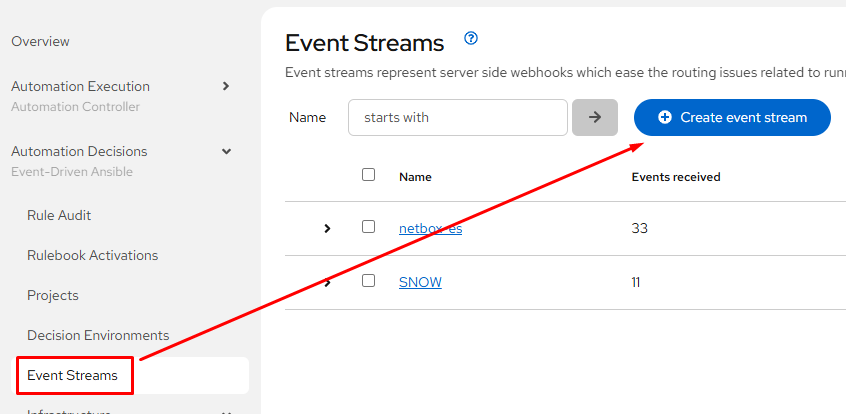
Under Automation Decisions, click on Event Streams and click Create event stream:
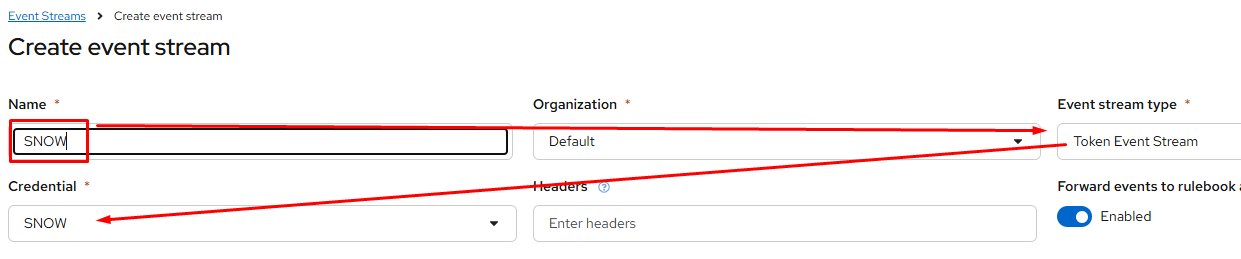
Configure:
Name – something unique
Event stream type – Token Event Stream
Credential – the one just created
Create a Rulebook
A rulebook is really just setting the basics for the listener and configuring a decision tree.
The tree is really just a set of conditional statements (if it matches this and that, but not those things) that will run playbooks or workflows in the controller.
You can find my rulebook here in my repo. I’ve got the whole rulebook below:
---
- name: ServiceNOW Events
  hosts: all
  execution_strategy: parallel
  sources:
    - ansible.eda.webhook:
        port: "{{ webhook_port | default(5000) }}"
        token: "{{ webhook_token | default(omit) }}"
  rules:
    - name: ServiceNOW | Provision Virtual Machine
      condition: |
        event.payload.requester == "[email protected]" and
        event.payload.catalog_item == "VM Provision" and
        event.payload.event == "SERVICE_CATALOG"
      action:
        run_workflow_template:
          name: ServiceNOW | VM Provision
          organization: Default
          job_args:
            extra_vars:
              _hosts: "{{ event.payload.hostname }}"
              snow_request_name: "{{ event.payload.request_name }}"
              virtual_machines:
                - name: "{{ event.payload.hostname }}"
                  cluster: "{{ event.payload.cluster }}"
                  vm_size: "{{ event.payload.vm_size }}"
                  custom_fields:
                    vmware_linked_clone: "{{ event.payload.linked_clone }}"
                    vmware_template: "{{ event.payload.template }}"

    - name: ServiceNOW | Deprovision Virtual Machine
      condition: |
        event.payload.requester == "[email protected]" and
        event.payload.catalog_item == "VM Decomission" and
        event.payload.event == "SERVICE_CATALOG"
      action:
        run_workflow_template:
          name: ServiceNOW | VM Deprovision
          organization: Default
          job_args:
            extra_vars:
              _hosts: "{{ event.payload.virtual_machine }}"
              snow_request_name: "{{ event.payload.request_name }}"
              virtual_machines:
                - name: "{{ event.payload.virtual_machine }}"

    - name: ServiceNOW | Terraform Provision VMware
      condition: |
        event.payload.requester == "[email protected]" and
        event.payload.catalog_item == "GregSowell VMWare VM Terraform AAP" and
        event.payload.event == "SERVICE_CATALOG"
      action:
        run_workflow_template:
          name: SNOW Provision VM Via Terraform
          organization: Default
          # job_args:
            # extra_vars:
            #   _hosts: "{{ event.payload.virtual_machine }}"
            #   snow_request_name: "{{ event.payload.request_name }}"
            #   virtual_machines:
            #     - name: "{{ event.payload.virtual_machine }}"

    - name: ServiceNOW | Terraform Remove VMware
      condition: |
        event.payload.requester == "[email protected]" and
        event.payload.catalog_item == "GregSowell Remove VMWare VM Terraform AAP" and
        event.payload.event == "SERVICE_CATALOG"
      action:
        run_workflow_template:
          name: SNOW Provision VM Via Terraform
          organization: Default
          job_args:
            extra_vars:
              remove_vm: true
            #   snow_request_name: "{{ event.payload.request_name }}"
            #   virtual_machines:
            #     - name: "{{ event.payload.virtual_machine }}"

    - name: ServiceNOW | Unhandled Events
      condition: event.payload is defined
      action:
        debug:
The beginning is fairly standard, setting up EDA webhook settings.
Execution strategy defaults to serial which means it performs one at a time. Here I’m overriding it to perform in parallel.
Down toward the bottom I’m setting up the port and token(if it’s configured).
---
- name: ServiceNOW Events
  hosts: all
  execution_strategy: parallel
  sources:
    - ansible.eda.webhook:
        port: "{{ webhook_port | default(5000) }}"
        token: "{{ webhook_token | default(omit) }}"
I’ll cover two of the rules in the rulebook section:
  rules:
    - name: ServiceNOW | Provision Virtual Machine
      condition: |
        event.payload.requester == "[email protected]" and
        event.payload.catalog_item == "VM Provision" and
        event.payload.event == "SERVICE_CATALOG"
      action:
        run_workflow_template:
          name: ServiceNOW | VM Provision
          organization: Default
          job_args:
            extra_vars:
              _hosts: "{{ event.payload.hostname }}"
              snow_request_name: "{{ event.payload.request_name }}"
              virtual_machines:
                - name: "{{ event.payload.hostname }}"
                  cluster: "{{ event.payload.cluster }}"
                  vm_size: "{{ event.payload.vm_size }}"
                  custom_fields:
                    vmware_linked_clone: "{{ event.payload.linked_clone }}"
                    vmware_template: "{{ event.payload.template }}"
Note the condition section; this is where all of the matching happens for each rule. This is really just matching values in the variables being passed to the data stream. Here I’m looking for who requested the SNOW item, what the name of the service catalog item is, and if it came from the service catalog. That way you can send all of your SNOW catalog items and for each one all you have to do is add a new entry to the rulebook!
Next you will notice the action section, which is were I point it towards the workflow or job template. The “name” in “run_workflow_template” should match your workflow name exactly.
The job_args where I’m setting up variables is optional as all of the accepted variables will be passed over anyway.
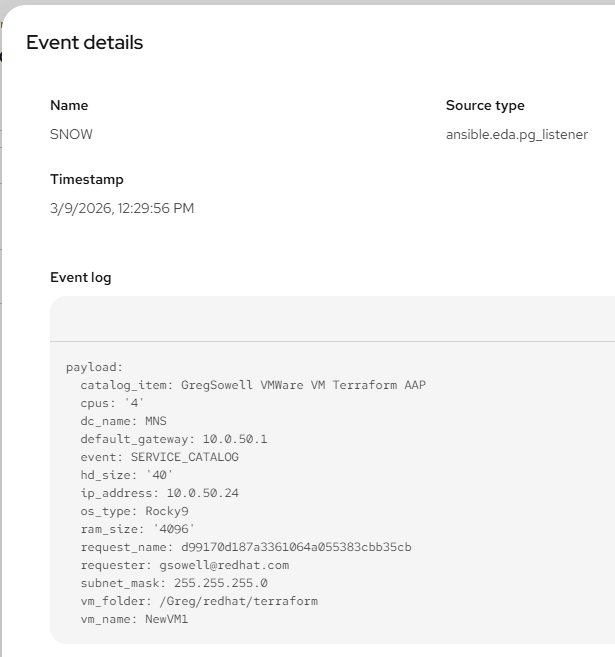
A tip I learned from Nick is to add the following to the end of your rulebooks. If a message comes through and isn’t matched with anything in the list, this rule will print all of the message detail including the attached variables to the “Rule Audit” log. It’s great when adding new catalog items as you quickly get all the information you want to utilize in your playbooks as well as things you can use in your rulebook conditionals.
    - name: ServiceNOW | Unhandled Events
      condition: event.payload is defined
      action:
        debug:
Add Project
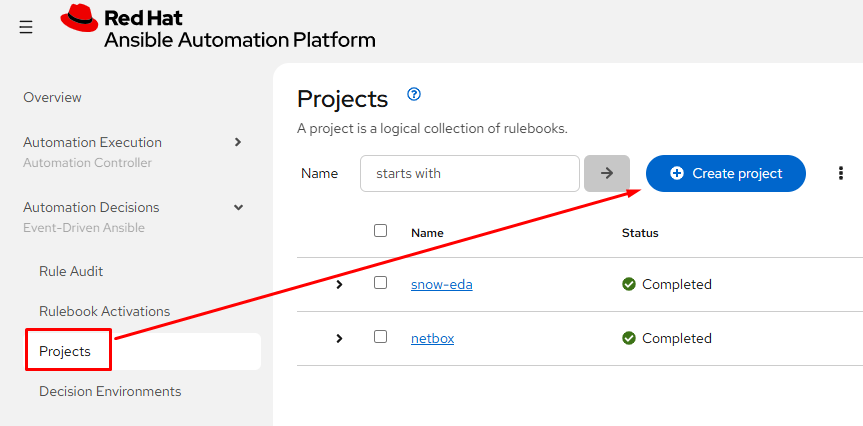
Adding a project in EDA is little different than adding it in controller. It’s simply a way to connect to a git repository to pull in rulebooks.
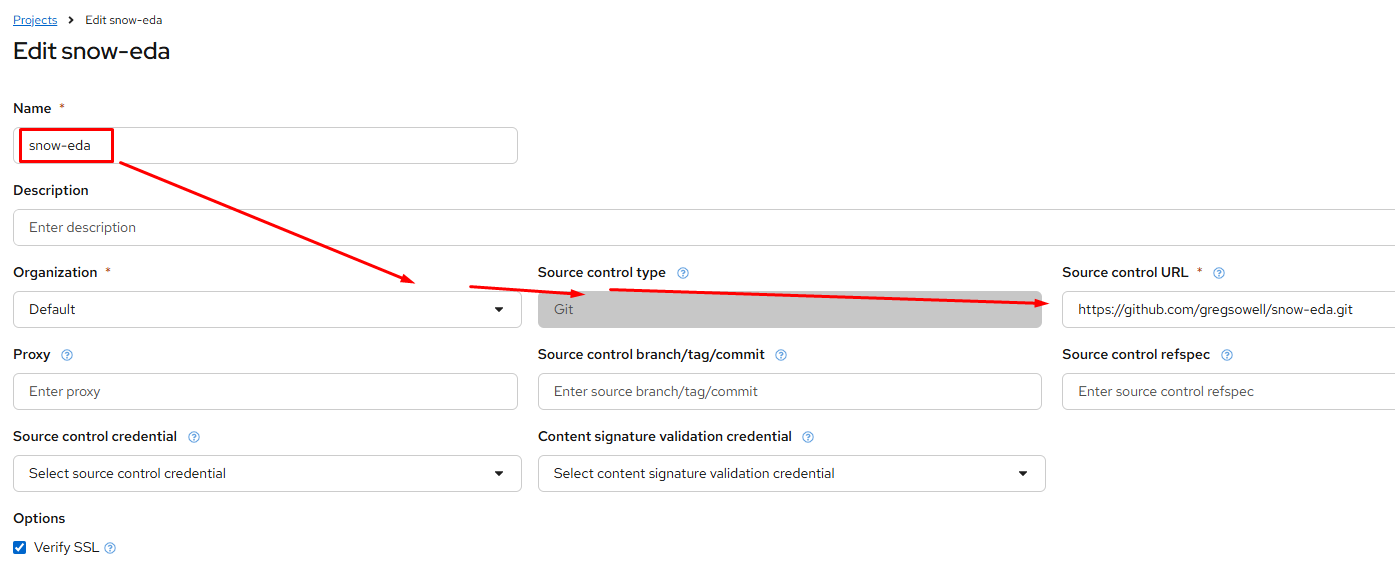
Configure the following:
Name
Organization
Source control type – pretty much always git
Source control URL
Source control credential – I have all my stuff in a public git repo, but you will most likely need to configure a credential to connect to your repo.
Adding Rulebook Activation
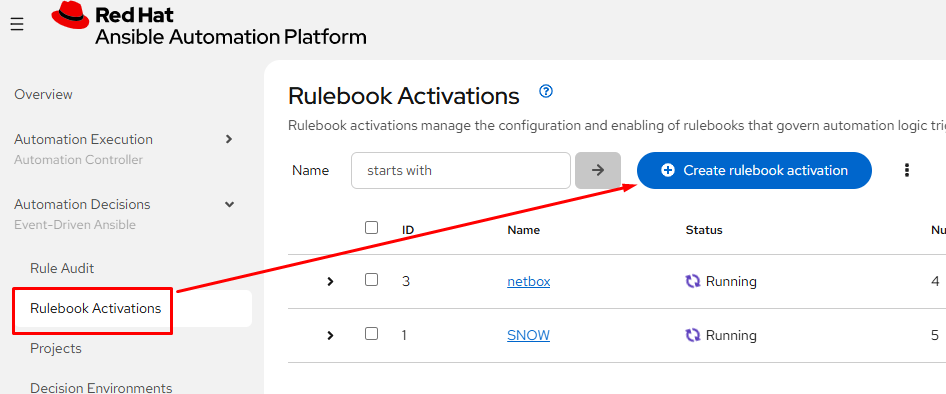
The rulebook activation is where you pull it all together. Start by going to Rulebook Activations and click “Create rulebook activation”:
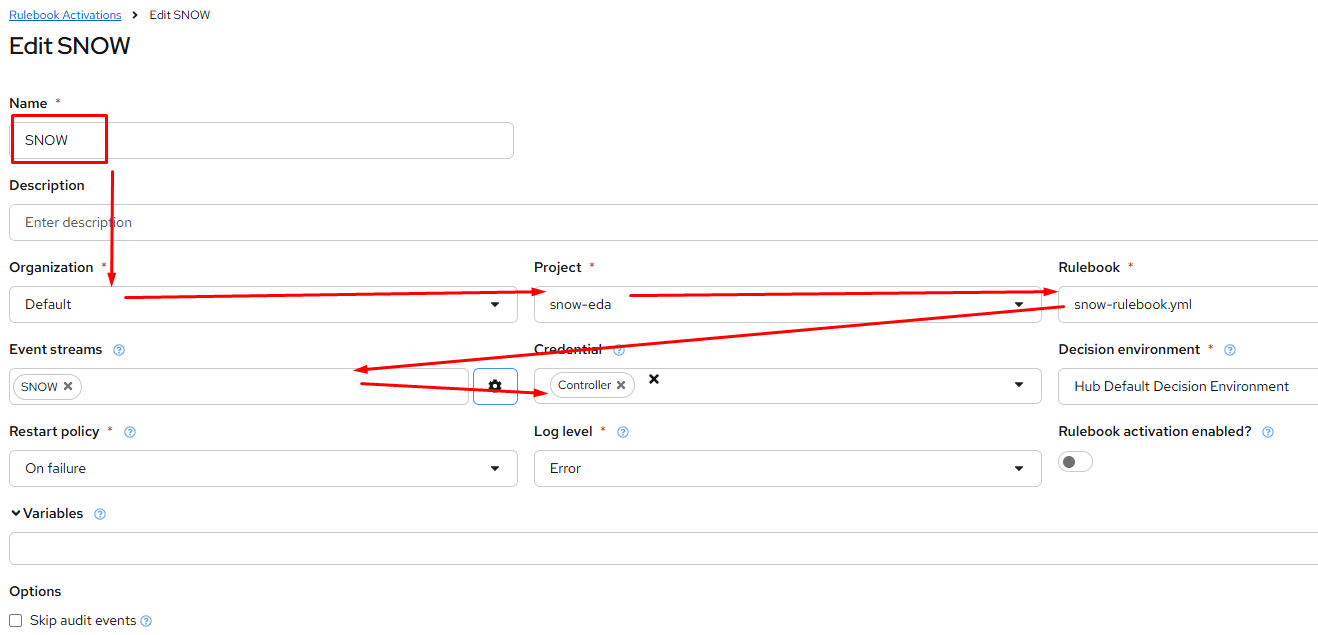
Configure it:
Name
Org
Project – this is the project we just added
Rulebook – this is our newly created rulebook
Event streams – this is our newly created ES.
Credential – this is what we use to authenticate to the controller. Even though we have the gateway system since AAP 2.5 you still have to setup a connection to controller.
Verification
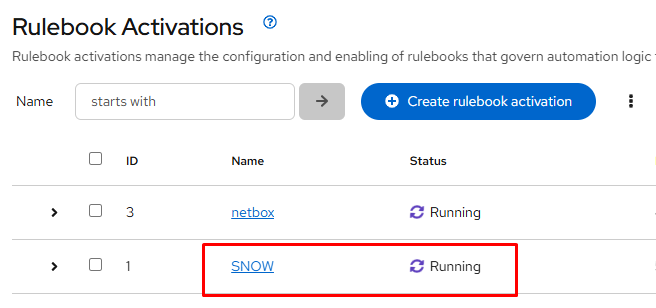
You know you are rocking and rolling when the status shows “Running”:
SNOW Configuration
Create REST Message
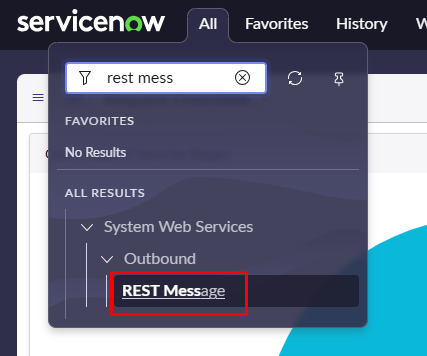
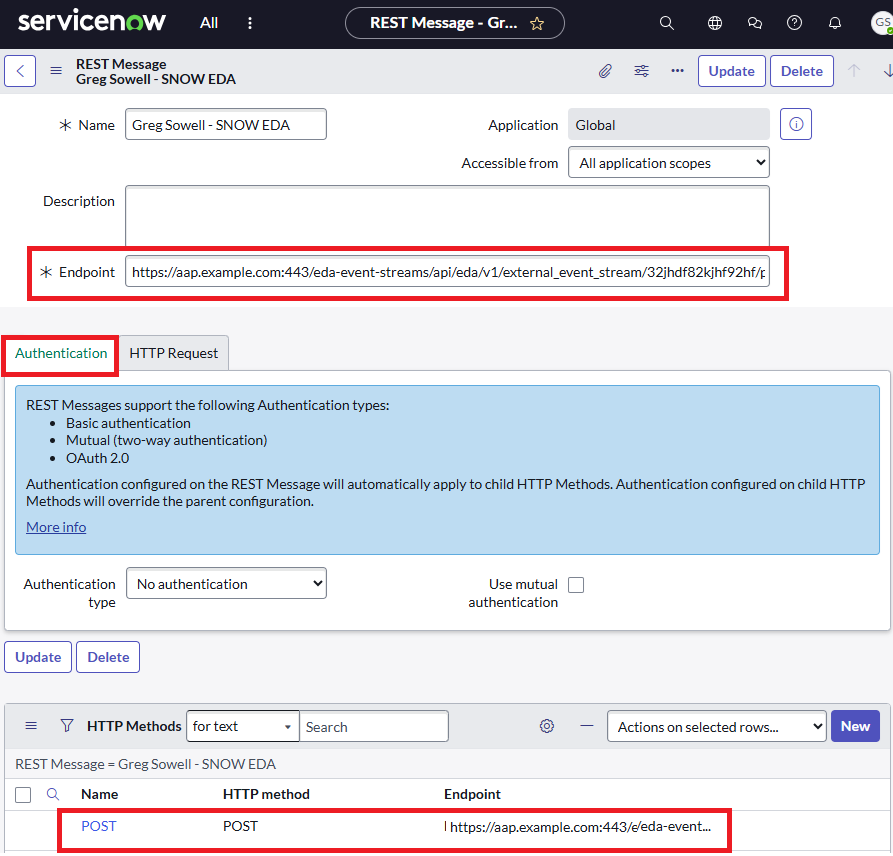
In ServiceNOW, start by creating a REST message. This only has to be done a single time, and it usually has to be done by a SNOW admin. From the menu type “rest message” and then click it from system web services => outbound:
From the top right, click New:

The endpoint is the link supplied when you created the event stream in EDA. You can always go back and reference it if you need.
After that at the bottom you need to create a POST option with method of POST, and the endpoint will be the same as listed above:
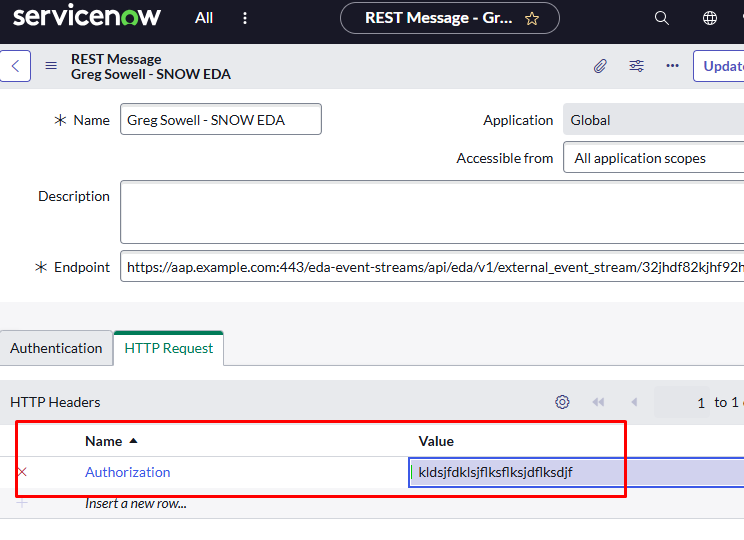
Next click the HTTP Request tab and create a header entry of Authorization and a value of the token you created in EDA:
Create A Business Rule
A business rule is essentially a server-side script in SNOW that is always watching what’s going on in your instance. Below I will configure triggers that will call the REST message created above.
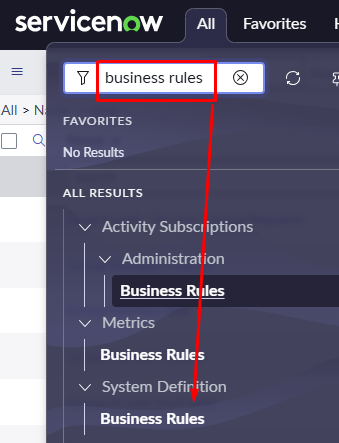
In the menu type “business rules” and click new from the top right menu:
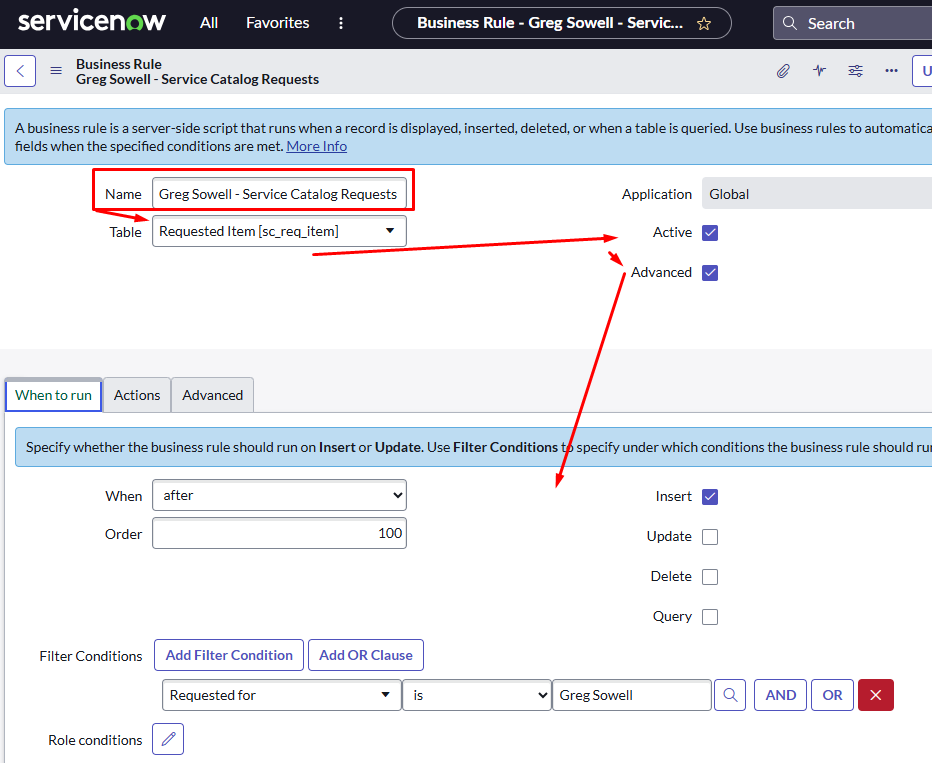
Add a name, place it in the Requested Item table, activate it and make sure you have some advanced options.
From here you want to go to the “when to run” tab and add any conditionals you like. For me I set it to trigger on “insert” and only if it was requested by me. I did this since this is a shared lab and I wanted to trigger my catalog items only for me. Be sure to adjust this to meet your needs:
Now click the “Advanced” tab and paste in the following script:
(function executeRule(current, previous) {
  var REST_MESSAGE_NAME = "Greg Sowell - SNOW EDA";
  var EVENT_NAME = "SERVICE_CATALOG";

  var r = new sn_ws.RESTMessageV2(REST_MESSAGE_NAME, "POST");

  var json = { event: EVENT_NAME };

  if (current.cat_item) {
    json["catalog_item"] = current.cat_item.getDisplayValue();
  }

  if (current.opened_by) {
    var requester = current.opened_by.getRefRecord();
    if (requester.isValidRecord()) {
      json["requester"] = requester.getValue("email");
    }
  }

  if (current.request) {
    json["request_name"] = current.request.getValue("short_description");
  }

  for (var key in current.variables) {
    if (current.variables.hasOwnProperty(key)) {
      var variable = current.variables[key];
      json[key] =
        variable.getDisplayValue() != null
          ? variable.getDisplayValue()
          : JSON.parse(String(variable));
    }
  }

  var jsonString = JSON.stringify(json);
  r.setRequestBody(jsonString);
  r.setTimeout(10000);
  r.execute();
})(current, previous);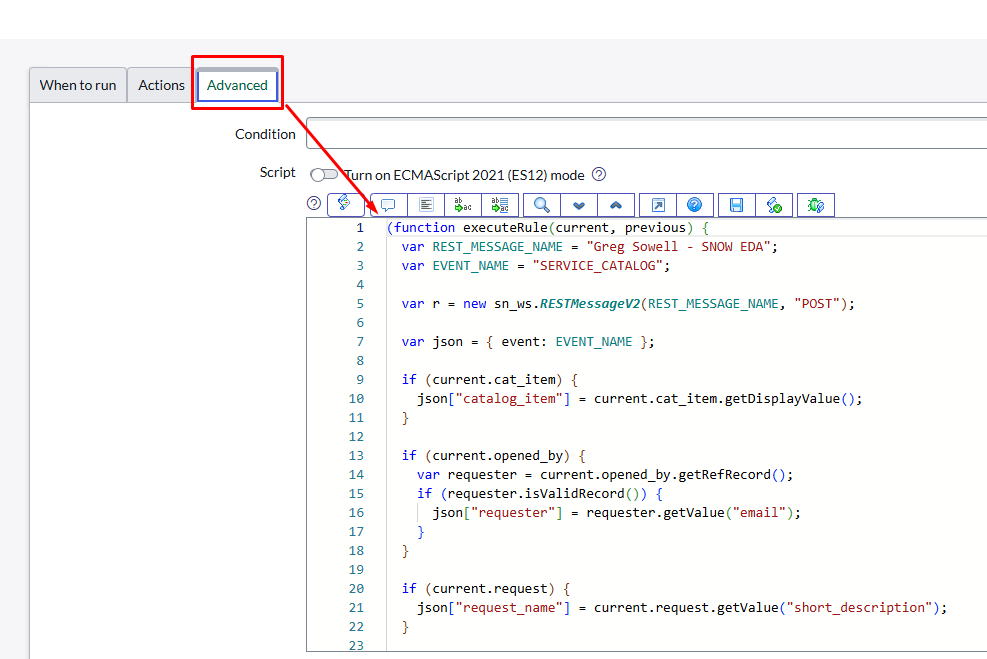
The script points toward the name of the newly created REST message and grabs all of the variables from any triggering service catalog item and pushes it to EDA. Nick was particularly clever with this bit! This is what makes the whole process so simple.
Create Service Catalog Item
This is the easy part…not that any of this should have been too terribly difficult.
Really you create anything in the SC, save, and you are done.
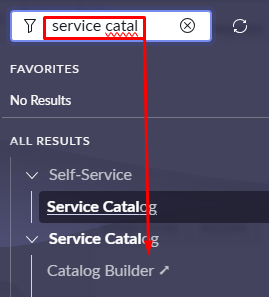
There are two options for configuring a SC item. One is using the “catalog builder”, which will step you through to GUI build one easily:
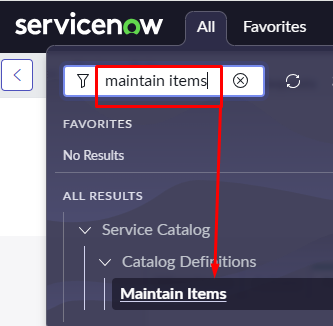
I prefer the manual way as I’m just faster with it since it’s familiar to me. This is found by searching for “maintain items”:
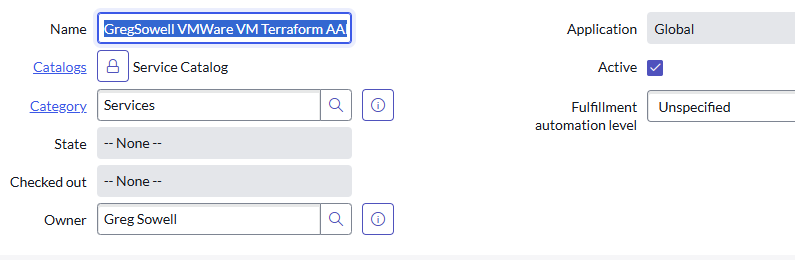
At the top of the SC item, fill out the name, catalog, and category.
Scroll all the way to the bottom and add any variables you’d like to collect from your clients. Notice here I have a mixture of just single lines and multiple choice single selects. Also note that if you want to change the order of the questions, edit their “order” number:
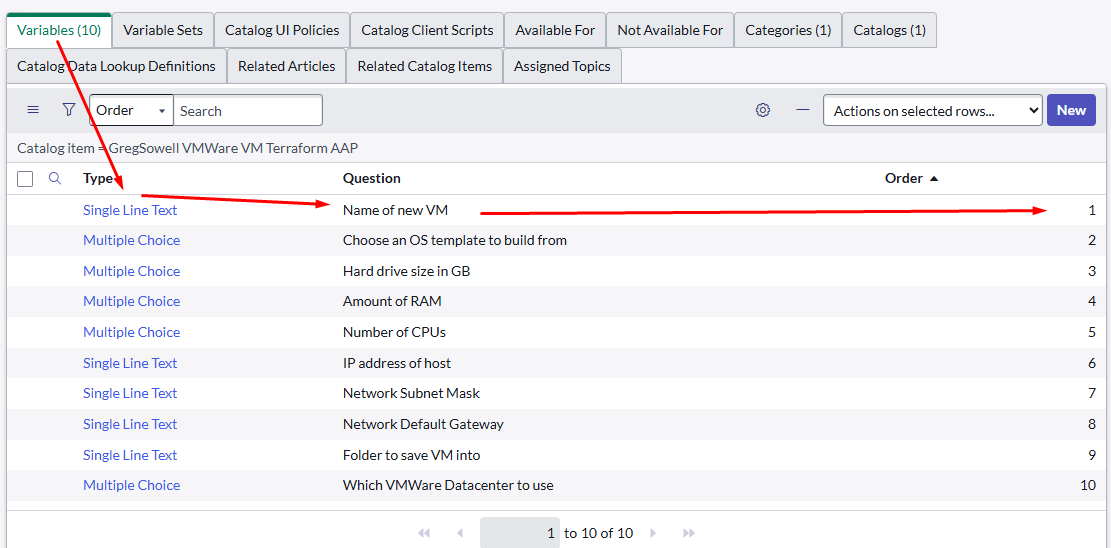
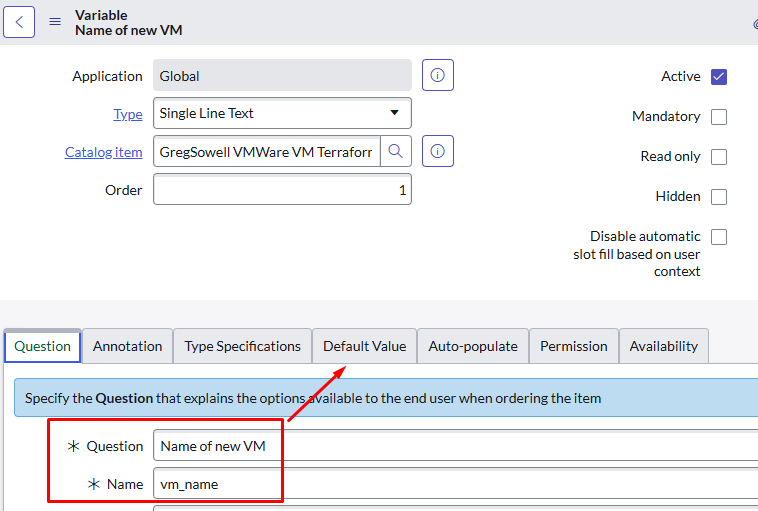
For a variable you set the type, then fill out the question and the variable name. Remember that the variable name used here will be passed to EDA and ultimately your playbook as an extra-var:
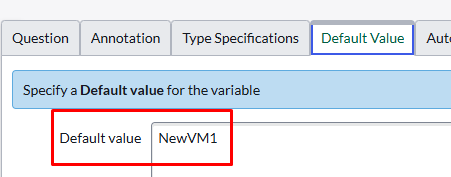
Don’t forget to set a default value whenever you can(helps users make the right selection and also serves as an example:
Operation
Now users can go to the service catalog, and order your item.
Once they do it will be grabbed by the business rule, and sent to EDA via the SNOW rest message.
EDA will then pass it over to controller via the specified playbook.
The playbook will then complete your automation.
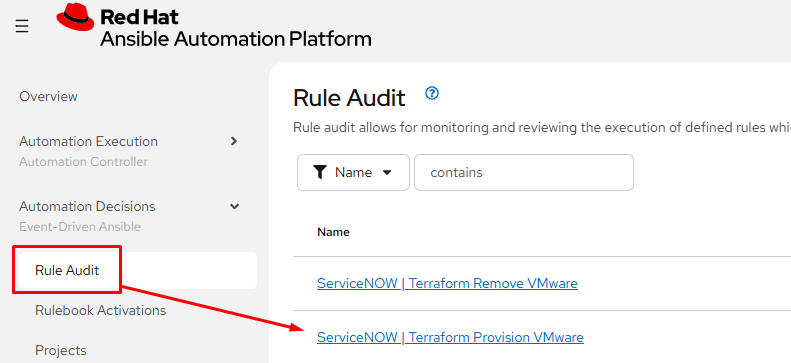
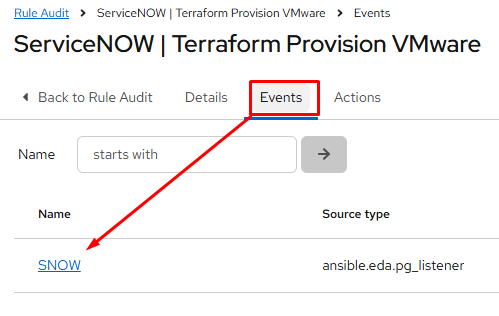
To view the EDA logs from a SNOW message you go to Rule Audit and click the event:
You then click the Events tab and click the listener name:
This will then show you all of the variables that came from the SNOW SC item:
Conclusion
To add a new connection we add a new catalog item, update the EDA rulebook, and you are done!
I hope you found this useful and if you give it a go, let me know how it all comes out. If you make changes to the process or come up with something better, please let me know that too!
Good luck and happy automating!
Leave a Reply