


Greg Sowell, Justin Miller, and Justin Wilson get a live demo of 6 BGP peers loading on a CCR1016 running a build version of router OS version 7.
We give all the details we have on the inner workings of the new engine.
3.5 million routes in around 3 minutes and the UI didn’t bat an eye. Per table memory utilization is about 145MB.
Help support us by becoming a patron! <==join our Slack team!
Keep contacting us: contactus (at) thebrotherswisp.com or https://facebook.com/thebrotherswisp
Here’s the video:(if you don’t see it, hit refresh)

This is a virtual light switch to turn routing rules on and off on a Mikrotik. My example here allows me to route my roku through a remote VPN, then easily turn that off. This allows me to access remote geolocked streaming video as well as local geolocked content.
Here’s the presentation:
Here’s my lab configuration:
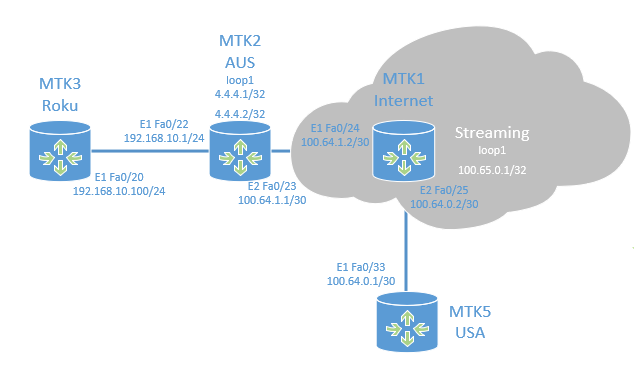
Here’s the HTML for the “on/off” buttons:
1 2 3 4 5 6 7 8 9 10 11 12 13 14 15 16 | <html>
<head>
</head>
<body>
<div style="width:50%">
<form action="http://4.4.4.1:85">
<input type="submit" value="VPN Off" />
</form>
<form action="http://4.4.4.2:85">
<input type="submit" value="VPN On" />
</form>
</div>
</body>
</html> |
Here’s the USA Mikrotik:
1 2 3 4 5 6 7 8 9 10 11 12 | /interface pptp-server server set enabled=yes /ip address add address=100.64.0.1/30 interface=ether1 network=100.64.0.0 /ip firewall nat add action=masquerade chain=srcnat out-interface=ether1 /ip route add distance=1 gateway=100.64.0.2 /ppp secret add local-address=4.4.4.3 name=roku password=rokupassword remote-address=4.4.4.4 /system identity set name=USA |
Here’s the AUS Mikrotik:
1 2 3 4 5 6 7 8 9 10 11 12 13 14 15 16 17 18 19 20 21 22 23 24 25 26 27 28 29 30 31 | /interface bridge
add name=loop1
/interface pptp-client
add connect-to=100.64.0.1 disabled=no name=pptp-usa password=rokupassword user=roku
/ip address
add address=100.64.1.1/30 interface=ether2 network=100.64.1.0
add address=192.168.10.1/24 interface=ether1 network=192.168.10.0
add address=4.4.4.1 interface=loop1 network=4.4.4.1
add address=4.4.4.2 interface=loop1 network=4.4.4.2
/ip dhcp-client
add dhcp-options=hostname,clientid interface=ether5
/ip firewall filter
add action=drop chain=input comment="tunnel off" dst-address=4.4.4.1 src-address-list=tunnel-off
add action=drop chain=input comment="tunnel on" dst-address=4.4.4.2 src-address-list=tunnel-on
add action=add-dst-to-address-list address-list=tunnel-off address-list-timeout=6s chain=input \
comment="tunnel off" dst-address=4.4.4.1 protocol=tcp
add action=add-dst-to-address-list address-list=tunnel-on address-list-timeout=6s chain=input \
comment="tunnel on" dst-address=4.4.4.2 protocol=tcp
/ip firewall nat
add action=masquerade chain=srcnat out-interface=ether2
add action=masquerade chain=srcnat out-interface=pptp-usa
/ip route
add distance=1 gateway=4.4.4.3 routing-mark=roku
add distance=1 gateway=100.64.1.2
/ip route rule
add action=lookup-only-in-table disabled=yes src-address=192.168.10.100/32 table=roku
/system identity
set name=AUS
/tool netwatch
add comment="turn off" down-script="/ip route rule set 0 dis=yes" host=4.4.4.1 interval=5s
add comment="turn on" down-script="/ip route rule set 0 dis=no" host=4.4.4.2 interval=5s |
I’m going to start by saying IOS-XR has some pretty cool features, I mean just look at the addition of “commit”. It does, however, have some quirks that can confound you, especially when you are migrating from one architecture over to the ASR9000 series. In particular, I’m going to look at the OSPF implementation.
Here’s a sample config:
1 2 3 4 5 6 7 8 9 10 11 12 13 14 15 16 17 18 19 20 21 22 23 24 25 26 27 28 29 30 31 32 33 34 35 36 37 38 | router ospf 10 log adjacency changes detail router-id 1.1.1.1 nsf cisco auto-cost reference-bandwidth 10000 default-information originate route-policy cond_ospf_default redistribute connected metric-type 2 redistribute static route-policy static-ospf area 0 interface Loopback0 ! interface TenGigE0/0/0/4 network point-to-point ! interface TenGigE0/0/0/5 network point-to-point ! ! area 0.2.0.2 interface TenGigE0/0/0/6 authentication message-digest message-digest-key 10 md5 tacos network point-to-point ! ! area 0.2.0.3 interface TenGigE0/0/0/7 authentication message-digest message-digest-key 10 md5 tacos network point-to-point ! interface TenGigE0/0/0/8 authentication message-digest message-digest-key 10 md5 tacos network point-to-point ! ! ! |
Looking at the config above you can see we’ve done away with network statements in favor of simply enabling the process on an interface, which is nice. This cuts down on the network command covering some undesired interfaces.
You can also see that I’ve enabled authentication per interface, and not per area, which means you can be more granular with passwords.
I’ve also adjusted the network type per interface right here int he process instead of under the interface configuration itself; this means all OSPF configuration is done from the process, so there is a single place to to view all OSPF configurations, which I really like.
A normal behavior of OSPF is once communication begins and DBDs begin to be exchanged by peers, OSPF will send these packets at the max MTU configured on the interface. This means that if you have an MTU mismatch between OSPF neighbors, then they won’t be able to properly exchange OSPF information, and the neighborship will fail. I mention all of this here because ASR9000s have a quirk with the configured MTU. Note my below interface configurations:
Cisco 7606:
1 2 3 4 5 6 | TenGigabitEthernet1/7 is up, line protocol is up (connected)
Hardware is C6k 10000Mb 802.3, address is 0019.07a8.4500 (bia 0019.07a8.4500)
Description: [ to ASR9000 ]
Internet address is 2.2.2.2/30
MTU 1524 bytes, BW 10000000 Kbit/sec, DLY 10 usec,
reliability 255/255, txload 2/255, rxload 1/255 |
Cisco ASR9006:
1 2 3 4 5 6 7 8 9 10 11 12 | TenGigE0/0/0/4 is up, line protocol is up
Interface state transitions: 1
Dampening enabled: penalty 0, not suppressed
half-life: 1 reuse: 750
suppress: 2000 max-suppress-time: 4
restart-penalty: 0
Hardware is TenGigE, address is 78ba.f906.3cc4 (bia 78ba.f906.3cc4)
Layer 1 Transport Mode is LAN
Description: [ to 7606 ]
Internet address is 2.2.2.1/30
MTU 1524 bytes, BW 10000000 Kbit (Max: 10000000 Kbit)
reliability 255/255, txload 0/255, rxload 2/255 |
Note in the configuration of both it shows an MTU of 1524. The problem here is there’s actually an MTU mismatch!
Here’s the Cisco doc on IOS-XR MTU. If I were to run a debug on OSPF between these peers I would see that my ASR9000 is 14 bytes less than my standard 7600. The Layer 2 header without any dot1q information is 14 bytes, so the standard ASR9000 configuration doesn’t take this into account like most other Cisco devices…so how do you fix the issue; increase the MTU by 14 Bytes:
Cisco ASR9000:
1 2 3 4 5 6 7 8 9 10 11 12 13 14 15 16 | interface ten0/0/0/4
mtu 1538
commit
!
RP/0/RSP0/CPU0:asr9000#show int te0/0/0/4
TenGigE0/0/0/4 is up, line protocol is up
Interface state transitions: 1
Dampening enabled: penalty 0, not suppressed
half-life: 1 reuse: 750
suppress: 2000 max-suppress-time: 4
restart-penalty: 0
Hardware is TenGigE, address is 78ba.f906.3cc4 (bia 78ba.f906.3cc4)
Layer 1 Transport Mode is LAN
Description: [ to 7606 ]
Internet address is 2.2.2.1/30
MTU 1538 bytes, BW 10000000 Kbit (Max: 10000000 Kbit) |
So even though the MTU shows 1538 it now allows the OSPF neighbors to establish on this link where the configuration is:
7600 MTU 1524
ASR MTU 1538
Just another interesting twist you need to account for when connecting kit to your IOS-XR gear.
Thanks and let me know what you think in the comments below!
This week Greg, Tomas, Mike, and Wilson get down with the get down. Get ready towards the end, because we go on some nontechnical discussion on technology’s impact on us in our daily lives along with how the technology we facilitate changes people(we go deep bro).
This cast we talk about:
Mikrotik Update: GPEN to GPEN 210M, GPEN to standard ethernet device 100M
Mikrotik CVE-2018-19299 issue(public release in 10 days). Memory leak due to IPv6 crafted packets moving through router – it seems SOME of it has been fixed in 6.45beta22.
MUM Austin – Gus’ chicken, live show, Master Pancake Theater
MikroTik 802.11 indoor vs. TP-Link
TP-Link Archer C5400 vs. Tik cAP
*slack updates*
ROS 6.45beta22 fixes Steve’s EAP Radius issues
Remote admin clients –
Greg converted a Cisco 7200 to an ASR9000
Ciena sent me sales engineers, you’ll never believe what happened next
Mikrotik CRS3xx series are going into production for a lot of us – hardware DHCPsnooping, port isolation, DHCP option 82, vlan filtering, STP
Thrift quote of the week “Stacking is not suitable for highly available networks, it is a technology of convenience not of reliability” Stacking vs MC-LAG
Orville season 2 e11 – lasting impressions
Wondering conversation about the impact of technology on life
Putty / WinSCP vulnerabilities – update now
Udemy Complete Networking Fundamentals
Help support us by becoming a patron! <==join our Slack team!
Keep contacting us: contactus (at) thebrotherswisp.com or https://facebook.com/thebrotherswisp
Click the link below to view the article!
This week Greg talks to Matt Whiteley about his top 5 tips, British TV, and Brexit.
The Tips:
1. If you don’t know how it works, you won’t know how to fix it.
If you’re new to wireless, put a bridge pair up and set it to auto-everything and then put it into production, you’re probably going to be spending a lot of time retrospectively learning about DFS, interference, Fresnel zones and wireless in general. Understanding how it works before you put it into production will save a lot of phonecalls which leads into
2. Bench it and break it. (Then document it and put it in production)
Then you’ll know how to fix it and also which config should go on there from the get-go. Put it in your test bed and break it every which way you can and fix it every time. Then get someone else to break it for you. You’ll know your products and your setup inside out at the end of it. In a rush to get the service up and running … don’t! At least don’t make a habit of it. It’s so much harder to try and put a proper config onto something once it’s in production and you’re trying to keep services running whilst you change the config, I estimate you will waste 4x however long it took you in the first place to put it right. Also I bet you rushed it and didn’t document it up-front and you’re now trying to retrospectively document it which takes longer. And finally because you’ve now put a new config on something probably remote from where you are, you’re not going to have the right labels on the right bits of equipment. It will be a maintenance nightmare.
3. Somebody else fixing it this time isn’t going to help you fix it next time.
Sure if you’re in a bind and your service is down then get some external help, else fix it yourself. You’ll know what to do next time and it’ll help you improve on how you set your service up to avoid it ever happening again.
4. Understand/Replicate/Fix/Confirm
Understand the issue, if a customer is explaining it or a tech is telling you what’s going on, probe them to make sure you get a good understanding of the issue and make sure their language is the same as yours. Rubbish WiFi could mean anything from WiFi connection flapping to poor signal to poor download speeds. Really nail what they’re saying.
Replicate it. If you can’t replicate the problem yourself then you’re going to have no idea when you’ve fixed it. From section 1 “Understand” you might have realized it was poor download speeds, so jump on their PC and replicate that. Ensure you can replicate it and you also get poor download speeds.
Fix it. Now you have a repeatable process from section 2, you can be sure you’ll know when you’ve fixed it.
Confirm it. No point fixing it if you don’t then get back to your client. If they still think it’s broke for the next 24 hours you’ll just get bad feedback even though you did good work . Not just an email confirmation either but a telephone conversation so they can thank you in person!
5. You can fix anything! If it’s still broke then you just don’t have enough information yet to know what the solution is.
When people come to me and tell me they can’t fix something what they normally mean is they haven’t gathered enough data to analyse. They’re normally skilled enough to fix it, they just haven’t enabled the logs yet, gone through them and picked out the line that tells them what’s wrong and often the difference between a good engineer and a great engineer is nothing than some more patience. The best engineers will have an instinct and will know how to get that information the quickest but anyone can be a great engineer just by being methodical and persistent.
Help support us by becoming a patron! <==join our Slack team!
Keep contacting us: contactus (at) thebrotherswisp.com or https://facebook.com/thebrotherswisp
Click the link below to view the article!
This week Greg and Tomas have a chat while recovering from their respective illnesses LOL.
This cast we talk about:
Nvidia acquires Mellanox
Mikrotik EU MUM 2019 New Hardware
Ubiquiti has 60GHz radios with 5GHz failover in beta – $130
Fiberstore merged with an optic factory; SFP+SR $15, SFP+LR $21
Windstream in chapter 11, business as usual it seems
WISPAmerica next week
*Slack Updates*
Default configs via netinstall on Mikrotik
Via Cox; Post v6.42 Mikrotik Hotspot creates hotspot server queue by default. This bricks user rate-limits. Miller suggest an on-login script that moves it to the bottom.
Thrift noticed that the new CCRs have a fan between the redundant PSUs.
Rob laments the fact that some Mikrotik switches have the top left port set as “port 2”
Steve says to watchout for fasttracking pure IPSec traffic “I’ve been burned in the past by it.”
Network statement in Cisco and Mikrotik says “Run OSPF on these interfaces”, it also happens to advertise those networks too.
Finding fiber crews; ask local municipality and colleges for recommendations.
Bostjan summarized a lot of discussion on the dangers of wireless:
1) everybody I know was running around like theirs hair is on fire and screaming how all antennas are bad for you. We all are going to die. This seemed not logical to me so I tried to ignore it.
2) A guy who works for a carrier and installs antennas on towers for them said that antennas are dangerous. I couldn’t ignore that so I came here to educate myself.
3) This is what I’ve learned so far
-WISP is using 0.2 watt radios. Cell guys are using 20 watt radios. Broadcast (AM, FM, TV) are using 20,000 watts.
-There is no health risk unless you are sleeping on the Tower’s transmitter.
-if you are cold, go stand in front of the dish to warm up (is true, but don’t do it)
-and there is this guy who makes other people nervous https://youtu.be/ii82I1IzFRY?t=486
-some proteins in your body starts to changes it’s molecular structure from about 42°C. You’ll be dead before cooked
-one more thing, I think that antennas are dangerous; they can kill you if they fall from a tower on your head
Help support us by becoming a patron! <==join our Slack team!
Keep contacting us: contactus (at) thebrotherswisp.com or https://facebook.com/thebrotherswisp
Click the link below to view the article!
If you have any unknown hardware, you will need to rectify that first.
After that make sure you set your power profile(in BIOS or ILO) to as low as you can(this will ramp things down when they aren’t needed).
Next, update your ILO firmware to the newest version possible. I found this link at pingtool.org that has the newest ILO firmwares. You can extract these firmwares on a linux box to get the .bin file.
Take that bin file and upload it via the ILO interface. One curious note is that I could not seem to get this to work, it would get to 99%, then fail. The log would spit out the message:
firmware upgrade via webpage failed
The fix was to run the update from firefox. Edge and Chrome just wouldn’t do it.
After following those steps, my server now runs whisper quiet!