


This week we have Greg, Mike, and Sean Scarfo talk about our greatest failures(PS, Greg has many more LOL).
**Sponsors**
Sonar.software
Cambium ePMP Bundle
**/Sponsors**
This week we talk about:
Mikrotik CRS3xx initial Bridge Port Extender support added – 802.1BR
Mikrotik CCR2004s – a few reports of lockups
Wireguard release in beta
More L3 HW offload
NLNOG Ring – shared shells to test from
Pretty looking glass server – hyper glass
FB WISP Talk Poll: Unexpected results – pole1 – pole2
Our failures: sharing stories about our biggest oopsies.
Here’s the video:(if you don’t see it, hit refresh)

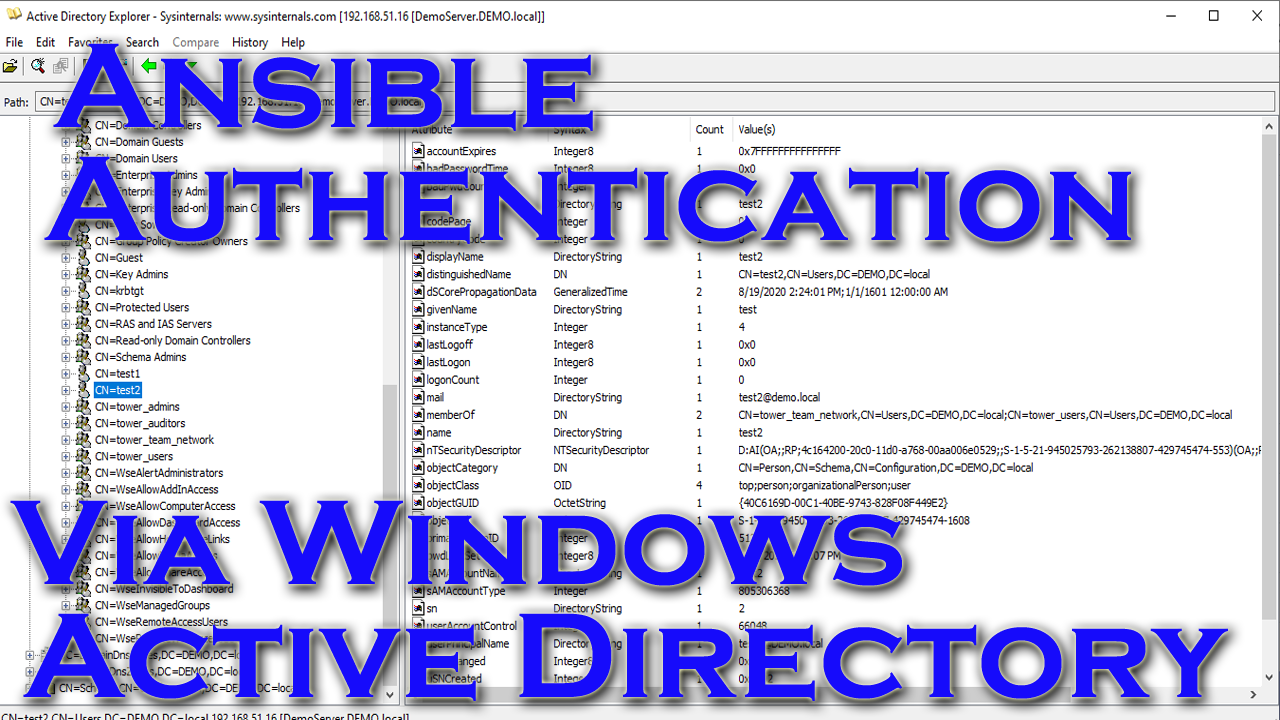
The Ansible automation platform has many awesome features, and one in particular is its ability to authenticate off of something other than itself. A common one I’m running into with customers is having Tower authenticate off of their Active Directory, so that’s what I’m going to tackle here. This assumes you have a functioning AD environment(though turning up a domain controller is still a very simple process(I haven’t stood up a DC since windows 2000 LOL)). Here’s Ansible’s documentation on it.
Demo Video
Active Directory Configuration
My AD server is windows server 2016 essentials and all of my screen shots are done from my laptop using Active Directory Explorer.
My AD domain is DEMO.local:
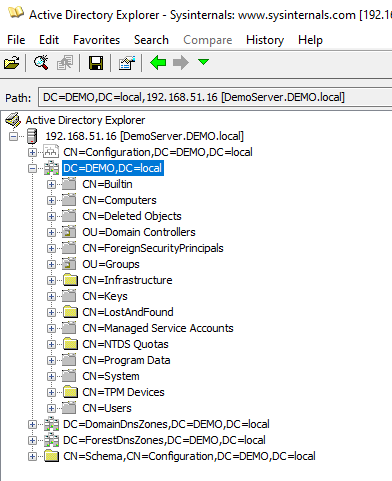
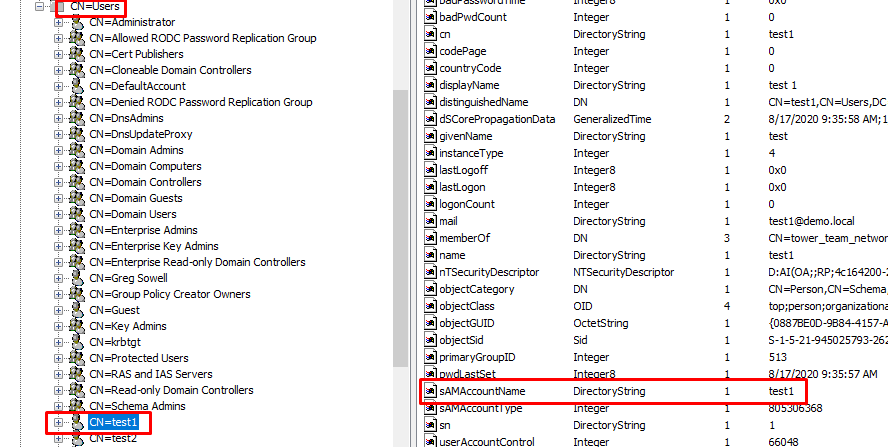
I stuck everything in the Users CN:
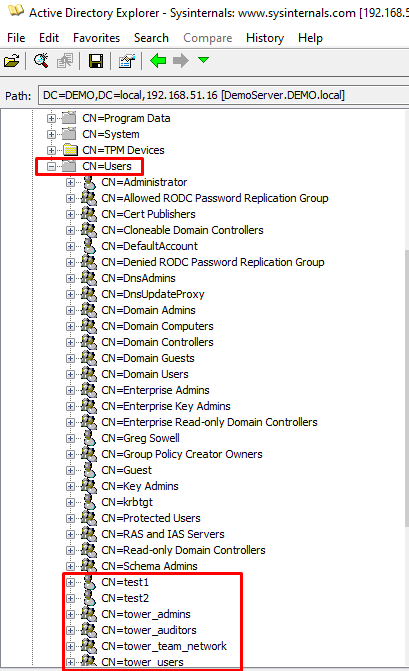
Notice in the above that I have two users:
– test1
– test2
I also have 4 groups defined:
– tower_admins
– tower_auditors
– tower_users
– tower_team_network
The groups will be mapped to various things in tower, which I’ll cover in just a bit.
Tower Configuration
So navigating to system -> authentication will present me with my external authentication options. From here I’m going to choose LDAP since AD is really just LDAP under the hood.
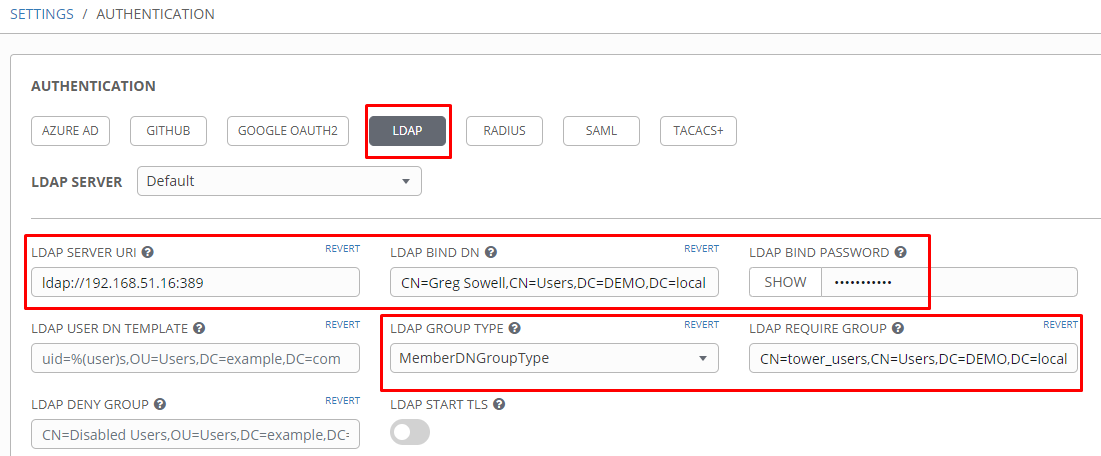
I’ve highlighted…highlit…multiple things here.
KEEP “LDAP USER DN TEMPLATE” and “LDAP DENY GROUP” BLANK. It tends to break things if you don’t need it.
For LDAP server I’m doing an unencrypted connection so I just use ldap:x.x.x.x:389; if it was to be secure I’d specify ldaps:x.x.x.x:636.
For LDAP BIND DN I’ve specified a user that has access to access the various users and groups(this is the account Tower uses to authenticate with the LDAP server).
I use MemberDNGroupType for my LDAP group type, though there is an AD option. If you have nested LDAP groups, be sure to set the option here.
The LDAP Require Group is an optional field. If this option is set, then only AD users that are members of this group are allowed to connect. This prevents random AD users from connecting.
If you don’t specify anything here, then any AD user can connect to the system, but they won’t have access to do anything(other than create a credential) by default. In my case I use the tower_users group.
Here’s my next set of options:
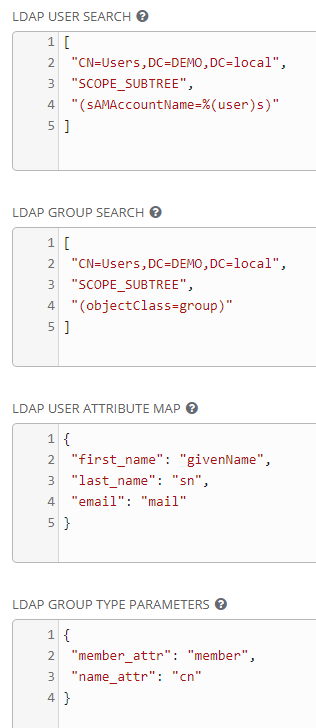
LDAP User Search is where in LDAP the system will look for users. I have them all in the users group as specified here, but I also use scope_subtree, which tells Tower to look here, but also look in other groups under this. I also specify the sAMAccountName object to be the username as shown in the following screenshot:
1 2 3 4 5 | [ "CN=Users,DC=DEMO,DC=local", "SCOPE_SUBTREE", "(sAMAccountName=%(user)s)" ] |
Next will be the LDAP Group Search option, which tells tower where to look in the LDAP tree for the configured groups used for users.
1 2 3 4 5 | [ "CN=Users,DC=DEMO,DC=local", "SCOPE_SUBTREE", "(objectClass=group)" ] |
Then we hit the LDAP User Attribute Map, which maps LDAP options to tower options.
1 2 3 4 5 | {
"first_name": "givenName",
"last_name": "sn",
"email": "mail"
} |
The LDAP Group Type Parameters do a little more mapping.
1 2 3 4 | {
"member_attr": "member",
"name_attr": "cn"
} |
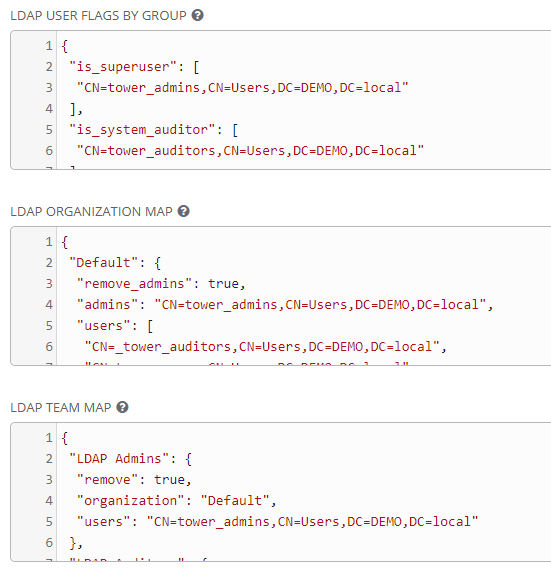
LDAP User Flags By Group is where I map my singleton roles roles for admins and auditors. The AD tower_admins group and tower_auditors group get mapped to system admins/auditors in tower.
1 2 3 4 5 6 7 8 | {
"is_superuser": [
"CN=tower_admins,CN=Users,DC=DEMO,DC=local"
],
"is_system_auditor": [
"CN=tower_auditors,CN=Users,DC=DEMO,DC=local"
]
} |
LDAP Organization Map maps groups to various levels as shown below. tower_admins become admins and every other group are users.
1 2 3 4 5 6 7 8 9 10 11 | {
"Default": {
"remove_admins": true,
"admins": "CN=tower_admins,CN=Users,DC=DEMO,DC=local",
"users": [
"CN=_tower_auditors,CN=Users,DC=DEMO,DC=local",
"CN=tower_users,CN=Users,DC=DEMO,DC=local",
"CN=tower_team_network,CN=Users,DC=DEMO,DC=local"
]
}
} |
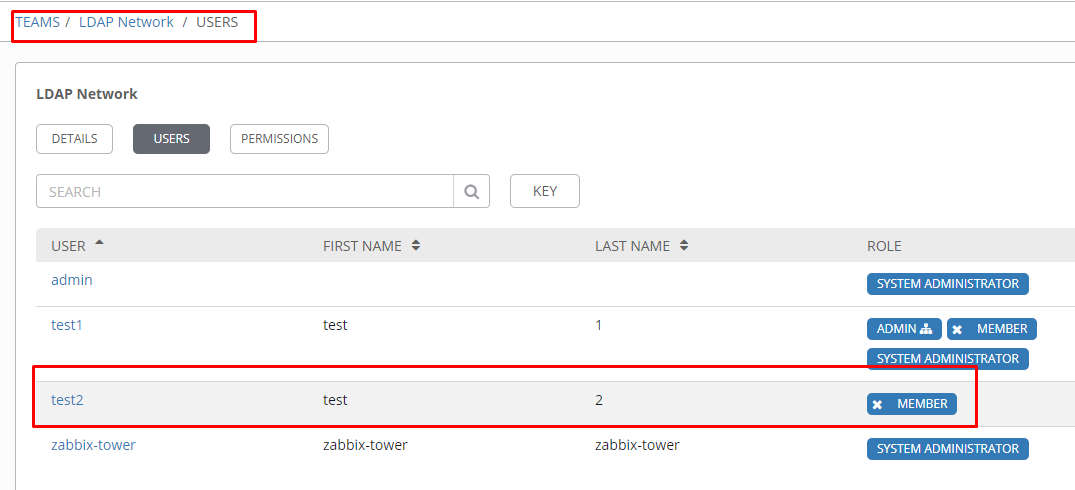
Last is the LDAP Team Map. This is where various AD groups are mapped to teams within Ansible Tower. If the team doesn’t exist, then the first time a user authenticates, the teams will be created. After the groups exist it’s an admin’s job to go and add permissions for the various groups.
1 2 3 4 5 6 7 8 9 10 11 12 13 14 15 16 17 18 19 20 21 22 | {
"LDAP Admins": {
"remove": true,
"organization": "Default",
"users": "CN=tower_admins,CN=Users,DC=DEMO,DC=local"
},
"LDAP Auditors": {
"remove": true,
"organization": "Default",
"users": "CN=tower_auditors,CN=Users,DC=DEMO,DC=local"
},
"LDAP Users": {
"remove": true,
"organization": "Default",
"users": "CN=tower_users,CN=Users,DC=DEMO,DC=local"
},
"LDAP Network": {
"remove": true,
"organization": "Default",
"users": "CN=tower_team_network,CN=Users,DC=DEMO,DC=local"
}
} |
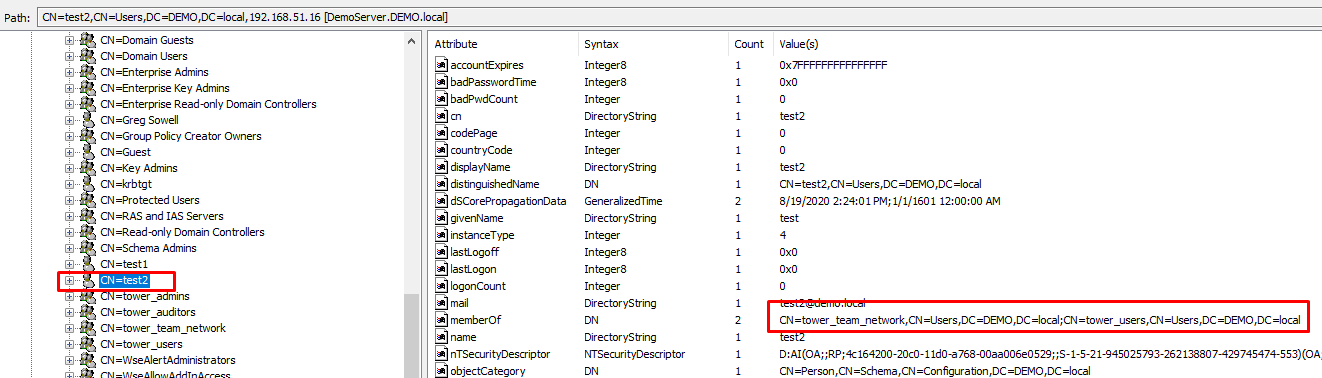
So any AD user that is a member of the tower_team_network group is put into Tower’s “LDAP Network” team.
LDAP Order Of Operation
Check the link here on how multiple LDAP servers are utilized.
The TLDR is:
All of the usual rules apply: Django will attempt to authenticate a user with each backend in turn until one of them succeeds. When a particular backend successfully authenticates a user, that user will be linked to the backend for the duration of their session.
LDAP Troubleshooting On Tower
When things inevitably go wrong, here’s some troubleshooting options.
In tower, create this file(/etc/tower/conf.d/ldap.py) with the following option:
1 | LOGGING['handlers']['tower_warnings']['level'] = 'DEBUG' |
After that, restart the Tower services
1 | ansible-tower-service restart |
You can now do a tail on the /var/log/tower/tower.log log file to see LDAP specific messages.
You also want to use the LDAP search command(you will have to download the tool) to do some testing with the following command:
1 | ldapsearch -x -H ldap://192.168.51.6 -D "CN=Greg Sowell,CN=Users,DC=DEMO,DC=local" -b "dc=DEMO,dc=local" -w MyPassword |
Jeremy turned me on to the fact that a convenient way to see what’s going on is to do a wireshark capture on the packets; it will give you indications on what’s happening in the auth process.
Big thanks to Jimmy for helping me suss the last bug out of my config. Turns out if any group that Tower is searching LDAP for isn’t found, then it will just fail with a very nondescript error(so double check all of your spellings).
Hope this helps and happy authenticating.
I’ve been sending some messages via ansible playbooks to slack and I ran into issues when I tried sending clickable links. Luckily the ansible slack module has the options you need.
Here’s an example of sending a standard message:
1 2 3 4 5 6 7 8 9 | - name: send message through slack
slack:
token: "{{ slack_token }}"
msg: |
"http://GregSowell.com"
"This is a great site"
channel: "{{ slack_channel }}"
parse: 'none'
delegate_to: localhost |
Unfortunately the URL above just shows up as standard text and isn’t clickable.
I can instead use the attachments module to make it clickable like so:
1 2 3 4 5 6 7 8 9 10 | - name: send message through slack
slack:
token: "{{ slack_token }}"
attachments:
- text: This is a great site
title: "Go to GregSowell.com"
title_link: "http://GregSowell.com"
channel: "{{ slack_channel }}"
parse: 'none'
delegate_to: localhost |
Now slack creates an attachment post that has the text along with the title being a clickable link.
Slack has an API message reference here that helps build the above.

This week we have Greg and Mike; just like old times 🙂
**Sponsors**
Sonar.software
Cambium ePMP Bundle
**/Sponsors**
This week we talk about:
Mike’s Zhone Issues
College hacking contest – how fun would that be.
Using public resovlers 8.8.8.8, 4.2.2.2, 1.1.1.1. Should you have some language in your contracts?
VoIP system API – 3cx doesn’t have a native, but there are 3rd parties.
Yealink phones have a rest API
Yealink CAs
Cisco Devnet reserved labs have direct access only via anyconnect client *but why*
Do any of you use Cisco ACI?
Netonix 1.5.5 bug where you have to reapply over the top with the same firmware
The random 4011 lockups continue…*sigh*
Mikrotik V7 routing documentation…a bit more anyway
Here’s the video:(if you don’t see it, hit refresh)
This week we have Greg and Mike; just like old times 
**Sponsors**
Sonar.software
Cambium ePMP Bundle
**/Sponsors**
This week we talk about:
Mike’s Zhone Issues
College hacking contest – how fun would that be.
Using public resovlers 8.8.8.8, 4.2.2.2, 1.1.1.1. Should you have some language in your contracts?
VoIP system API – 3cx doesn’t have a native, but there are 3rd parties.
Yealink phones have a rest API
Yealink CAs
Cisco Devnet reserved labs have direct access only via anyconnect client *but why*
Do any of you use Cisco ACI?
Netonix 1.5.5 bug where you have to reapply over the top with the same firmware
The random 4011 lockups continue…*sigh*
Mikrotik V7 routing documentation…a bit more anyway
Here’s the video:(if you don’t see it, hit refresh)
I recently needed to do a demo of my Cisco ACI Ansible stuff, and unfortunately the always on service was down for maint…NBD I’ll reserve one. “Uhhh you can only get direct access via the anyconnect client…oh no…”
So to get the lab up quick fast I ran the anyconnect client on my workstation, then ran a TCP port map on my machine with the following:
1 | netsh interface portproxy add v4tov4 listenport=443 connectaddress=10.10.20.14 connectport=443 listenaddress=192.168.51.254 protocol=tcp |
The above command will listen on my local 443, then forward it to the remote host through the anyconnect client on 443 also. You can listen on one port and proxy to another, so keep that in mind.
Basic command settings:
1 | netsh interface portproxy add v4tov4 listenport=80 connectaddress=ip-of-server-on-internet connectport=23 listenaddress=ip-of-windows-machine protocol=tcp |
Also, don’t forget to open up your windows firewall for whatever the “listen” port is, otherwise the remote machines won’t be able to connect.
At this point I opened up my ansible tower and adjusted the creds for the ACI server(using the IP address of my workstation as that of the ACI) and awwwwaaaayyyy it went 🙂
Yealink has a pretty useful Rest API that allows for some fun manipulation to phones. You can do things like start speaker phone and initiate a call or in my case, you can have it enable/disable DND.
To enable/disable DND via cURL it’s as simple as:
ON
1 | curl -X POST --ciphers 'DEFAULT:!DH' -d "" --user Username:MyPassword https://192.168.51.251/cgi-bin/ConfigManApp.com?key=DNDOn -k -s |
OFF
1 | curl -X POST --ciphers 'DEFAULT:!DH' -d "" --user Username:MyPassword https://192.168.51.251/cgi-bin/ConfigManApp.com?key=DNDOff -k -s |
My github playbook based on this is here:
If your system throws an error about the old cipher in use you might have a look at this post.