

Give me three different methods to reset an RB750 or RB750G to default.
Nothing earth shattering, but a challenge none the less 🙂 Lets see in what way Jimmy can work in an insult…will it be a bald joke…perhaps a hairy joke…I’m tingling with anticipation…hehehehe 😉
It happened over night. My Mikrotik basics slides have officially been downloaded over 1000 times! I know this doesn’t constitute 1000+ views on my video, but it is still pretty cool 🙂 Thanks to all of you that have supported me!

1000 and counting...definately a plethora, right Rob...heh
I have to say it was a painful process…it took me about an hour of tweaking…mostly my own fault…hehe. Most of you guys have seen a Cisco phone at some point. If you’ve ever watched a show on Fox, you most likely have seen one…hehe They make great phones, and not just for CallManager. You can flash these guys from skinny to SIP. The process isn’t that bad once you get the steps down. Here’s what I did.
You will first need two things:
*Firmware
When choosing your firmware version, reference this matrix. Certain versions of SCCP(skinny) have to be flashed to certain versions of SIP and vice versa. Once you get to the requisite version of SIP or skinny, you can then upgrade as you like.
When you go to download your firmware, the zip will be named something like P0S3-8-12-00.zip. You want to make sure that the package is listed as for 3rd party SIP call control environment. Extract these to a folder somewhere.
*TFTP Server
I used tftpd32. This is a great windows prog that will run a DHCP server, TFTP server, syslog server. Using this, set the files folder to that of the firmware folder we just extracted.
*DHCP Server
This is optional because you can simply set all of this up statically on the phone. I chose to use it. In the DHCP server section of tftpd32, fill out the normal information and add option 66 as the IP of your TFTP server.
*Create Config Files
SEP001111111111.cnf.xml
Grab the MAC address off of the back of you phone and create a file by combining SEP *phones mac* .cnf.xml. The contents should resemble the info below:
1 2 3 | <device> <loadInformation model="IP Phone 7960">P0S3-8-12-00</loadInformation> </device> |
XMLDefault.cnf.xml
This guy will need to be tailored to whatever the firmware matrix page says. The loadInformationX section needs to correspond to your version of SIP. X = version number.
1 2 3 4 5 6 7 8 9 10 11 12 13 14 15 16 17 18 19 20 21 22 23 24 25 | <Default>
<callManagerGroup>
<members>
<member priority="0">
<callManager>
<ports>
<ethernetPhonePort>2000</ethernetPhonePort>
<mgcpPorts>
<listen>2427</listen>
<keepAlive>2428</keepAlive>
</mgcpPorts>
</ports>
<processNodeName></processNodeName>
</callManager>
</member>
</members>
</callManagerGroup>
<loadInformation8 model="IP Phone 7960">P0S3-8-12-00</loadInformation8>
<authenticationURL></authenticationURL>
<directoryURL></directoryURL>
<idleURL></idleURL>
<informationURL></informationURL>
<messagesURL></messagesURL>
<servicesURL></servicesURL>
</Default> |
*Loading Image
You will want to watch the log tab on the TFTP server to see which files the phone is requesting. It appears that it requests the file names differently depending on what version it is currently running.
Once you get it all rocking and rolling, you can follow this guide to setup your Asterisk/trixbox. It also contains basic configs for the phones.

At first glance, one would think this is impossible. It is NOT impossible, thanks to some scripting and a couple of free services. This will work for straight IPSec tunnels, PPTP tunnels, IPIP tunnels or even IPIP tunnels encrypted with IPSec 🙂
Step 1 is to figure out what our public IP is and a method to share it with the remote site. We are going to be using dns-o-matic. This is a free service from opendns that allows you to update multiple different dynamic DNS services via a single interface. I’m using dyndns.org for this example. In a nutshell dyndns.org allows you to update a publicly available DNS entry that is a subdomain of dyndns.org. In our example we will use gregsowell-siteA.dyndns.org and gregsowell-siteB.dyndns.org. So, we need a method to update our DNS entry…a SCRIPT!
Mikrotik Dynamic DNS Update Script
1 2 3 4 5 6 7 8 9 10 11 12 13 14 15 16 17 18 19 20 21 22 23 24 25 26 27 28 29 30 31 32 33 34 35 36 37 38 | # DNSoMatic automatic DNS updates
# User account info of DNSoMatic
:global maticuser "user"
:global maticpass "password"
:global matichost "Yourhost"
# No more changes need
:global previousIP
# Print values for debug
:log info "DNSoMatic: Updating dynamic IP on DNS for host $matichost"
:log info "DNSoMatic: User $maticuser y Pass $maticpass"
:log info "DNSoMatic: Last IP $previousIP"
# get the current IP address from the internet (in case of double-nat)
/tool fetch mode=http address="checkip.dyndns.org" src-path="/" dst-path="/dyndns.checkip.html"
:local result [/file get dyndns.checkip.html contents]
# parse the current IP result
:local resultLen [:len $result]
:local startLoc [:find $result ": " -1]
:set startLoc ($startLoc + 2)
:local endLoc [:find $result "</body>" -1]
:global currentIP [:pick $result $startLoc $endLoc]
:log info "DNSoMatic: IP actual $currentIP"
# Touching the string passed to fetch command on "src-path" option
:local str "/nic/update?hostname=$matichost&myip=$currentIP&wildcard=NOCHG&mx=NOCHG&backmx=NOCHG"
:if ($currentIP != $previousIP) do={
:log info "DNSoMatic: Update need"
:set previousIP $currentIP
:log info "DNSoMatic: Sending update $currentIP"
:log info [ :put [/tool fetch host=MT user=$maticuser password=$maticpass mode=http address="updates.dnsomatic.com" src-path=$str dst-path=$matichost]]
:log info "DNSoMatic: Host $matichost updated on DNSoMatic with IP $currentIP"
} else={
:log info "DNSoMatic: Previous IP $previousIP and current $currentIP equal, no update need"
} |
In order for this script to work correctly, you need to update the dns-o-matic infomation at the top. You will also need to configure DNS servers on your Mikrotik…how else will it resolve the URLs 😉
1 2 | /ip dns set primary-dns=8.8.8.8 secondary-dns=4.2.2.2 |
Once you get your script in, you will need to schedule it to run at whatever interval you prefer. I use a 10 minute interval.
1 2 3 | /system scheduler
add comment="" disabled=no interval=10m name=dynamic-dns-schedule on-event=dynamic-dns-script \
start-date=jan/01/1970 start-time=00:00:01 |
Dynamic IPs on both sides with IPSec

Dynamic IPSec
SiteA:
Setup Dynamic Script
1 2 3 4 5 6 7 8 9 10 11 12 13 14 15 16 17 18 19 20 21 22 23 24 25 26 27 28 29 30 31 32 33 34 35 36 37 38 39 40 41 42 43 44 45 46 47 48 49 50 51 | /system script
add name=dynamic-dns-script policy=\
ftp,reboot,read,write,policy,test,winbox,password,sniff,sensitive source="\
# User account info of DNSoMatic\r\
\n:global maticuser \"user\"\r\
\n:global maticpass \"password\"\r\
\n:global matichost \"gregsowell-sitea.dyndns.org\"\r\
\n# No more changes need\r\
\n\r\
\n:global previousIP\r\
\n\r\
\n# Print values for debug\r\
\n:log info \"DNSoMatic: Updating dynamic IP on DNS for host \$matichost\"\
\r\
\n:log info \"DNSoMatic: User \$maticuser y Pass \$maticpass\"\r\
\n:log info \"DNSoMatic: Last IP \$previousIP\"\r\
\n\r\
\n# get the current IP address from the internet (in case of double-nat)\r\
\n/tool fetch mode=http address=\"checkip.dyndns.org\" src-path=\"/\" dst-\
path=\"/dyndns.checkip.html\"\r\
\n:local result [/file get dyndns.checkip.html contents]\r\
\n\r\
\n# parse the current IP result\r\
\n:local resultLen [:len \$result]\r\
\n:local startLoc [:find \$result \": \" -1]\r\
\n:set startLoc (\$startLoc + 2)\r\
\n:local endLoc [:find \$result \"</body>\" -1]\r\
\n:global currentIP [:pick \$result \$startLoc \$endLoc]\r\
\n:log info \"DNSoMatic: IP actual \$currentIP\"\r\
\n\r\
\n# Touching the string passed to fetch command on \"src-path\" option\r\
\n:local str \"/nic/update\?hostname=\$matichost&myip=\$currentIP&wildcard\
=NOCHG&mx=NOCHG&backmx=NOCHG\"\r\
\n\r\
\n:if (\$currentIP != \$previousIP) do={\r\
\n:log info \"DNSoMatic: Update need\"\r\
\n:set previousIP \$currentIP\r\
\n:log info \"DNSoMatic: Sending update \$currentIP\"\r\
\n:log info [ :put [/tool fetch host=MT user=\$maticuser password=\$maticp\
ass mode=http address=\"updates.dnsomatic.com\" src-path=\$str dst-path=\$\
matichost]]\r\
\n:log info \"DNSoMatic: Host \$matichost updated on DNSoMatic with IP \$c\
urrentIP\"\r\
\n} else={\r\
\n:log info \"DNSoMatic: Previous IP \$previousIP and current \$currentIP \
equal, no update need\"\r\
\n}"
/system scheduler
add comment="" disabled=no interval=10m name=dynamic-dns-schedule on-event=dynamic-dns-script \
start-date=jan/01/1970 start-time=00:00:01 |
Setup NAT Bypass
1 2 3 4 5 | /ip firewall nat
add action=accept chain=srcnat comment="NAT bypass" disabled=no dst-address=\
192.168.0.0/16 out-interface=ether1
add action=masquerade chain=srcnat comment="default PAT" disabled=no out-interface=\
ether1 |
Setup IPSec Peer
1 2 3 4 5 6 | /ip ipsec peer
add address=2.2.2.2/32:500 auth-method=pre-shared-key dh-group=modp1024 \
disabled=no dpd-interval=disable-dpd dpd-maximum-failures=1 \
enc-algorithm=3des exchange-mode=main generate-policy=no hash-algorithm=\
md5 lifebytes=0 lifetime=1d nat-traversal=no proposal-check=obey secret=\
test send-initial-contact=yes |
Setup IPSec Policy
1 2 3 4 5 | /ip ipsec policy
add action=encrypt disabled=no dst-address=192.168.2.0/24:any \
ipsec-protocols=esp level=require priority=0 proposal=default protocol=\
all sa-dst-address=2.2.2.2 sa-src-address=1.1.1.1 src-address=\
192.168.1.0/24:any tunnel=yes |
Now that we have the basics configured, I’m sure you noticed that I put IP addresses in the IPSec peer and policy. The whole point here is that we are running our public side via DHCP, so how does this benefit us? As it is now, it doesn’t. We need another script to update our peer and policy in the event of an IP change.
Your peers and policies are numbered from 0 up. This list is a static list that can be referenced, for our update. The number entry is located right after the word set. In the below scripts, be sure to update it to the proper peer number and policy number. You can figure out their numbers by issuing print commands from a terminal:
1 2 | /ip ipsec peer print /ip ipsec policy print |
You can see that the script resolves the IP address for siteA and siteB, then sets the entries as they should be.
Peer/Policy Update Script
1 2 3 4 | :global LocalSite [:resolve gregsowell-siteA.dyndns.org] :global RemoteSite [:resolve gregsowell-siteb.dyndns.org] /ip ipsec policy set 0 sa-dst-address=$RemoteSite sa-src-address=$LocalSite /ip ipsec peer set 0 address="$RemoteSite/32:500" |
Peer/Policy Update Script – Copy and paste Version
1 2 3 4 5 6 7 8 | /system script
add name=dynamic-router-update policy=\
ftp,reboot,read,write,policy,test,winbox,password,sniff,sensitive source="\
:global LocalSite [:resolve gregsowell-siteA.dyndns.org]\r\
\n:global RemoteSite [:resolve gregsowell-siteb.dyndns.org]\r\
\n/ip ipsec policy set 0 sa-dst-address=\$RemoteSite sa-src-address=\$Loca\
lSite\r\
\n/ip ipsec peer set 0 address=\"\$RemoteSite/32:500\"" |
You can either create a new schedule to run the peer/policy update, or you can just add the script to your existing schedule, which is what I recommend.
1 2 3 4 5 6 | /system scheduler
add comment="" disabled=no interval=10m name=dynamic-dns-schedule on-event=\
"dynamic-dns-script\r\
\ndynamic-router-update" policy=\
ftp,reboot,read,write,policy,test,winbox,password,sniff,sensitive \
start-date=jan/01/1970 start-time=00:00:01 |
Site B should configure the same, only in reverse order for the IP addresses.
IPIP with IPSec

IPIP Tunnel with a Cherry on Top
SiteA:
The dynamic script and scheduler is the same as above.
Setup IPIP Tunnel Interface
1 2 3 | /interface ipip
add comment="" disabled=no local-address=1.1.1.1 mtu=1480 name=ipip1 \
remote-address=2.2.2.2 |
Setup IPSec Peer
1 2 3 4 5 6 | /ip ipsec peer
add address=2.2.2.2/32:500 auth-method=pre-shared-key dh-group=modp1024 \
disabled=no dpd-interval=disable-dpd dpd-maximum-failures=1 \
enc-algorithm=3des exchange-mode=main generate-policy=no hash-algorithm=\
md5 lifebytes=0 lifetime=1d nat-traversal=no proposal-check=obey secret=\
test send-initial-contact=yes |
Setup IPSec Policy
1 2 3 4 5 | /ip ipsec policy
add action=encrypt disabled=no dst-address=2.2.2.2/32:any ipsec-protocols=esp \
level=require priority=0 proposal=default protocol=ip-encap \
sa-dst-address=2.2.2.2 sa-src-address=1.1.1.1 src-address=1.1.1.1/32:any \
tunnel=no |
We’re going to add an additional step to the update script to take into account the new entries for our policy and for the IPIP interface
You can see that the script resolves the IP address for siteA and siteB, then sets the entries as they should be.
Peer/Policy Update Script
1 2 3 4 5 | :global LocalSite [:resolve gregsowell-siteA.dyndns.org] :global RemoteSite [:resolve gregsowell-siteb.dyndns.org] /ip ipsec policy set 0 sa-dst-address=$RemoteSite sa-src-address=$LocalSite dst-address="$RemoteSite/32:any" src-address="$LocalSite/32:any" /ip ipsec peer set 0 address="$RemoteSite/32:500" /interface ipip set ipip1 local-address=$LocalSite remote-address=$RemoteSite |
Peer/Policy Update Script – Copy and paste Version
1 2 3 4 5 6 7 8 9 10 11 | /system script
add name=dynamic-router-update policy=\
ftp,reboot,read,write,policy,test,winbox,password,sniff,sensitive source="\
:global LocalSite [:resolve gregsowell-siteA.dyndns.org]\r\
\n:global RemoteSite [:resolve gregsowell-siteb.dyndns.org]\r\
\n/ip ipsec policy set 0 sa-dst-address=\$RemoteSite sa-src-address=\$Loca\
lSite dst-address=\"\$RemoteSite/32:any\" src-address=\"\$LocalSite/32:any\
\"\r\
\n/ip ipsec peer set 0 address=\"\$RemoteSite/32:500\"\r\
\n/interface ipip set ipip1 local-address=\$LocalSite remote-address=\$Rem\
oteSite" |
You can either create a new schedule to run the peer/policy update, or you can just add the script to your existing schedule, which is what I recommend.
1 2 3 4 5 6 | /system scheduler
add comment="" disabled=no interval=10m name=dynamic-dns-schedule on-event=\
"dynamic-dns-script\r\
\ndynamic-router-update" policy=\
ftp,reboot,read,write,policy,test,winbox,password,sniff,sensitive \
start-date=jan/01/1970 start-time=00:00:01 |
Well, there you have it folks. So if you have DHCP at both ends and you are trying to establish a service that requires IP addressing, you can use this script to make it all work. If you feel so inclined, please leave me some feedback if you found this useful.
I type quickly and therefor have to hit the backspace every now and then. The thought occurred to me that every time I type the wrong letter it uses electricity, then when I hit backspace it uses more electricity, then when I type the correct letter it uses more electricity. My poor typing uses more electricity, that electricity is produced by a power plant which produces more pollution. I wonder how many trees and furry cute animals my poor typing and grammar has killed? I’ll go ahead and take credit for the next extinct species of newt. I’m a lethal weapon people…watch yourselves 😉

He seems serious...I would do as he says.
I’m using a nice little utility called mutt.
To get this guy installed and you are running CentOS, use:
1 | yum install mutt |
To send yourself an email with an attachement and no text:
1 | mutt -a /tmp/BackupFile.tar -s "Your backup" [email protected] < /dev/null |
To send the same file but with text try this:
1 | mutt -a /tmp/BackupFile.tar -s "Your backup" [email protected] < /tmp/TextForEmail.txt |
This site has some good info on mutt and the mail command.
This will be the maiden flight of my pop quiz series. I’m going to try and do them at least every other Friday, if not every Friday. I’ll give you until the following Thursday to put your answer in the comments section. Without further delay, here’s today’s quiz.
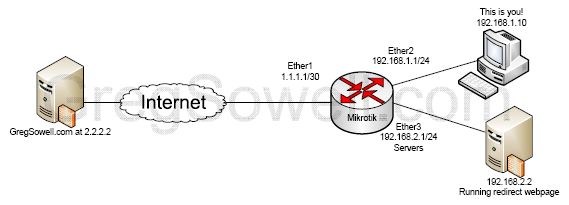
You have decided that you don’t want users going to GregSowell.com anymore…how unfortunate hehe. Instead of blocking GregSowell.com you want to redirect the users to an internal webserver at IP 192.168.2.2. The internal server will host a page that says something to the affect of “You are not allowed to view this page.” You are using public DNS, so no DNS query trickery 😉 Also, no squid or other proxy services.
I can quickly think of a couple of ways to accomplish this:
One way takes only a single command, but is the most basic.
The second takes 3, but is a little more clever in design.